
How to debug invalid analytic events
Satori validates every incoming analyic event against the event definitions you’ve configured: the expected name, value format, and metadata structure. Events that fail validation are captured in a temporary buffer. This guide walks you through how to use the Taxonommy Debugger to identify the rejection reason and apply the fix.
Before you begin #
Ensure you have:
- Access to the Satori console for your project
- Events being sent from a client or server (so rejections are present in the Debugger)
Open the Debugger #
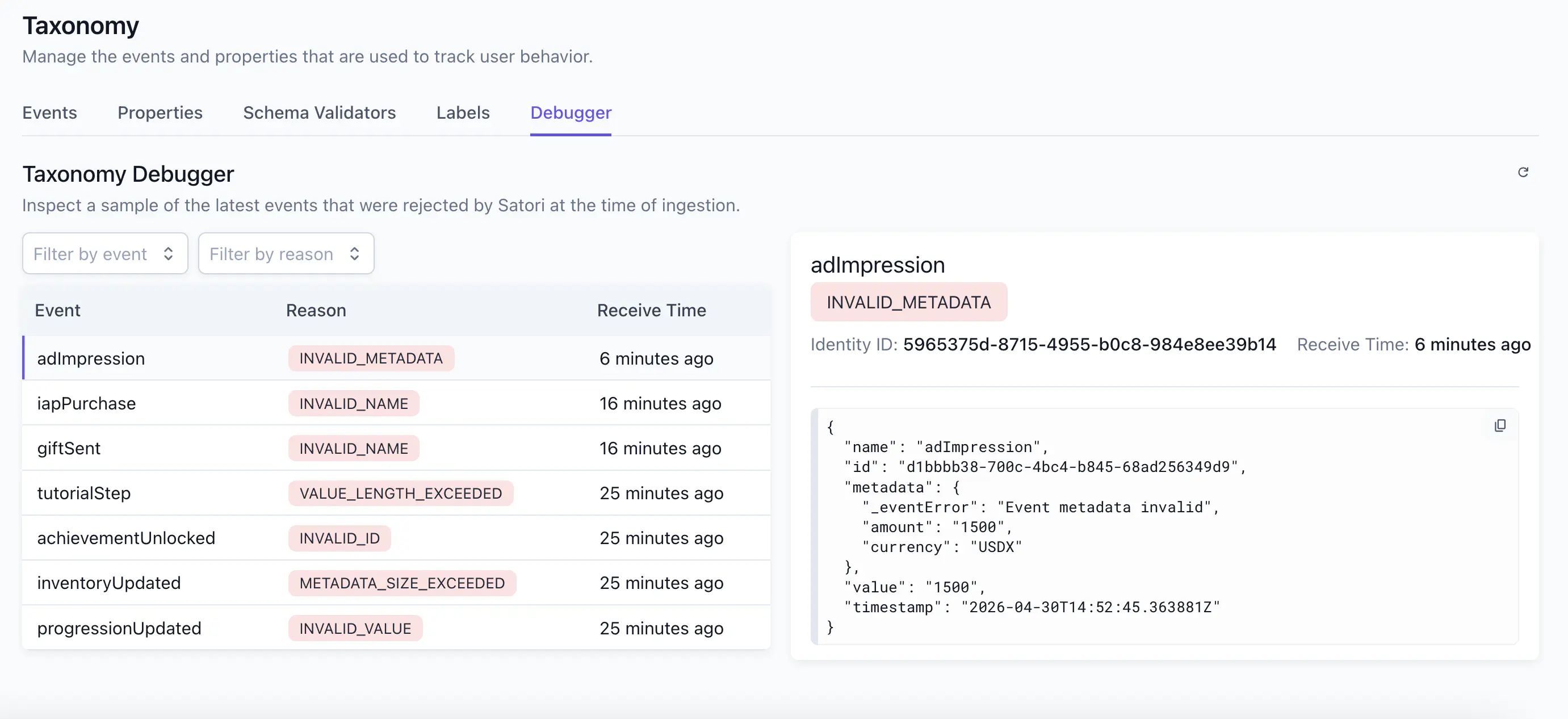
In the Satori console, navigate to Taxonomy. Select the Debugger tab. The Debugger lists all rejected analytic events and the time they were received.
Identify the rejection reason #
Select a row to view the full event payload in the details panel on the right. The payload includes a _eventError field in metadata with a plain-language description of what Satori detected.
Fix the invalid events #
Use the rejection reason from the Debugger to find the relevant section below.
INVALID_NAME #
Satori received an event name that doesn’t match any event declared in your taxonomy. This is the most common reason for rejection during initial integration, or when a client sends an event that hasn’t been added to the taxonomy yet.
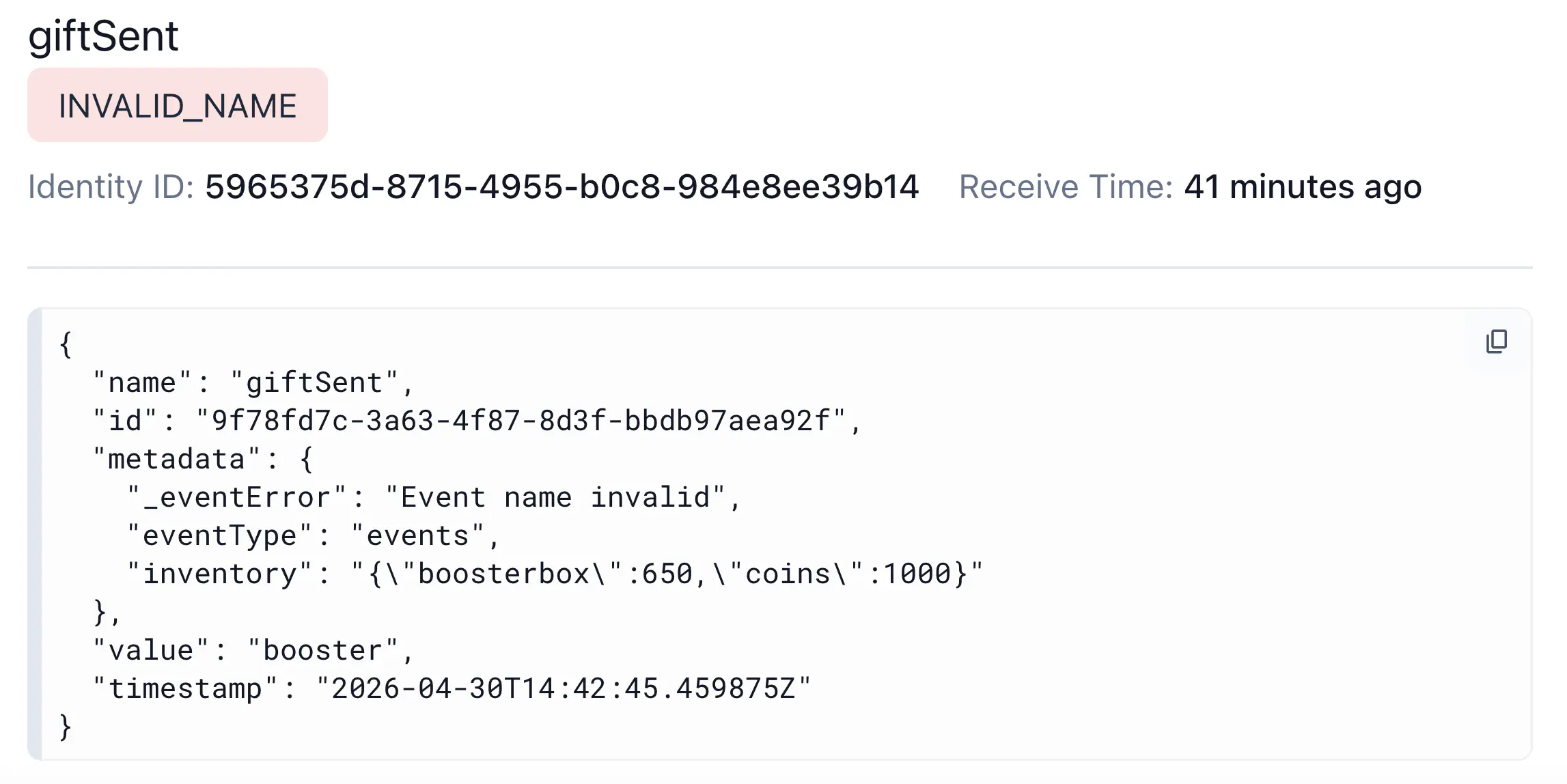
Take a giftSent event appearing in the Debugger. Selecting it, you can see it’s flagged with _eventError: "Event name invalid".
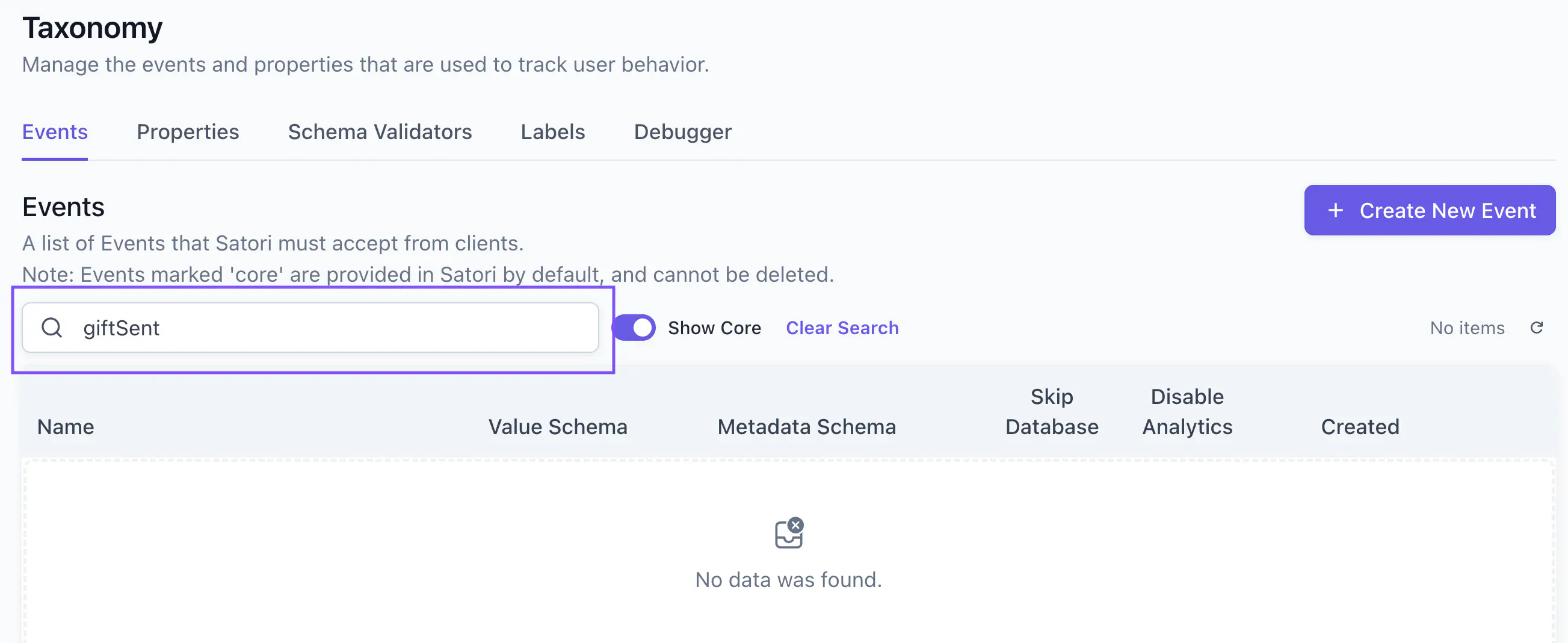
Searching for giftSent in the Events tab returns no results, confirming the event name isn’t declared in the taxonomy.
How to fix #
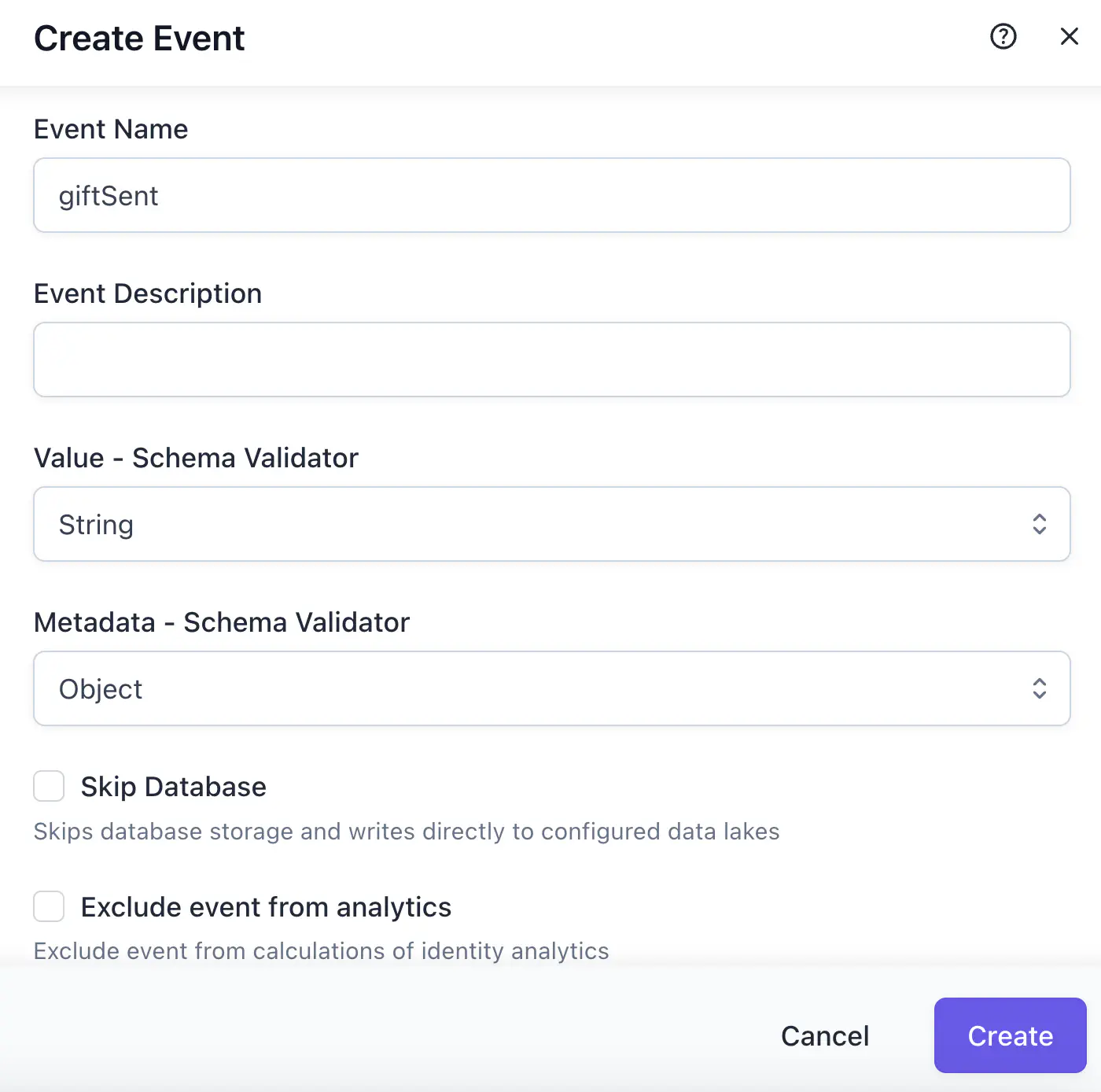
For giftSent, create the event in your taxonomy under Taxonomy > Events. Once declared, the original payload will be accepted.
If the event name was a client-side typo, update your client to match an event already declared in your taxonomy. Every event name your client sends must be declared in Satori before it will be accepted.
INVALID_VALUE #
The value field sent by the client doesn’t match the type defined in the event’s schema validator.
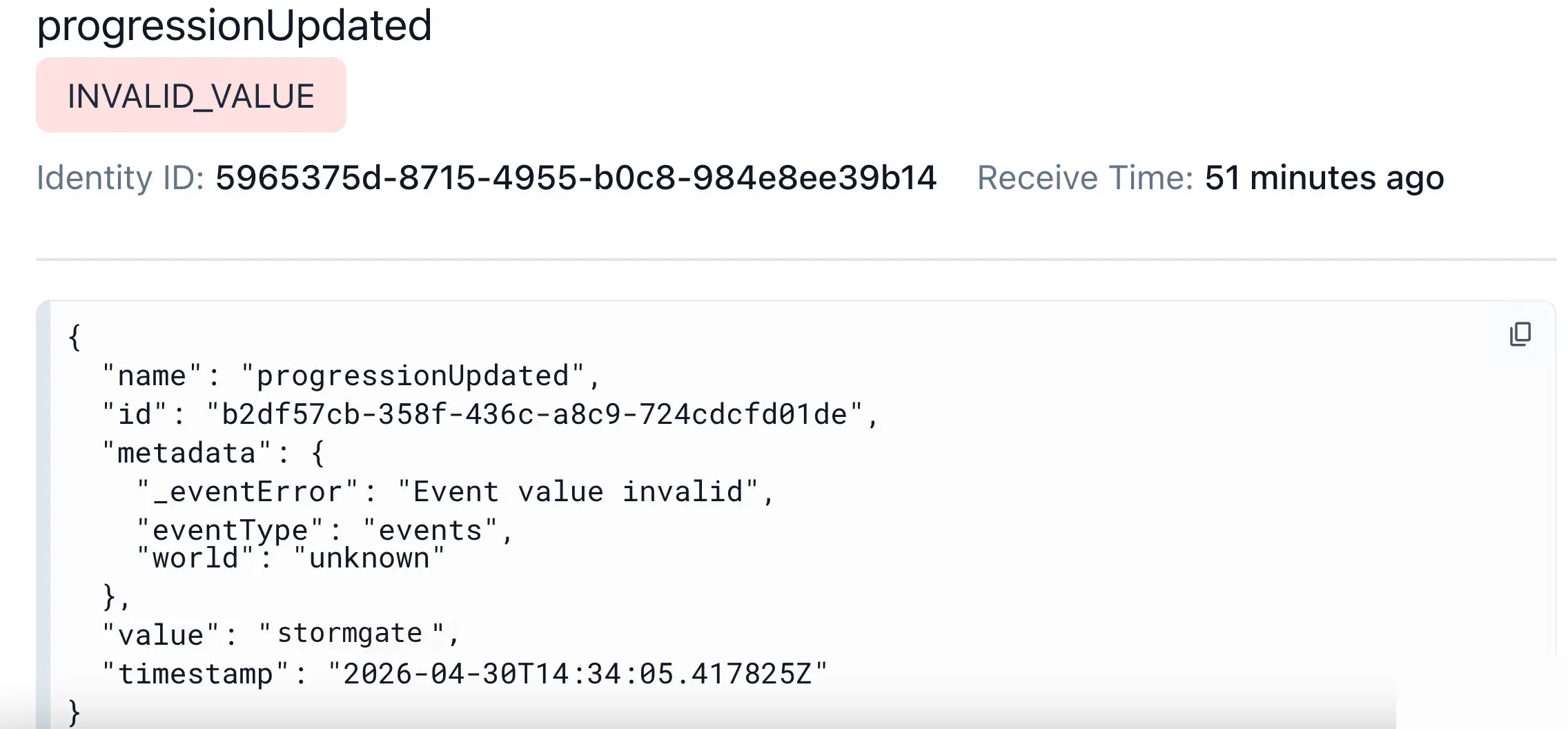
Take this progressionUpdated event, which is a Satori core event. The detail panel shows _eventError: "Event value invalid", and the value field in the payload is a string.
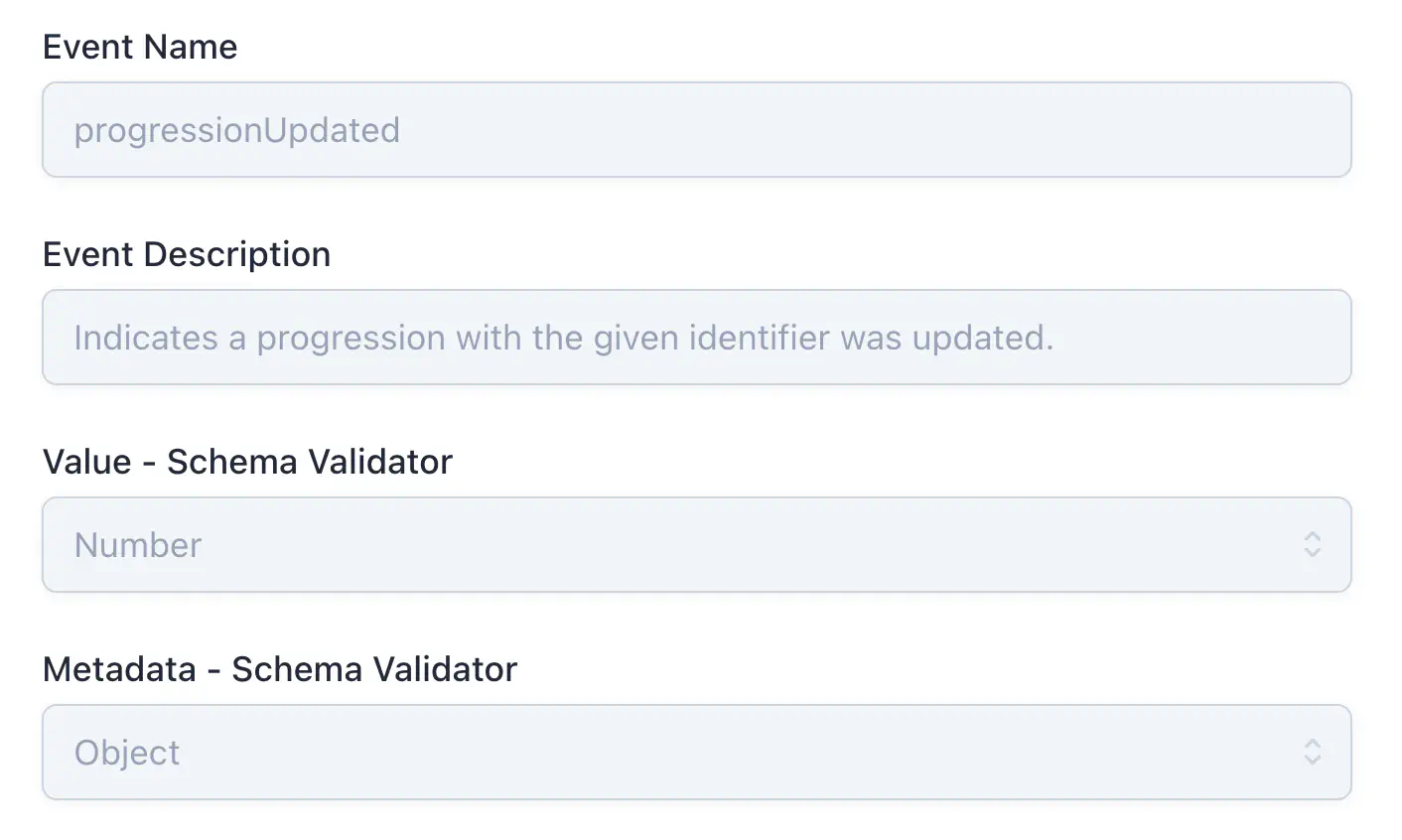
In the Taxonomy/Events tab, the progressionUpdated schema declares value as Number, so any non-numeric value is rejected.
How to fix #
For progressionUpdated, the value field must be a numeric value to match the Number schema. For example:
| |
In general, check the event’s schema under Taxonomy > Events and ensure the value field matches the declared type. If the schema definition itself is wrong, update the validator in your taxonomy.
INVALID_METADATA #
The metadata object doesn’t conform to the schema validator assigned to the event.
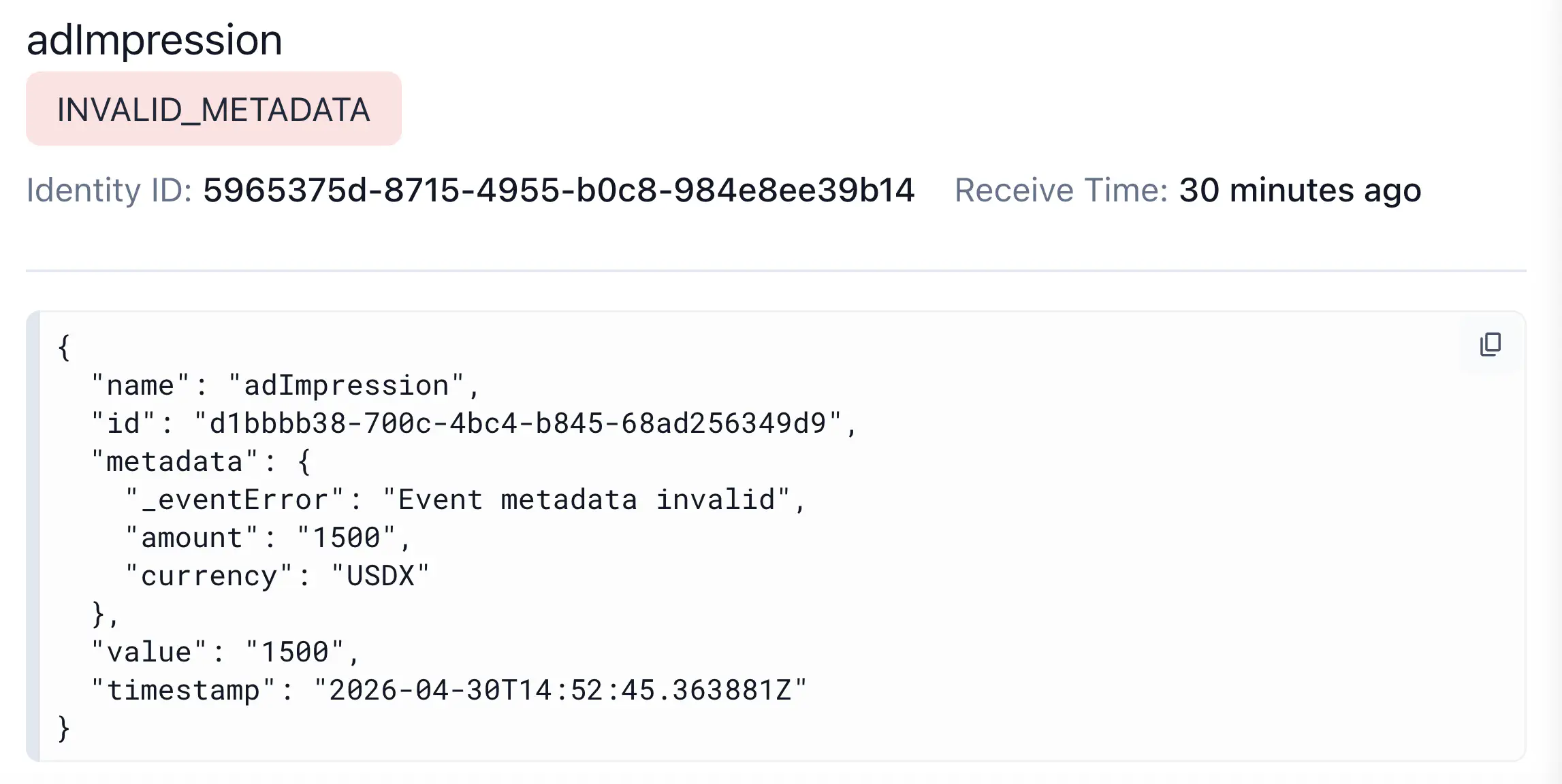
Say you spot an adImpression event in the Debugger flagged with _eventError: "Event metadata invalid". The metadata field contains "currency": "USDX".
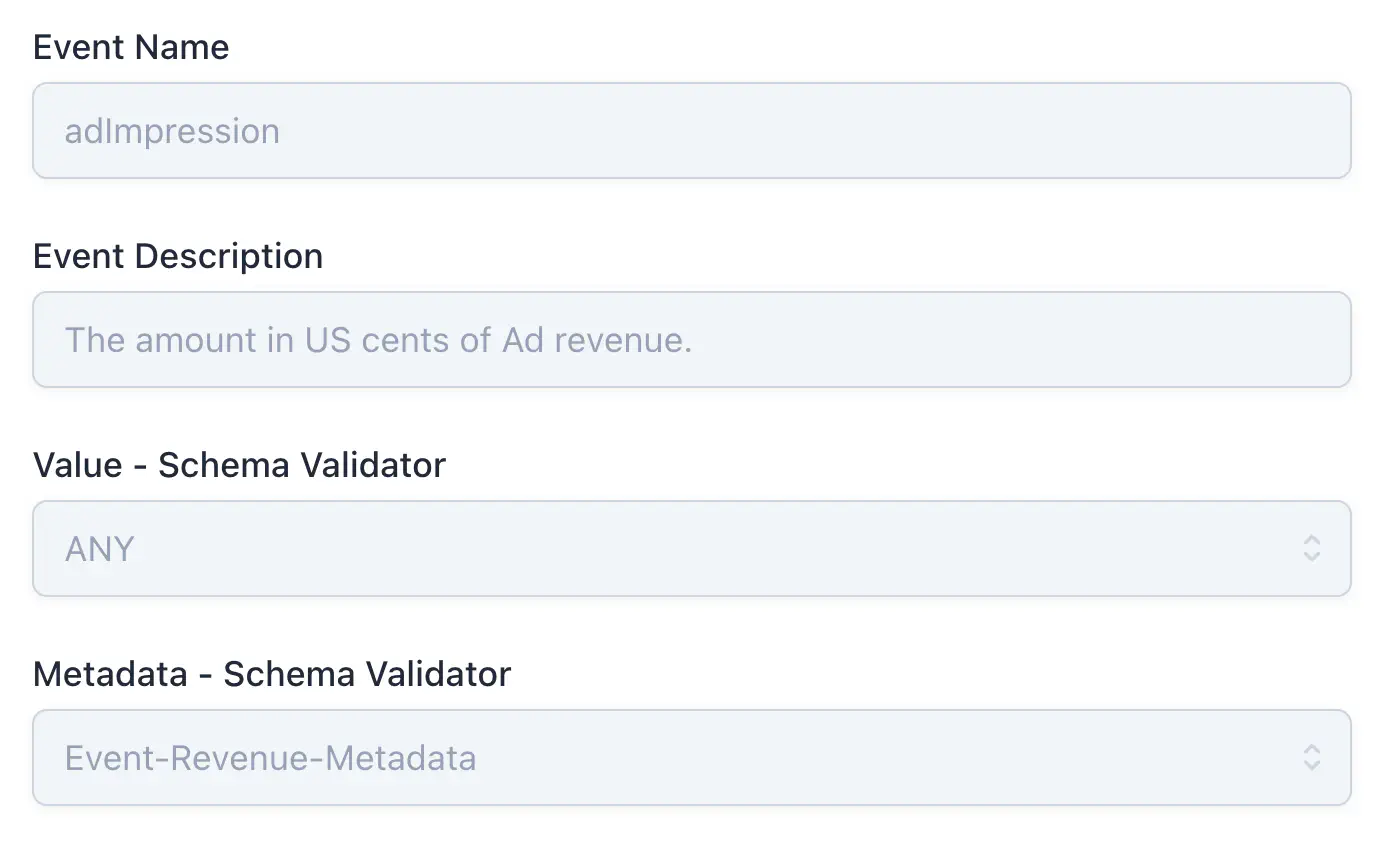
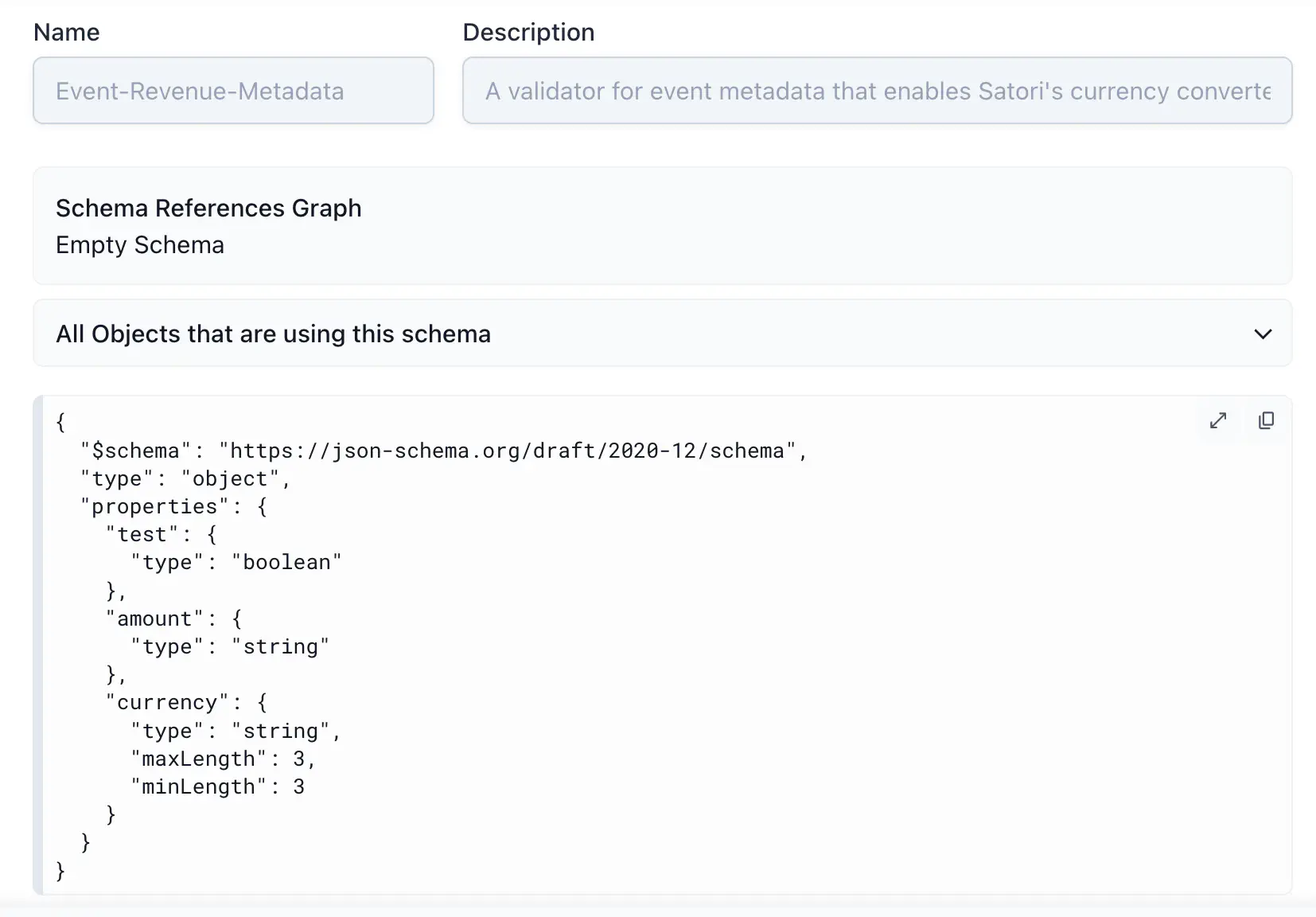
In the Taxonomy/Events tab, adImpression is a Satori core event, meaning you cannot modify its schema. It uses a custom schema validator named Event-Revenue-Metadata. To see exactly what the validator requires, navigate to Taxonomy > Schema Validators and find Event-Revenue-Metadata.
The schema validator defines currency as a string with exactly 3 characters (minLength: 3, maxLength: 3). USDX is 4 characters and fails that constraint.
How to fix #
For adImpression, "USDX" is 4 characters. Replace it with a valid 3-character currency code. For example:
| |
In general, check the event’s schema validator under Taxonomy > Schema Validators and ensure your metadata satisfies its constraints. If the validator definition itself is wrong, update or replace it in your taxonomy.
VALUE_LENGTH_EXCEEDED #
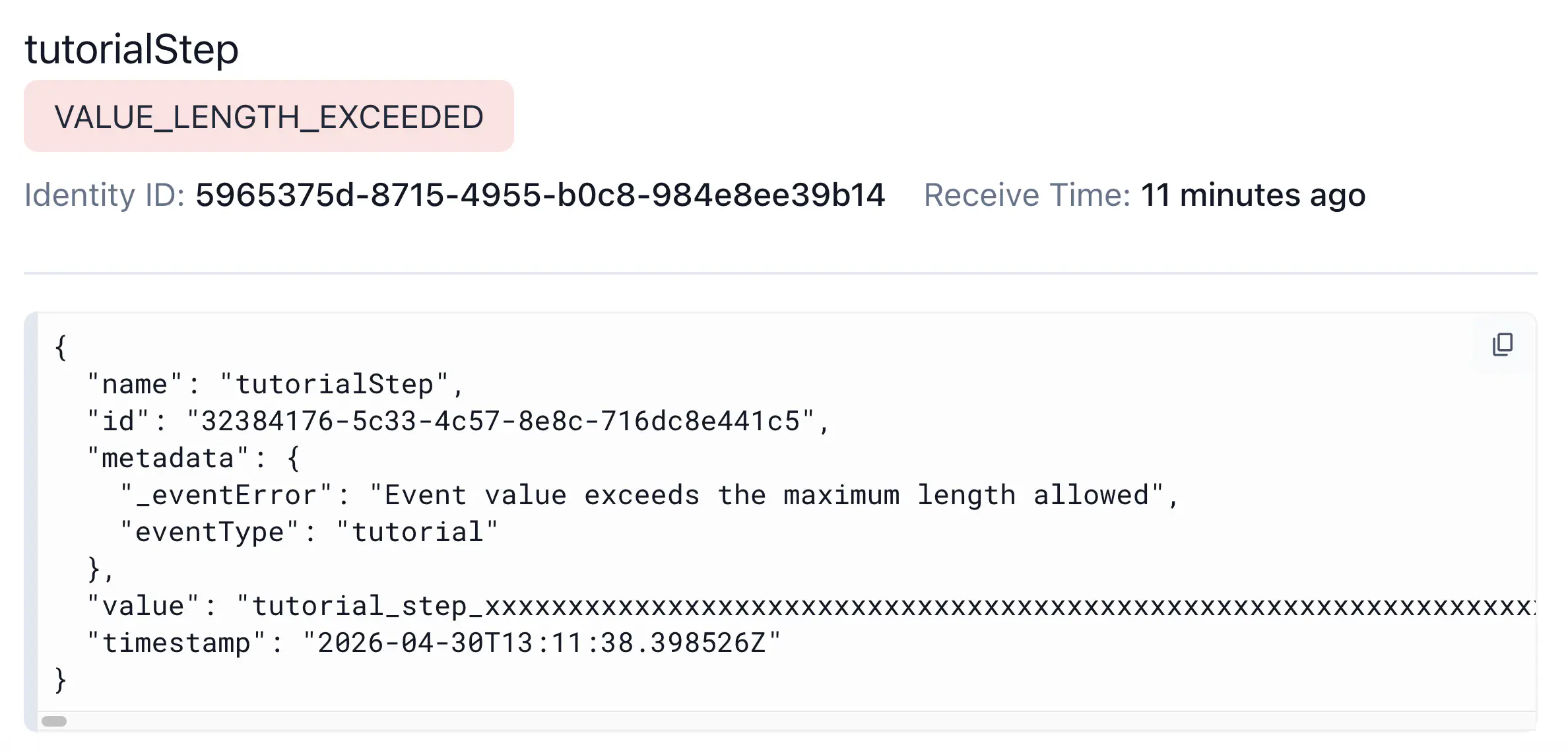
The value field exceeds the maximum allowed length of 4,096 characters. This limit applies to all value types, though in practice it is most relevant for String values.
If you see a tutorialStep event flagged with _eventError: "Event value exceeds the maximum length allowed", select it in the Debugger to inspect the payload. The value field contains a string that exceeds the 4,096 character limit.
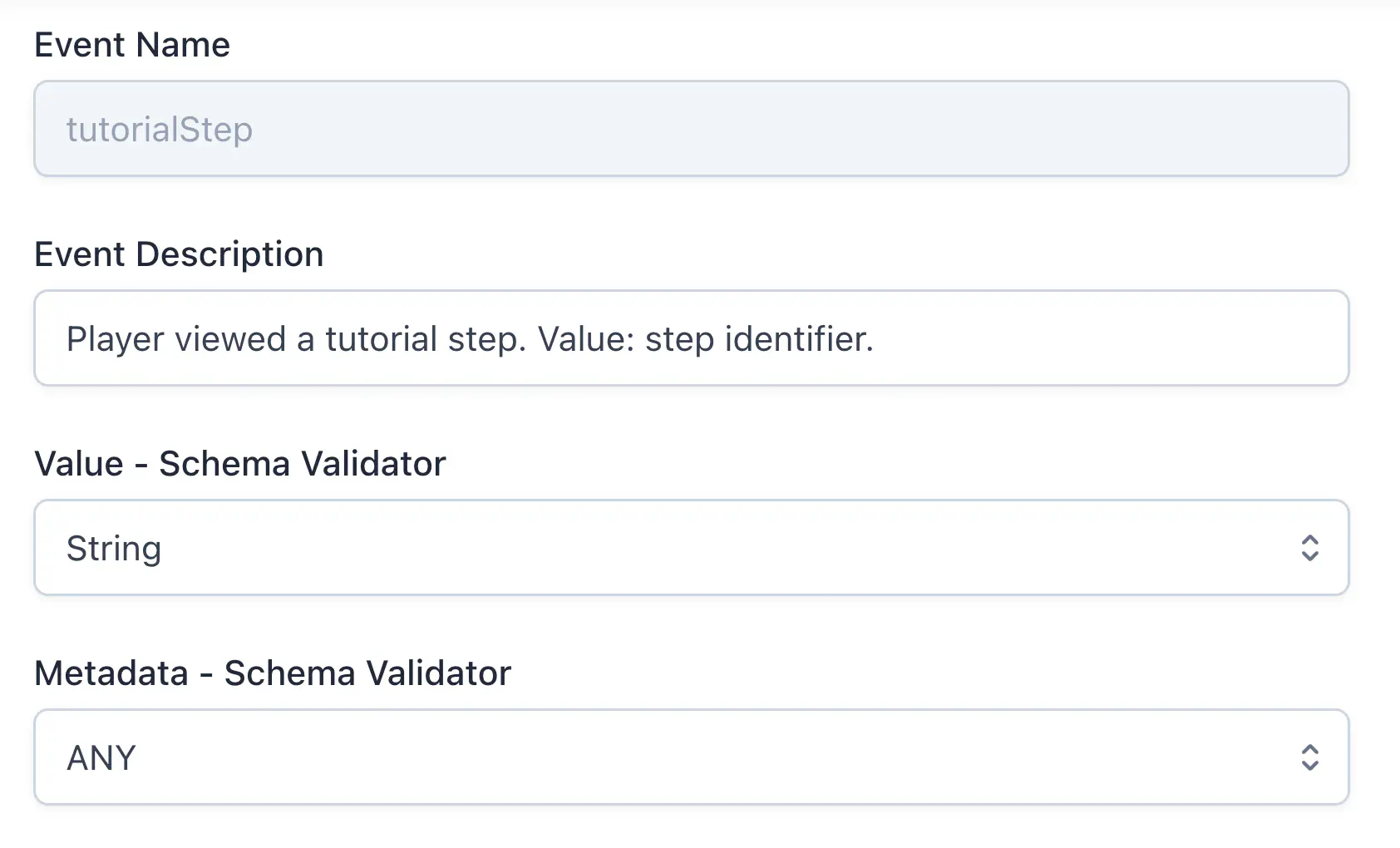
Searching for tutorialStep in Taxonomy > Events, the schema declares value as String.
How to fix #
For tutorialStep, replace the long string with a concise identifier and move any descriptive content into metadata. For example:
| |
In general, keep value short and use metadata for longer or structured data.
METADATA_SIZE_EXCEEDED #
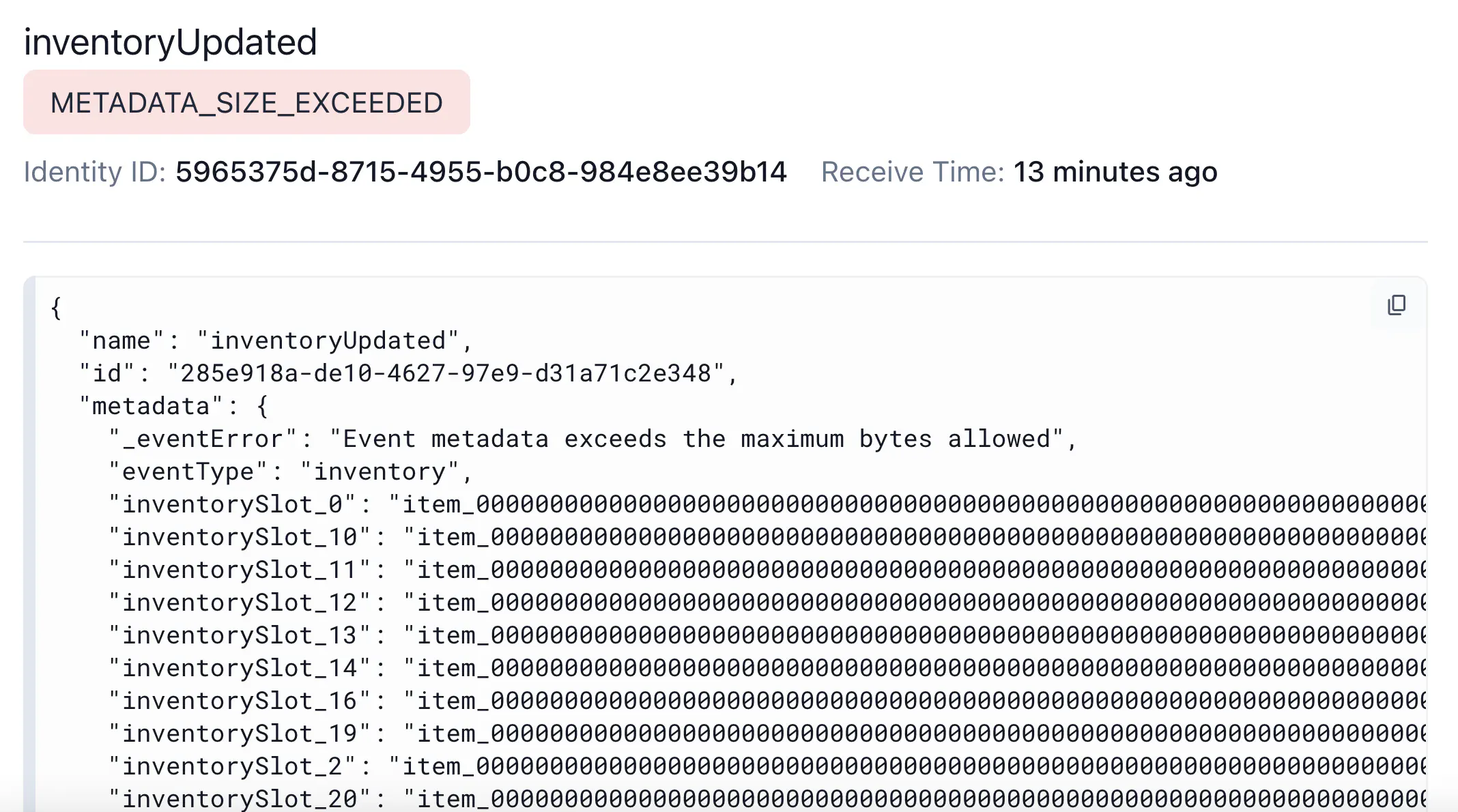
The total byte size of the metadata object exceeds the maximum allowed.
For example, in the Debugger tab an inventoryUpdated event is flagged with _eventError: "Event metadata exceeds the maximum bytes allowed". The metadata field contains a large number of inventorySlot_N keys, each with a long item identifier string. The rejection is driven by the payload size limit, which is 4096 bytes by default.
How to fix #
Reduce the amount of data in your metadata object so it’s under the default 4096 bytes limit. If your game legitimately requires larger metadata payloads, you can raise the limit by setting the event_payload_metadata_bytes_max configuration option in your Satori deployment under HeroicCloud > [your deployment] > Deployment > Edit Deployment.
INVALID_ID #
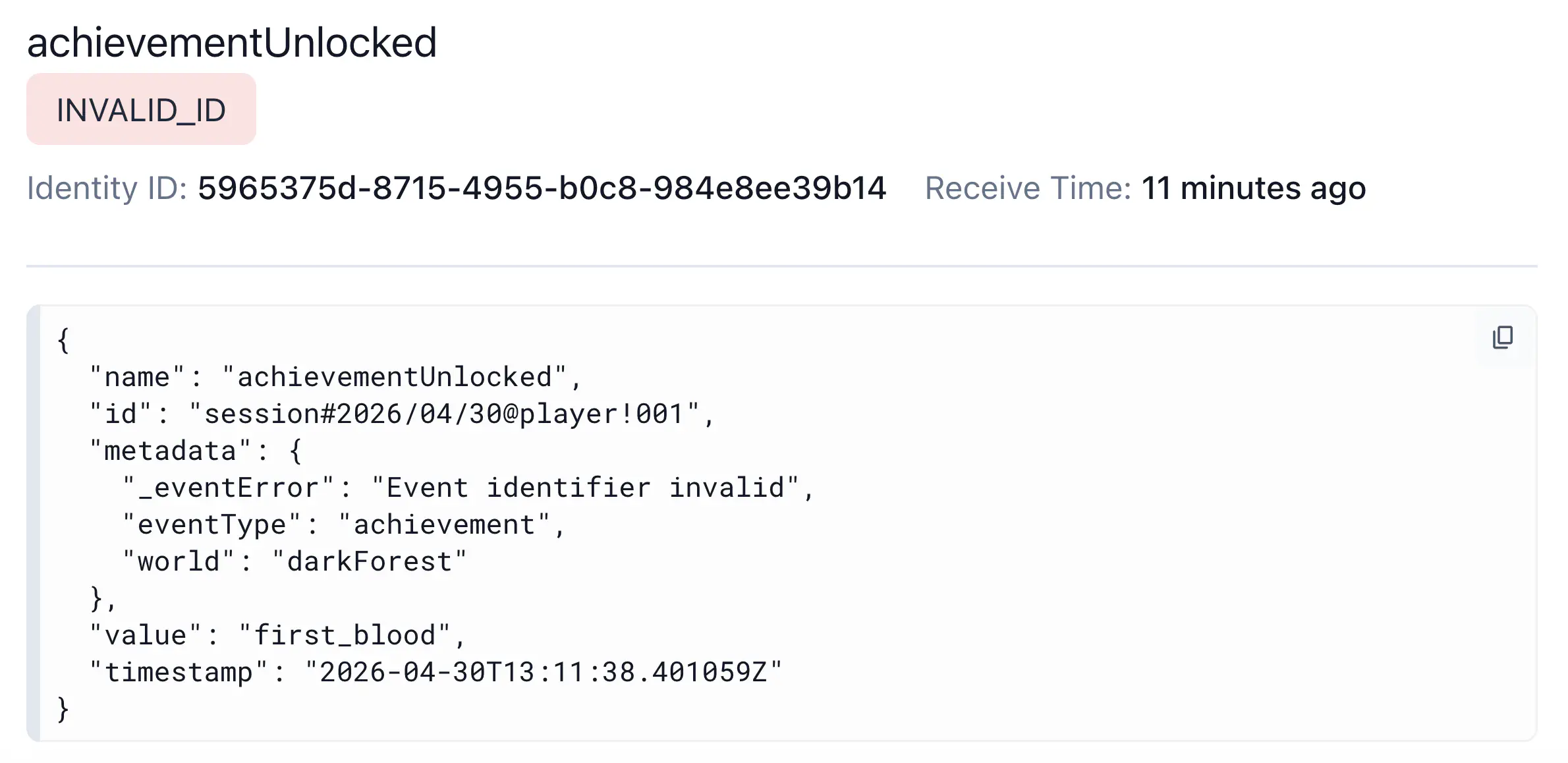
The id field on an event is optional. If you don’t set it, Satori automatically generates a UUID v4. If you do set it, for example so that Satori ignores events it already received when you retry a request, it must be a valid UUID. Any other format is rejected.
Say you open the Debugger and find an achievementUnlocked event flagged with _eventError: "Event identifier invalid". The id was sent as "session#2026/04/30@player!001".
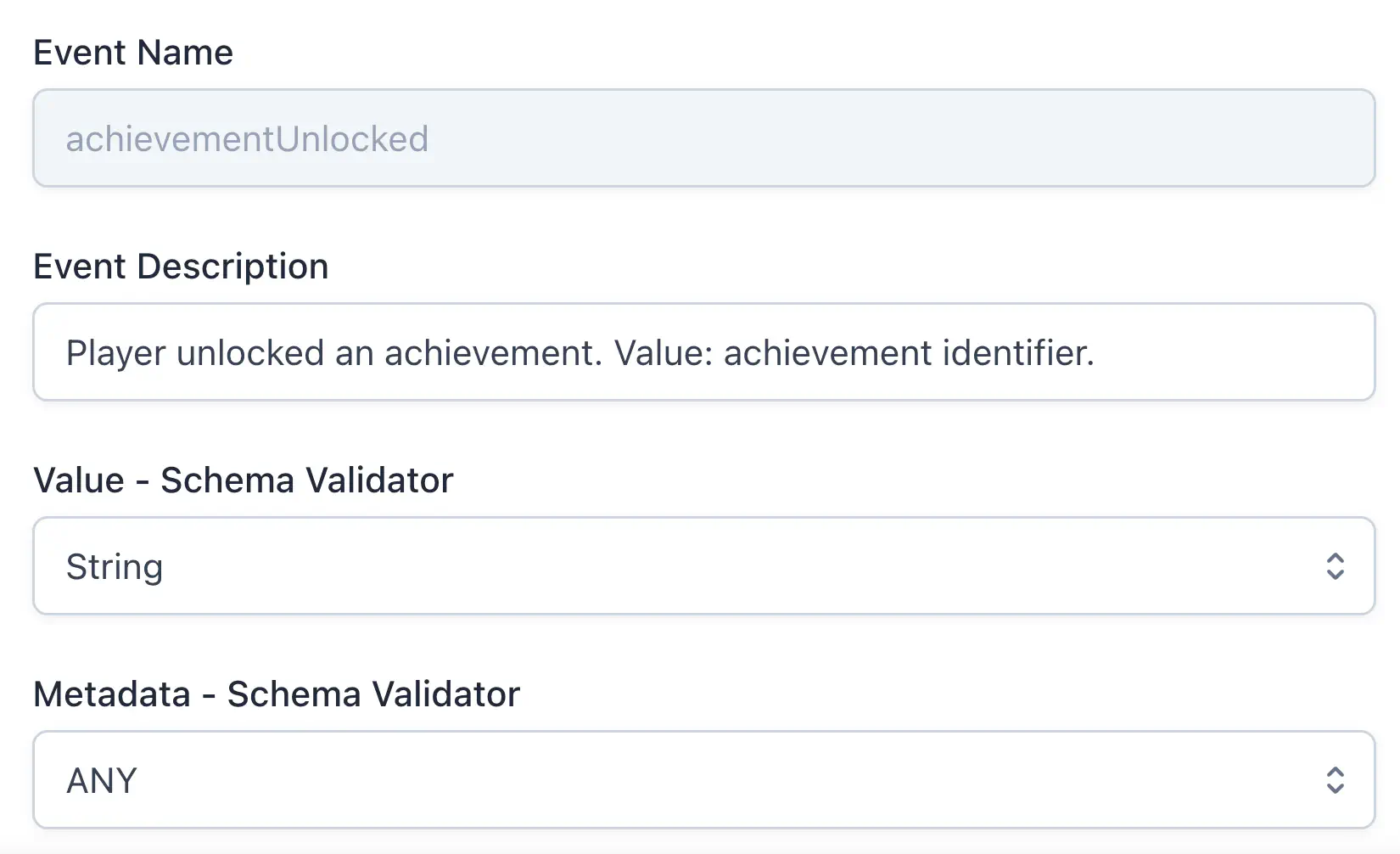
Event definition:
How to fix #
If you don’t need deduplication, remove the id field and let Satori generate one. Otherwise, set it to a valid UUID.
Verify the fix #
After updating your client or taxonomy:
- Re-send the affected event.
- Return to Taxonomy > Debugger and confirm the event no longer appears in the debugger.
