
How to manage audiences
This page covers the data model behind audiences, how to create an audience on Satori console, and how to use Includes and Excludes to override filter rules.
Quick look at Satori audiences #
| Unlimited audiences | No cap on audience definitions. Create as many segments as your operation requires. |
| Default and computed properties | Segment players using device, demographic, and behavioral data collected automatically from day one. |
| Custom properties | Extend segmentation with game-specific attributes you define: player level, character class, guild membership, and more. |
| Managed audiences | Bring in segments from external analytics tools as read-only audiences, without migrating data or rebuilding logic. |
| Near real-time updates | Audiences recompute on a schedule and update immediately when a player sends a key game event. See Recompute audiences. |
Three ways to manage audiences #
Satori gives you three ways to build and manage audiences.
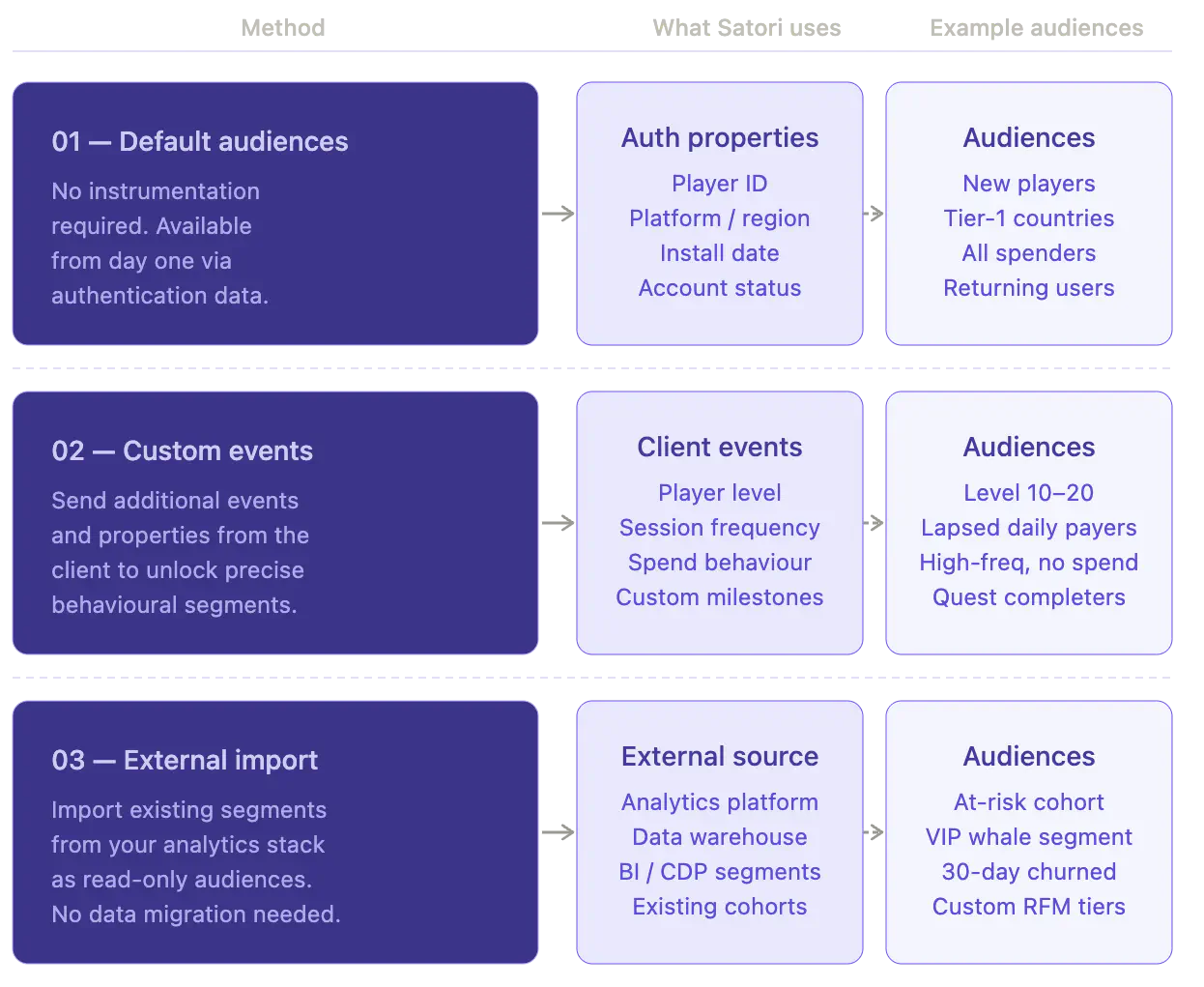
Default audiences require nothing from your team. Satori automatically creates default audiences using the properties carried during player authentication. For example, audiences such as New Players, Tier-1 Countries, and All Spenders are available from day one, with no additional instrumentation.
Custom events unlock as your integration deepens. Sending additional events and properties from the client, such as player level, session frequency, spend behavior, and custom milestones, lets Satori compute more precise segments. This opens the full capability of audience targeting across live events, experiments, and messages.
External import connects your existing data. If you already manage segments in an external analytics tool, you can import those audiences directly into Satori as read-only segments, without migrating data or rebuilding logic you already have.
Player properties: the data you filter on #
Audiences are defined by filter expressions evaluated against each player’s properties. Every player identity in Satori carries three types of properties. Your filter expressions can reference any of them.
- Default properties: Standard properties available out of the box, such as country, platform, and build number. Satori derives some automatically at identity creation, such as location from geo-IP, and the client SDK passes in others.
- Custom properties: Game-specific properties you define in the Satori taxonomy, such as subscription status or character class.
- Computed properties: Properties Satori calculates automatically from your analytics events, such as how many times an event occurred and when it last occurred.
The depth of your segmentation grows with the data you send. Default properties are available from the first authentication. Computed and custom properties become available as your game sends events and sets values.
For a full reference on property types, computed property naming patterns, and how to set custom properties from the client, see Understand player properties.
Create an audience #
Audience creation is handled entirely in the Satori Console. No game client changes are required. As long as your game is already sending events, you can define and save audiences using only the console UI.
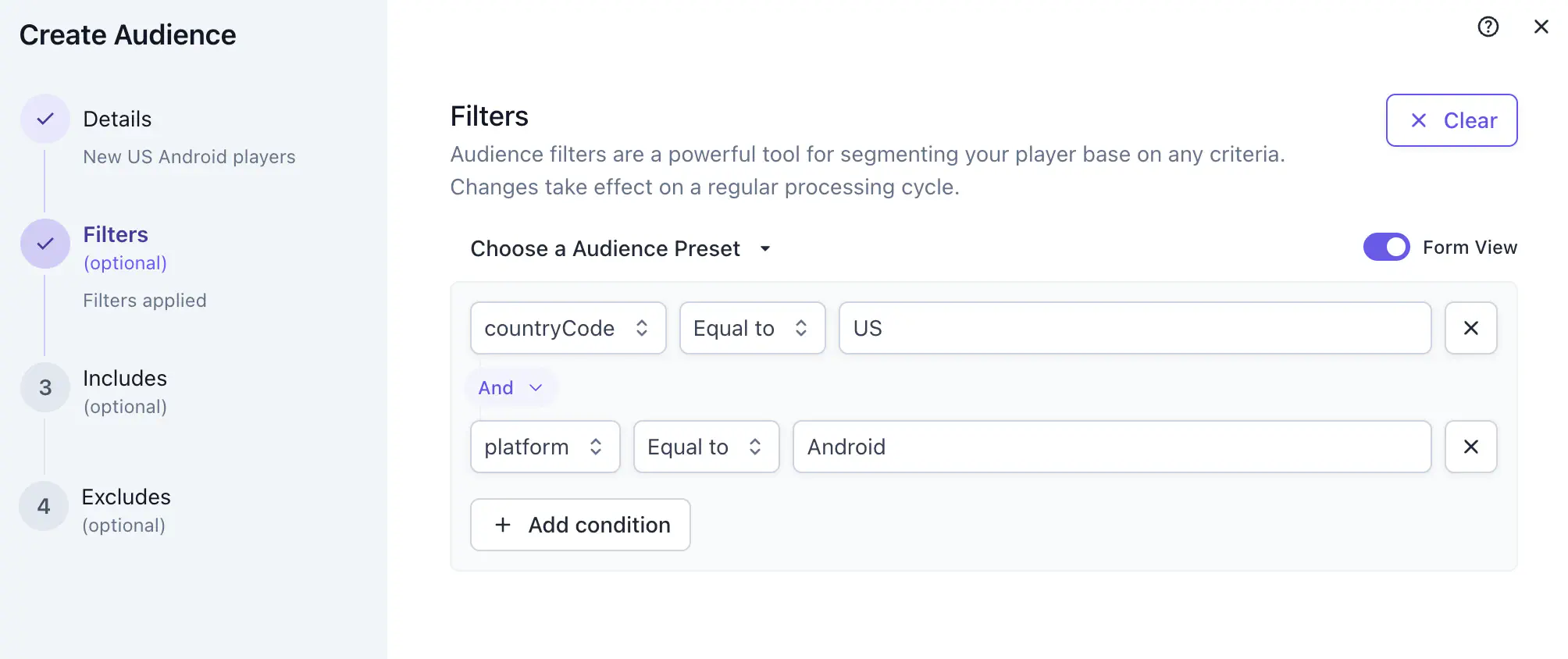
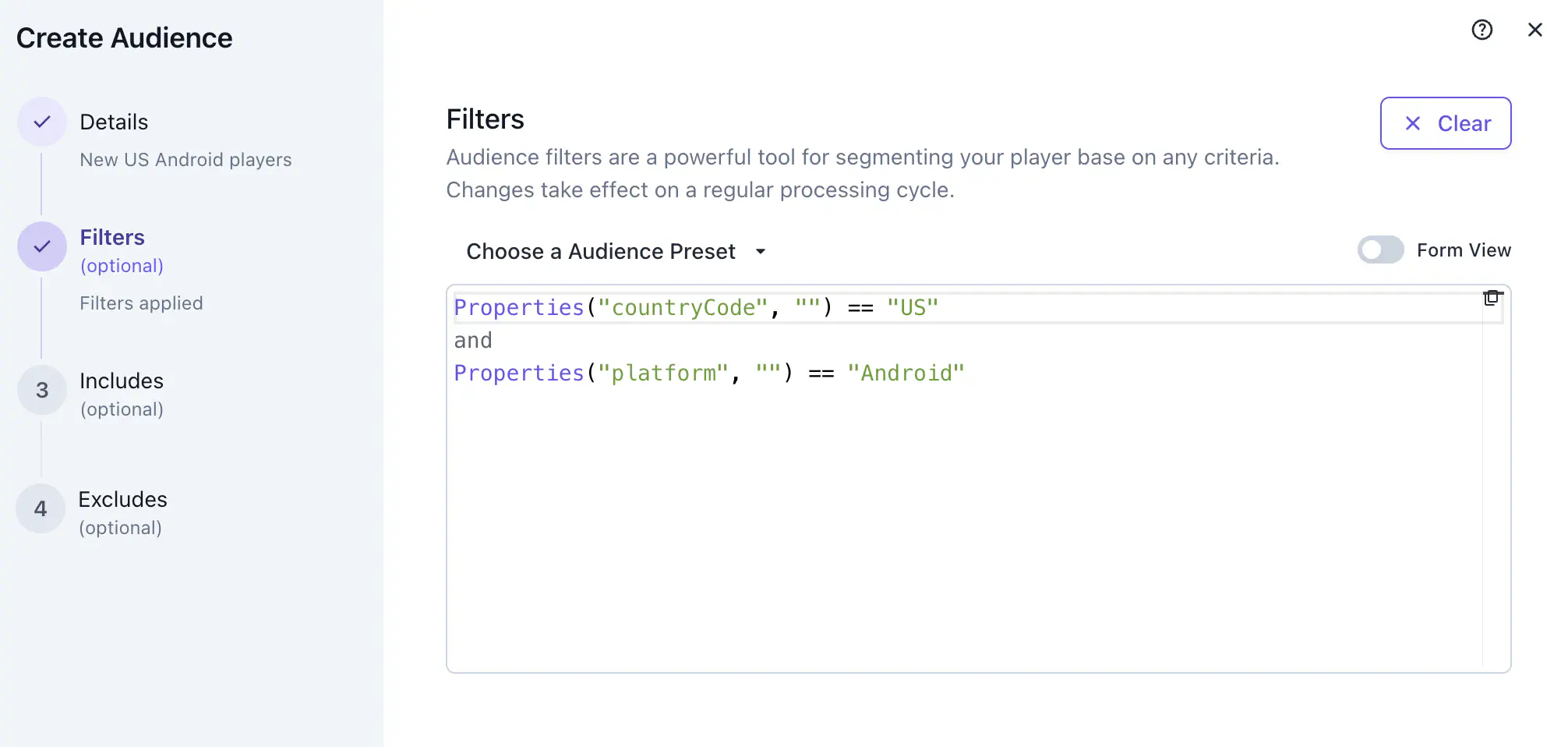
The console offers two ways to define an audience’s filters. In the form view, build conditions by selecting a property, operator, and value. In the query view, write a filter expression directly. Team members who prefer a GUI-based flow can work entirely in the form view, while technical members can use the query view for advanced logic.
To create a new audience:
- Go to Audiences in the left menu.
- Click Create New Audience in the top right. A side panel opens.
- Enter an audience name and description.
- Add filters using the form view. For each condition, select a property, choose an operator, and set a value. Add multiple conditions to narrow the audience. All conditions must match for a player to qualify.
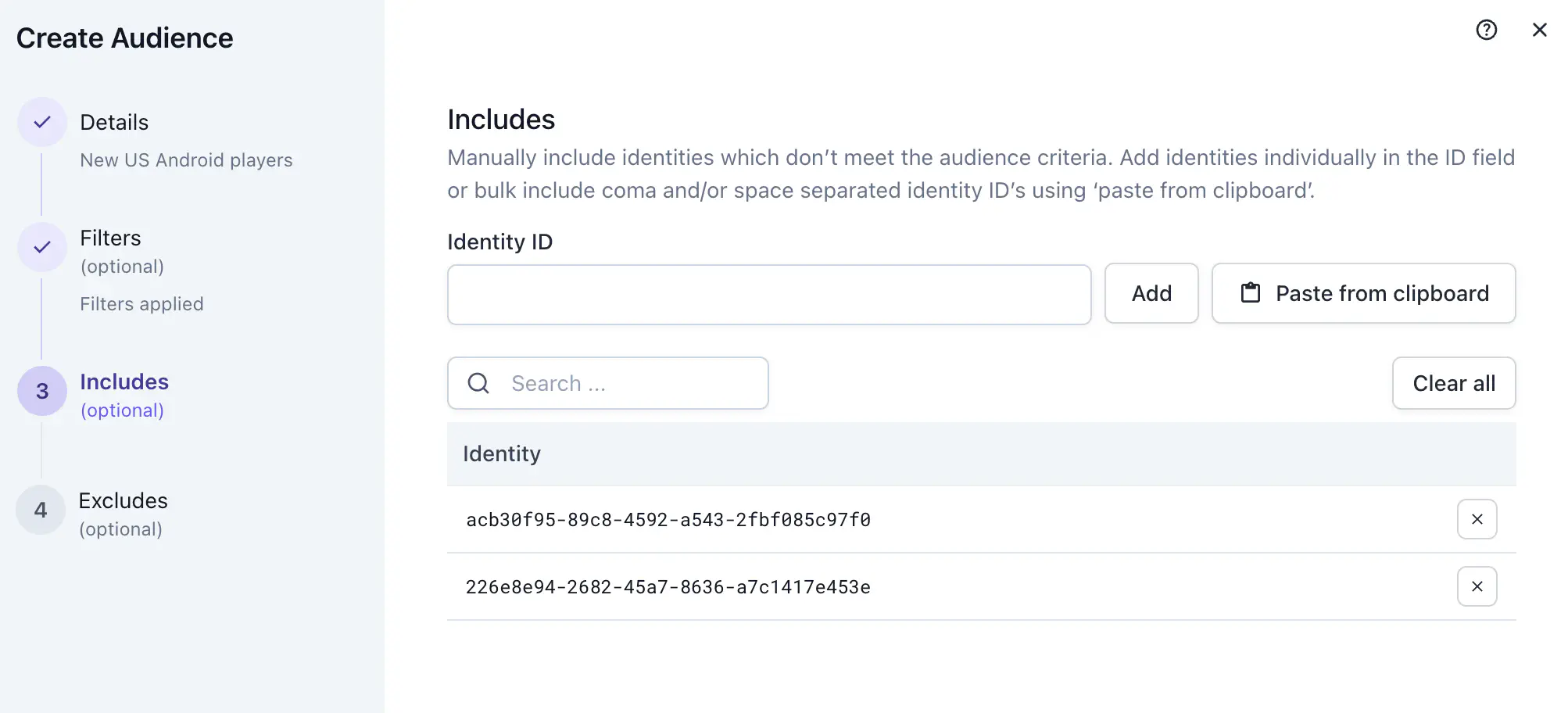
- Optionally, add identity IDs to the Includes or Excludes lists.
- Click Create.
The form view covers most segmentation use cases without requiring any expression syntax: filtering by country, device type, session count, spend behavior, time since last active, and player level.
- Use filters to group your players into audiences.
- Switch between query and form view to match your needs better while filtering your audiences.
- Use Includes and Excludes to manually add and remove identities to your audiences.
Includes and excludes #
Includes and Excludes let you add or remove specific players by identity ID, regardless of what the filter expression evaluates to.
- Includes: players added here are in the audience even if they don’t match the filter.
- Excludes: players added here are never in the audience even if they do match the filter.
When an identity ID appears in both lists, Excludes takes priority and the player is excluded.
A common use for Includes is adding QA or developer accounts to an audience so you can test the experience in-game without those accounts naturally qualifying for the segment. For tightly controlled audiences such as a VIP list or a suppression group, you can set the filter expression to false and rely entirely on Includes. This prevents any player from being added automatically and keeps membership fully manual.
Managed audience: bring your own segment #
If your team already manages segments in an external analytics platform, you can import them directly into Satori. Imported audiences are read-only. They’re maintained in your existing tools and reflected in Satori automatically.
Create a managed audience using the toggle in the Create Audience panel. There’s a console endpoint to update managed audience overrides and excludes for identity IDs.
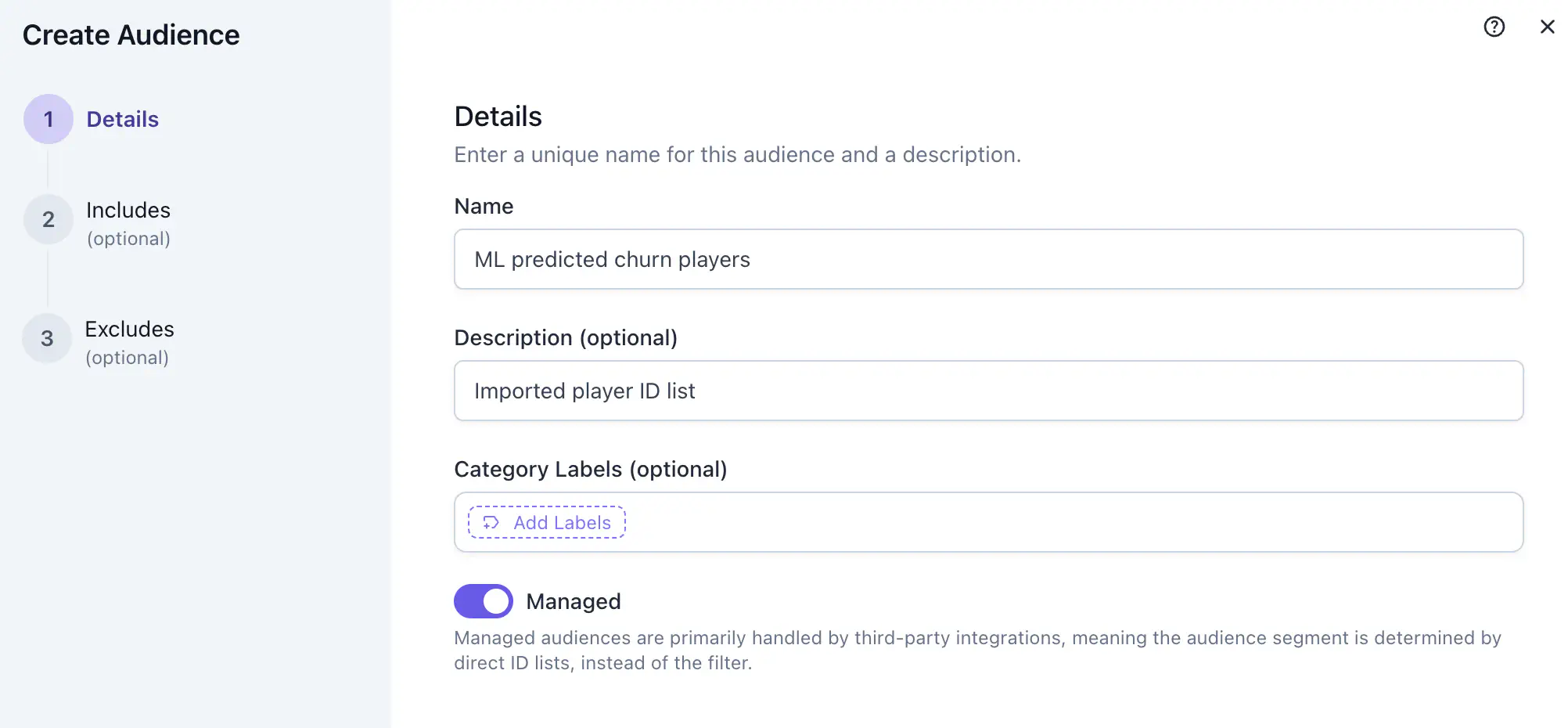
You can still manually add or remove specific player IDs using the Includes and Exclude lists in the following steps of the creation wizard.
This is ideal for toolchains where some audience logic originates outside Satori but requires integration and operator control inside Satori.
Copy audiences #
For faster creation, copy an existing audience using the three-dot menu in the top right corner of the audience detail view.
Copying an audience duplicates all properties, including the Includes and Excludes lists. The console opens the new audience creation screen with all settings pre-filled. Review all settings before saving, and make any changes needed.
Rename the copied audience before saving — the default name uses a -copy suffix.
Audience details #
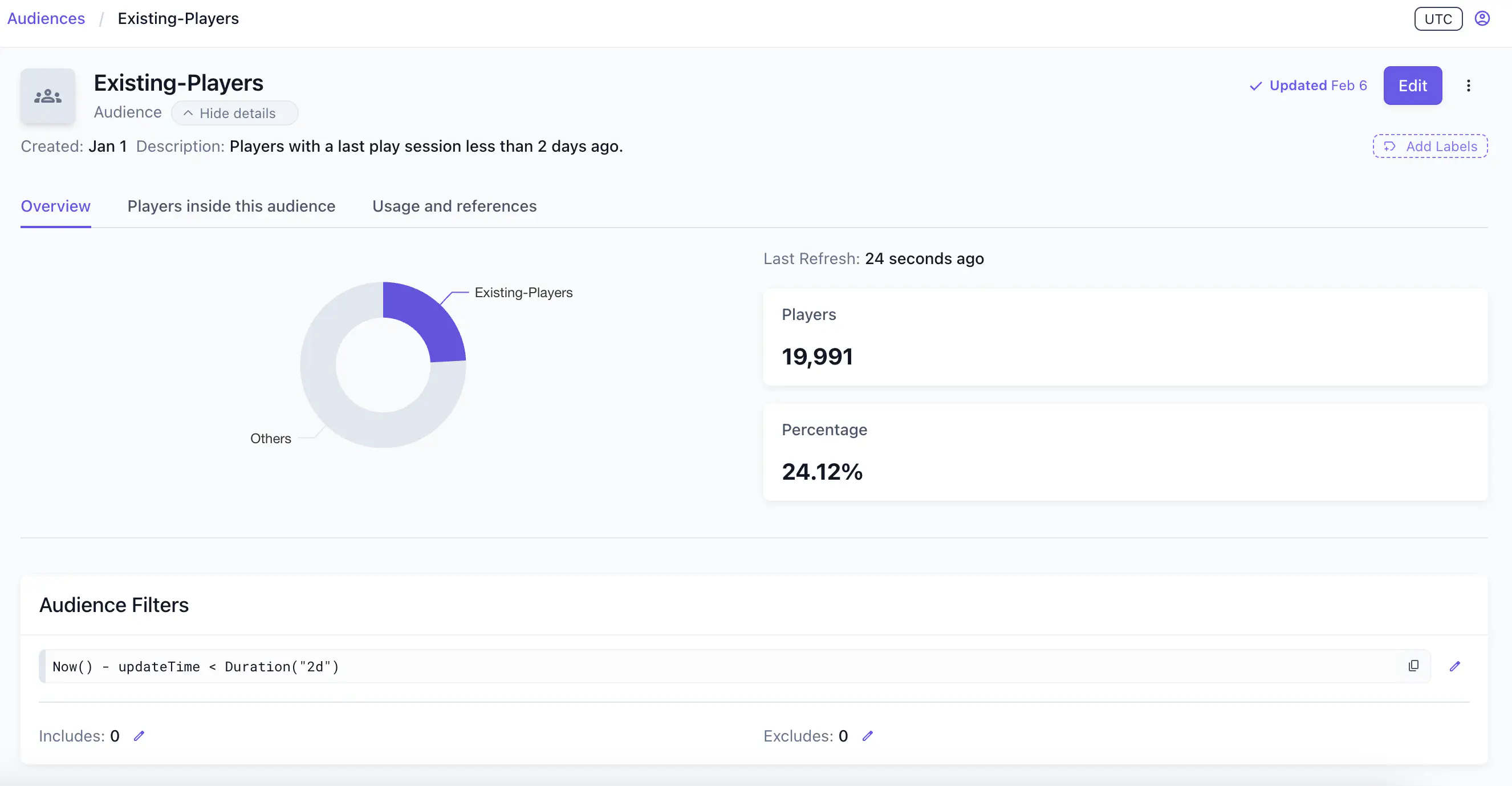
When you create an audience, it appears in the list under the Audiences page. Click any audience to open the Audience Details page.
Usage and references #
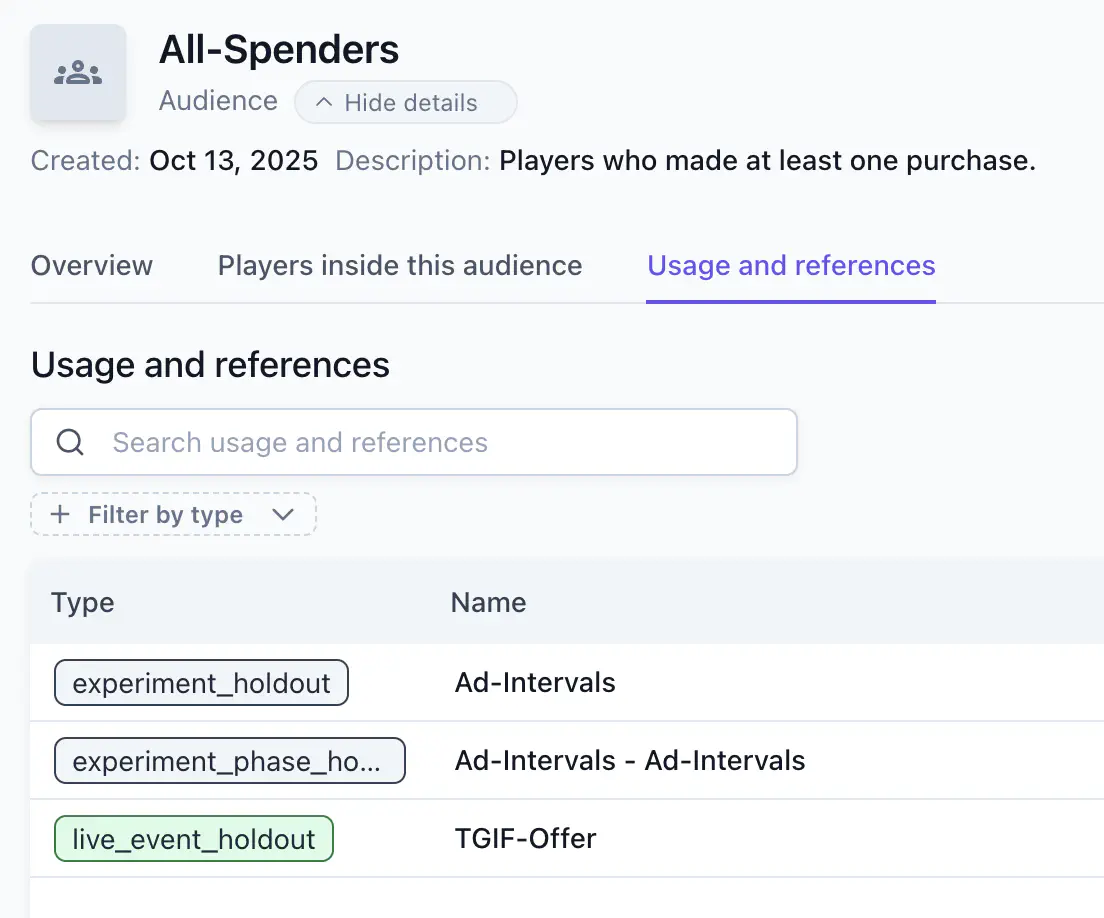
Audience details include a usage indicator (In Use or Unused) so you can quickly identify whether an audience is active in LiveOps configurations.
The Usage & References tab lists where an audience is used, including:
- Live events
- Experiments
- Feature flags and variants
- Message schedules
Check this view before editing or deleting an audience to avoid disrupting active content.
Editing an audience #
To edit an audience, click the three-dot menu in the top right and select Edit. You can change any setting, including filters. Changes take effect after the next recomputation cycle.
Players in this audience #
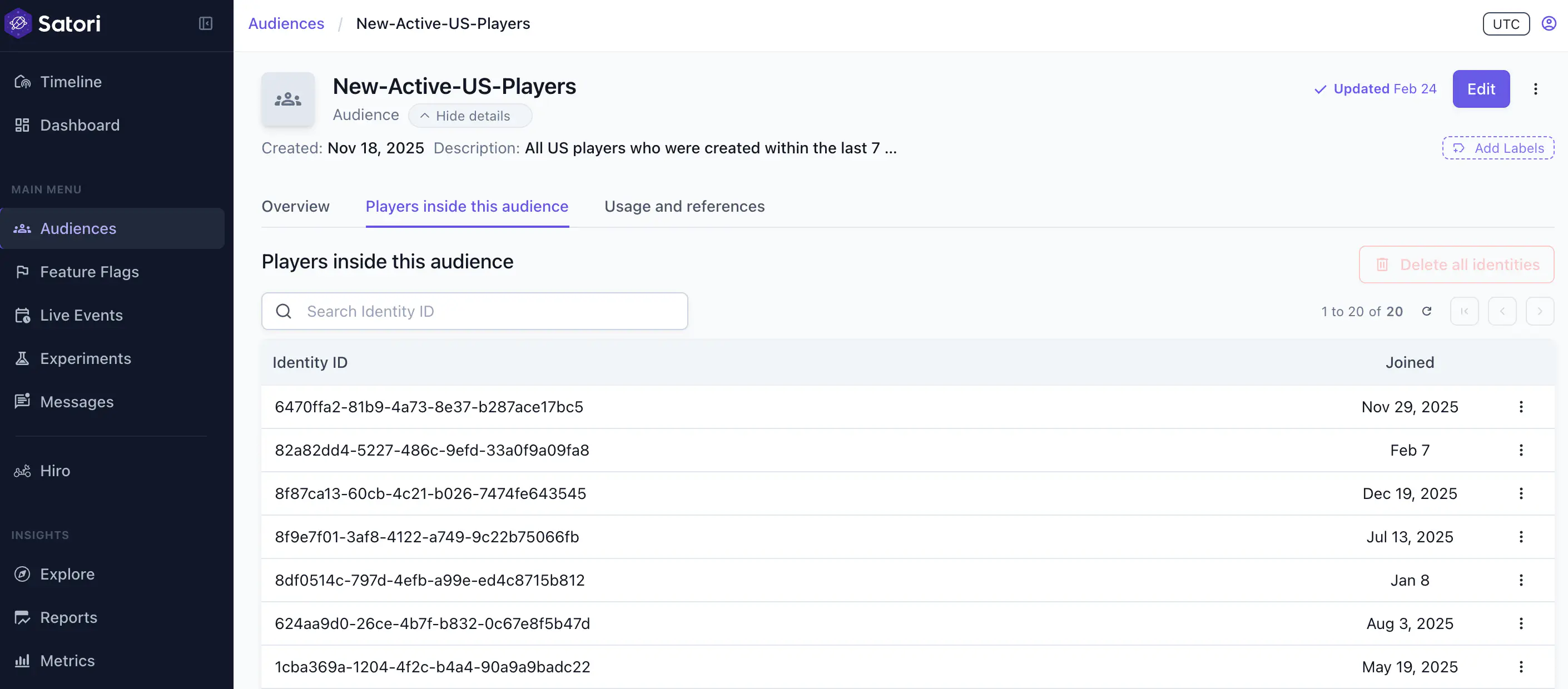
The Players in this Audience tab lists all identities currently in the audience and the date they joined. You can permanently or temporarily exclude identities using the three-dot menu on an identity in the list, and click any identity to view their profile.
- Permanent exclusion adds the identity ID to the Excludes list.
- Temporary exclusion removes the player from the audience until they meet the criteria again.
Delete all identities #
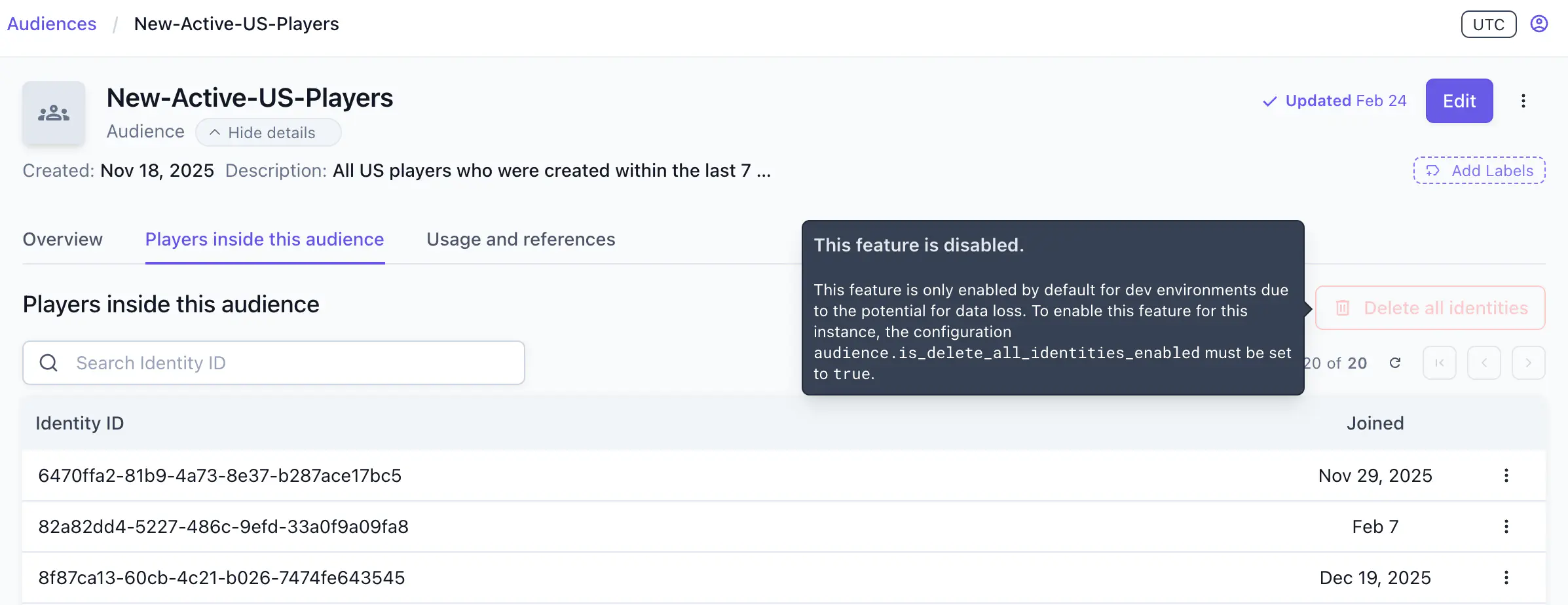
To delete all identities in an audience, go to the Players in this Audience tab and click Delete All Identities. This permanently deletes all identities within that audience from the system.
This button is disabled by default. It can be enabled using the console.audience.is_delete_all_identities_enabled configuration for development environments only. Contact the Heroic Cloud team to enable it for your environment.
Advanced filter expressions #
For advanced cases such as regular expression matching, arithmetic across computed properties, or version range targeting, toggle to the query view in the Create Audience dialogue. Here you can write raw filter expressions to define an audience.
A filter expression is a logical statement evaluated against a player’s properties. Players who satisfy the expression are included in the audience; those who don’t are excluded. Expressions are written in the Satori console using either a form view or a query view.
The functions below are the building blocks of any filter expression:
| Function | Description |
|---|---|
Properties(string, default) | Returns a default property value, or the fallback if not found. |
PropertiesComputed(string, default) | Returns a computed property value, or the fallback if not found. |
PropertiesCustom(string, default) | Returns a custom property value, or the fallback if not found. |
Now() | Returns the current time in seconds since epoch. |
Duration(string) | Converts a duration string to seconds, for example Duration("7d"), Duration("30d"). |
SemverMatch(range, version) | Returns true if the version matches the provided range, for example SemverMatch(">1.0.0 <2.0.0", PropertiesCustom("clientVersion", "1.0.0")). |
Common audience filters #
The following filters cover the segments most commonly used in LiveOps operations. Use them as-is or adapt them to your game’s event taxonomy.
| Audience | Filter expression |
|---|---|
| Recently active | Now() - updateTime < Duration("30d") |
| New players | Now() - createTime <= Duration("2d") |
| Existing players | Now() - updateTime < Duration("2d") |
| Dormant players | Now() - updateTime > Duration("7d") and Now() - updateTime < Duration("14d") |
| Churned players | Now() - updateTime >= Duration("14d") |
| Veteran players | PropertiesComputed("sessionStartCount", 0) >= 100 |
| All spenders | PropertiesComputed("purchaseCompletedCount", 0) > 0 |
| Non-spenders | PropertiesComputed("purchaseCompletedCount", 0) < 1 |
| Recent spenders | Now() - PropertiesComputed("purchaseCompletedSeenLast", 0) < Duration("7d") and PropertiesComputed("purchaseCompletedCount", 0) > 0 |
| Level 10+ | PropertiesComputed("levelCompletedValueHigh", 0) >= 10 |
| Client version range | SemverMatch(">1.0.0 <2.0.0", PropertiesCustom("clientVersion", "1.0.0")) |
Filter validation #
Satori validates the syntax of your filter expression and surfaces errors inline in the query view. A filter with an invalid operator or missing argument will be flagged before you save.
However, Satori doesn’t detect logical contradictions. A filter that can never match any player will pass validation without warning. The most common example is combining two mutually exclusive country conditions:
| |
If an audience shows a count of zero after its first computation cycle and you expect it to have members, check your filter logic for contradictions before assuming a data or configuration issue.
Expressions must evaluate to a boolean #
Every filter expression must produce a true or false result. Unlike default and computed properties, which are always primitives, custom properties can contain nested objects. A common mistake is writing an expression that returns one of those objects instead of a boolean: it passes console validation but fails at runtime with an invalid operation error.
When the value at a key is a primitive, the expression works without a comparison:
| |
When the value at a key is an object (for example, a struct with multiple fields), the lookup returns the object itself, not a boolean. Use != nil to check for the key’s presence instead:
| |
The same applies to keys nested deeper in a custom property:
| |
Filter expression reference #
Comparison operators #
| Operator | Description |
|---|---|
== | Equal to |
!= | Not equal to |
< | Less than |
<= | Less than or equal to |
> | Greater than |
>= | Greater than or equal to |
Logical operators #
| Operator | Description |
|---|---|
&& or and | AND |
|| or or | OR |
! or not | NOT |
String operators #
| Operator | Description | Example |
|---|---|---|
+ | Concatenation | PropertiesCustom("firstName", "") + " " + PropertiesCustom("lastName", "") |
matches | Regular expression match | Properties("countryCode", "") matches "^(US|CA|GB)$" |
contains | String contains substring | Properties("email", "") contains "@heroiclabs.com" |
startsWith | String starts with substring | PropertiesCustom("installVersion", "") startsWith "2.0" |
endsWith | String ends with substring | Properties("email", "") endsWith "@heroiclabs.com" |
Arithmetic operators #
| Operator | Description |
|---|---|
+ | Addition |
- | Subtraction |
* | Multiplication |
/ | Division |
% | Modulus |
** | Exponentiation |
SemverMatch operators #
| Operator | Description |
|---|---|
== | Equal to |
!= | Not equal to |
< | Less than |
<= | Less than or equal to |
> | Greater than |
>= | Greater than or equal to |
| AND: links multiple ranges in one expression |
|| | OR: links multiple ranges in one expression |
