
Manage feature flags
This page covers the operations available for working with flags day to day. For the concepts behind flags, variants, and the override hierarchy, see Understand feature flags.
Create a feature flag #
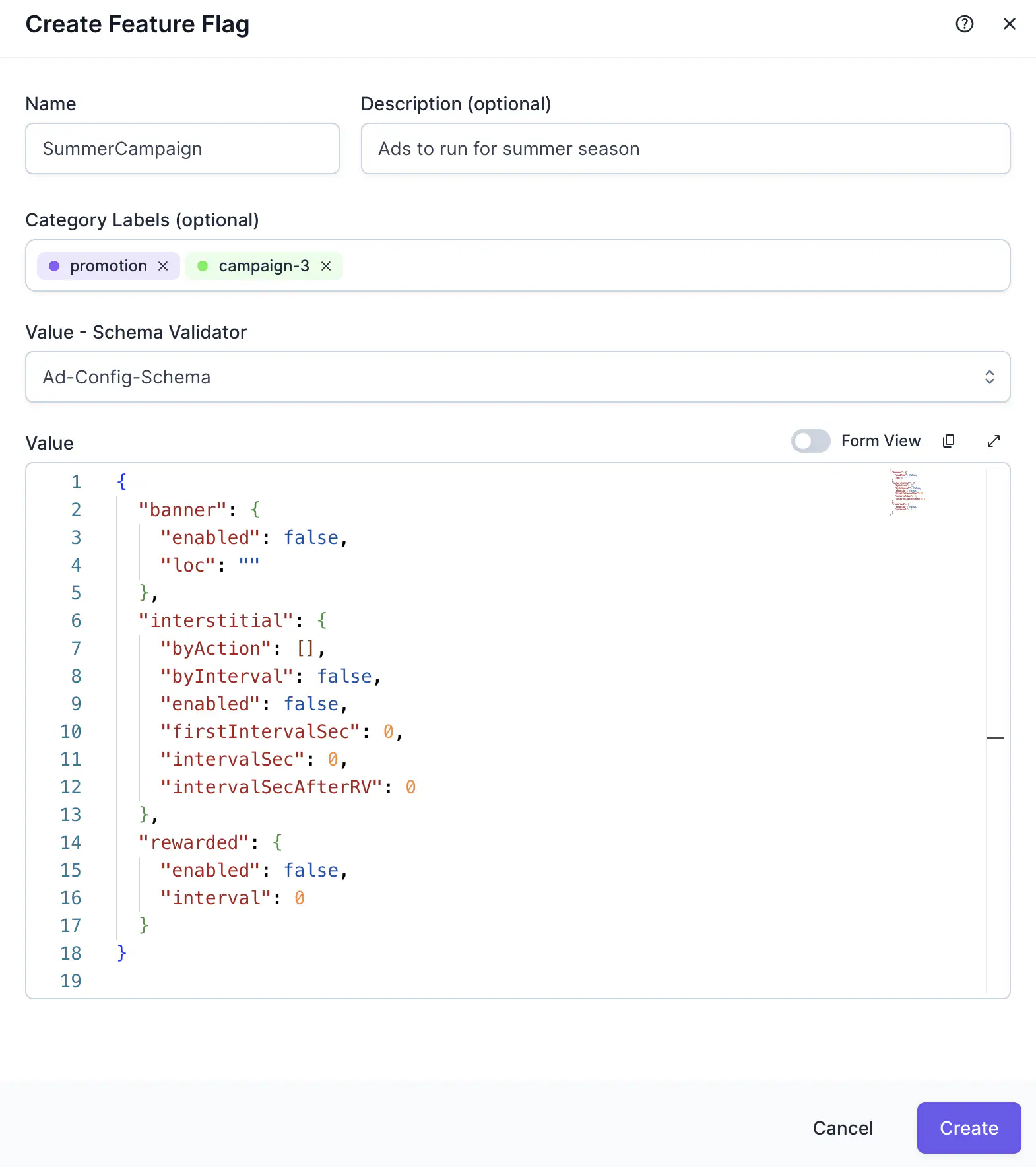
In the Satori console, go to Feature Flags and select New Feature Flag.
Provide the following:
- Name: A unique identifier for the flag. Names must start with a letter, can contain letters, digits, dots, underscores, and hyphens, and must end with a letter or digit. Maximum 64 characters.
- Description (optional): A short note describing the flag’s purpose. Maximum 128 characters.
- Category labels (optional): Assign one or more category labels to organise and filter flags in both the console and the client API.
- Value: The default value all players receive. This can be a string, number, boolean, or JSON object up to 128 KB. If you select a schema, the value is validated against it on save.
- Schema (optional): Choose a schema to enforce type validation on the flag’s value and all its variant values. Satori provides built-in schemas for common types (String, Number, Boolean, Object, and others). Leave as “ANY” to skip validation.
- To create new schemas, go to Taxonomy → Schema Validators and select Create new schema.
- If you have an active Hiro license, additional schema options are shown. Select one to pre-populate the value field with Hiro-specific placeholders. You may need to toggle on Form view to see these fields.
Edit a feature flag #
Select a flag from the Feature Flags list to open its detail page. Select Edit default to update the flag’s value, description, schema, or category labels.
Changes to a flag’s value propagate to all server instances in real time via cache invalidation. Players receive the updated value on their next configuration fetch.
Delete a feature flag #
Open the flag’s detail page and select Delete.
Two constraints apply: Hiro flags can’t be deleted, and flags referenced by a running or future experiment phase can’t be deleted. Satori surfaces these constraints before confirming deletion. Deleting a flag also removes all its variants.
Create and manage variants #
From a flag’s detail page, select Create Variant to add an audience-targeted variant.
Provide the following:
- Name: A unique name within this flag. Same naming rules as flag names.
- Value: The variant-specific value. Validated against the flag’s schema if one is set.
- Audiences: Select one or more audiences to target. At least one audience is required, and the special “ALL” audience can’t be used for variants.
When a variant is selected, differences between its value and the default value are highlighted.
When more than one variant exists, each is assigned a position that determines its priority relative to other variants on the same flag. If a player qualifies for multiple variants, the top-most position wins. Reorder variants at any time by dragging the handle on the flag’s detail page.
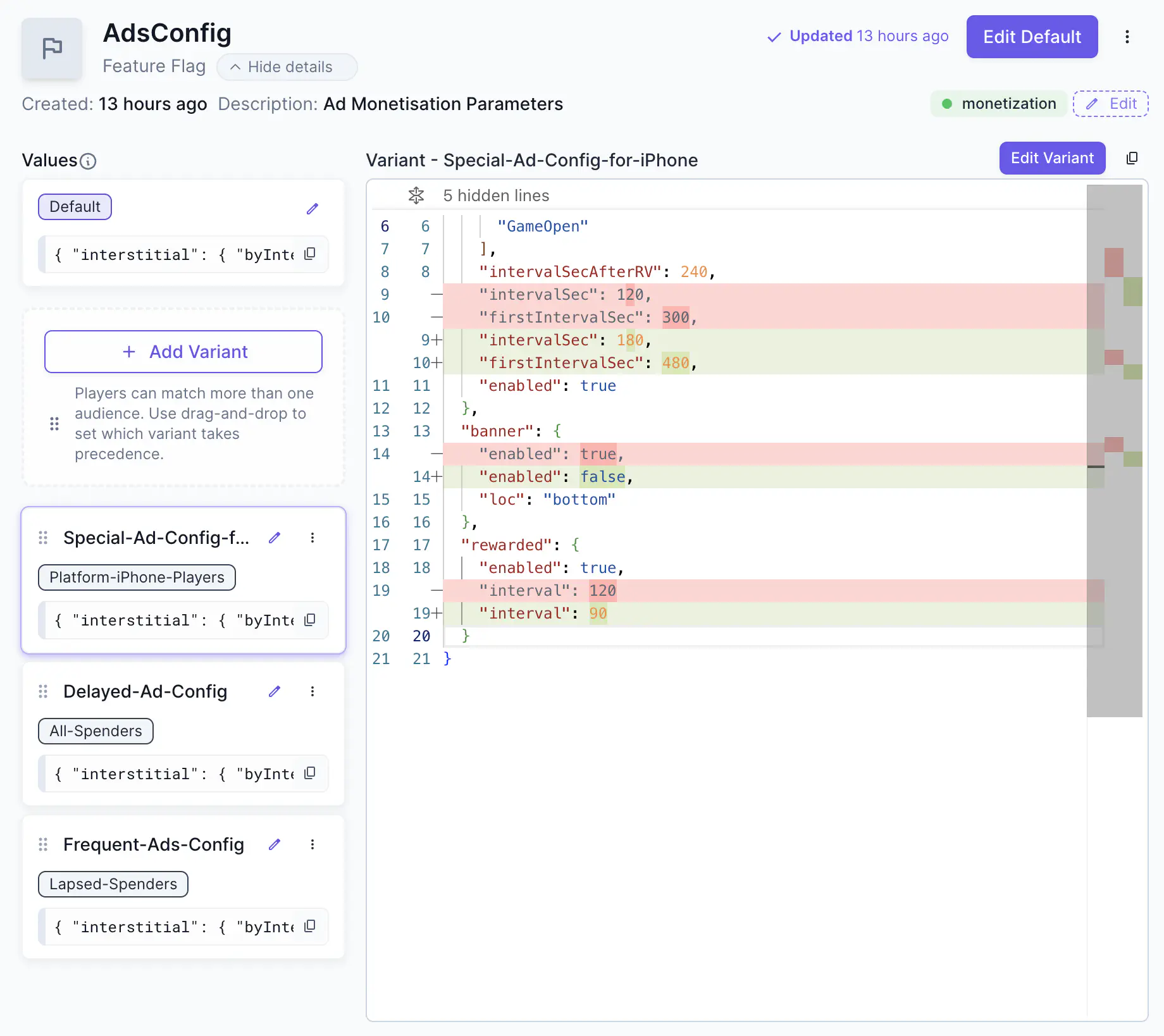
To update a variant, select it from the flag’s detail page and edit its name, value, audiences, or position. To delete a variant, select it and choose Delete. Remaining variants are automatically repositioned.
Fetch flags from the game client #
The Satori client SDK retrieves a player’s resolved flag values after authentication. The SDK returns the final resolved value for each flag based on the player’s audiences, active experiments, and live events.
This section reviews the available methods for fetching flags client-side. See Client libraries for more informat∂ion.
Get all flags #
| |
| |
Understand change_reason
#
When a flag’s value differs from its default, the response includes a change_reason field that tells you what changed it.
| |
The change_reason field contains three properties:
| Property | Description |
|---|---|
type | The source of the change. See table below. |
name | The name of the Satori feature responsible for the change. |
variant_name | The specific variant within that feature, if applicable. |
| Change reason type | Source |
|---|---|
| (none) | Flag default value |
1 | Flag variant |
2 | Live event override |
3 | Experiment override |
Get specific flags by name #
| |
Get a single flag with a safe default #
Specify a fallback value so the call returns a usable result even when the network is unavailable, rather than throwing an exception.
| |
Get flag overrides #
To see every configuration source affecting a player’s flags, not just the resolved value, use GetFlagOverridesAsync. This returns the full override chain: the flag default, any matching variants, active live event overrides, and experiment overrides.
| |
Each entry in the response carries a type field indicating its source:
| Override type | Source |
|---|---|
| (none) | Flag default value |
1 | Flag variant |
2 | Live event override |
3 | Live event flag variant |
4 | Experiment override |
Example response (trimmed):
| |
This is the programmatic equivalent of the override inspector in the console. Use it for debugging, logging which override source is active for a player, or building client-side UI that adapts based on override context. It’s also possible to manually select from this list which flag value to serve to the player.
Filter by category label #
Both GetFlagsAsync and GetFlagOverridesAsync support filtering by category labels, so you can request only the flags relevant to a specific system — for example, all flags labelled economy. See Category labels.
Fetch flags from the Nakama server runtime #
If your game server needs to read a player’s flags server-side — to make authoritative game logic decisions based on flag values — use the Satori client within the Nakama server runtime.
| |
This returns the same resolved values a client SDK call would return for that identity. Server-side flag reads are useful when you need to enforce flag-driven logic authoritatively — adjusting matchmaking parameters or validating reward amounts before granting them, for example.
Review all available functions for your preferred Nakama runtime:
Inspect a player’s resolved flags #
To see exactly what a specific player is receiving and why, use Player View in the Satori console. Open an identity, then go to the Feature Flags tab to see every flag resolved for that player, the value they’re receiving, and the override source (default, variant, live event, or experiment).
If you’ve changed a flag variant and a player isn’t seeing the expected value, the inspector tells you whether an experiment or live event is taking precedence — so you can trace the resolution directly rather than guessing.
