
Send direct messages
A direct message is a system-to-player message sent to one or more specific players outside of a schedule. Use direct messages for individual outreach when audience-based scheduling isn’t the right tool: a support resolution, a targeted reward, or an urgent notification to a specific player.
There are two ways to send a direct message: via Console API or via the dashboard.
Send a direct message via the Console API #
Use the /v1/console/message-direct endpoint to send a direct message programmatically.
| |
| Field | Description |
|---|---|
templateId | The ID of the template to use. Found at the top of the template details screen. |
identityIds | List of recipient player identity IDs |
integrations | Integrations to send through. Leave empty to deliver to in-game inbox only. |
persist | If true, the message is stored in the player’s inbox. If false, it’s sent only and not stored. |
Send a direct message from the dashboard #
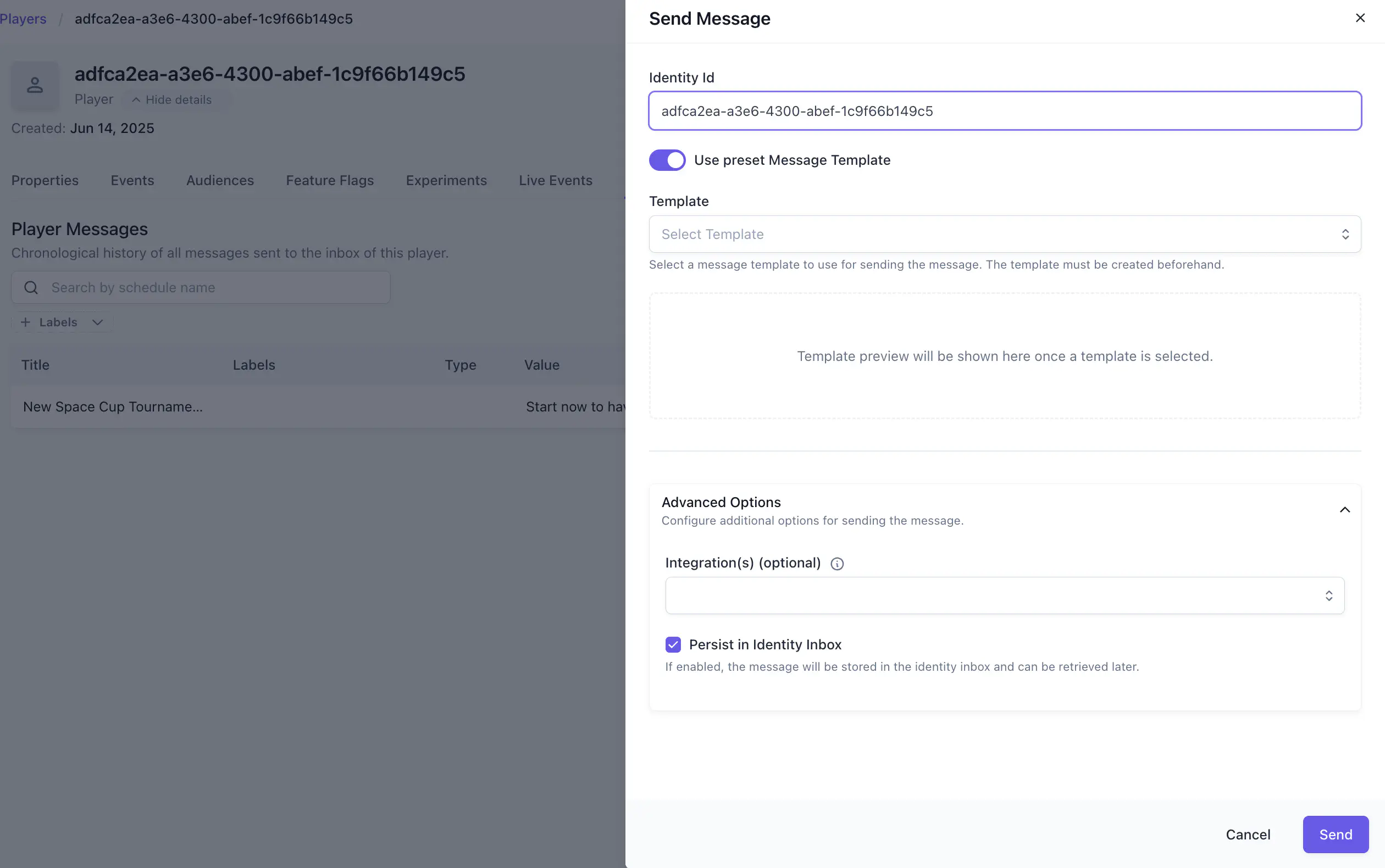
You can also send direct messages from the Satori Dashboard. You can send a test message, as explained in the Test a template section, or use the Identity details page.
- Open the Identity details page for the player.
- Go to the Messages section. All messages in the player’s inbox are listed here.
- Clikc the Send message button.
- Choose a template or write an ad-hoc message without one.
- Use the Save to inbox option to control whether the message is stored.
Selecting a message in the inbox shows its message ID, consume time, and read time. The message ID is useful when debugging delivery issues or locating a specific message in a support workflow.
Delete a message from a player’s inbox #
You can delete both direct and scheduled messages from a player’s inbox on the Satori console. This is also possible programmatically via the Client API.
To remove a message from a player’s inbox via the dashboard:
- Open the Identity details page for the player.
- Go to the Messages section.
- From the three-dot menu on the message you want to delete, select Delete.
The message is removed from the player’s inbox immediately.
