
Automate message delivery
A message schedule defines when a template is delivered. Satori supports two scheduling approaches: time-based and live event-based. Use time-based scheduling for broadcasts on a fixed date or repeating cadence. Use live event-based scheduling to tie delivery to what is happening in your game.
Create a schedule #
In the Messages screen, select Schedule message. The Create Message Schedule wizard opens. The following table describes the avilable fields.
| Field | Required | Description |
|---|---|---|
| Name | Yes | The name of the message schedule |
| Category Labels | No | Labels for organisation. Multiple labels can be applied. |
| Template | Yes | The template to send. Select from previously created templates. |
| Integrations | No | External integrations to deliver through. Leave empty to deliver to in-game inbox only. |
| Connect to Live Event | No | Toggle that switches between time-based and live event-based scheduling |
Time-based scheduling #
Use time-based scheduling to send a message on a fixed date, at a recurring interval, or indefinitely on a CRON schedule.
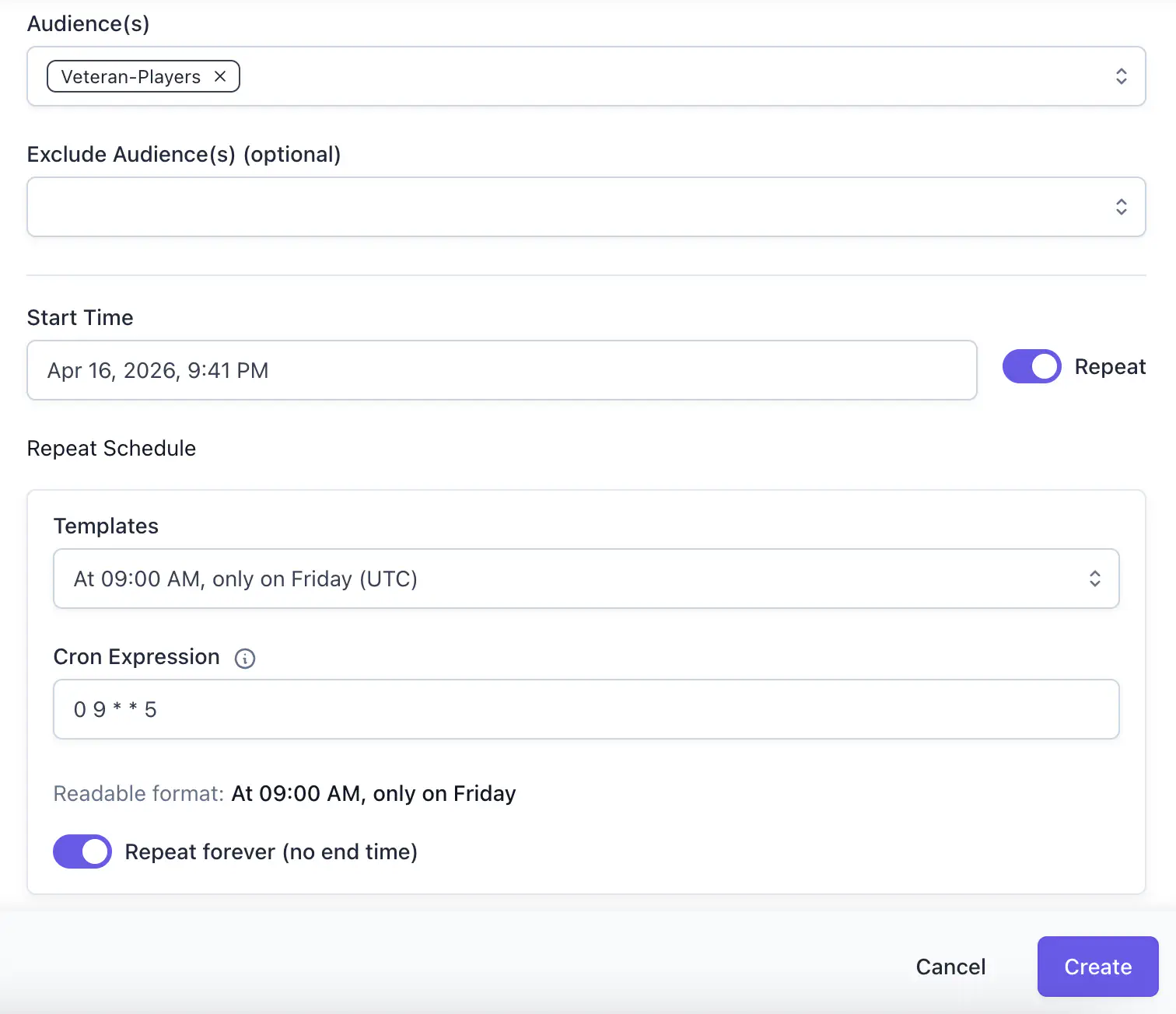
| Field | Required | Description |
|---|---|---|
| Audience(s) | Yes | Target audiences. Their union is used when multiple are selected. |
| Exclude Audience(s) | No | Players in excluded audiences aren’t sent the message, even if they’re in a target audience. |
| Start Time | Yes | When the schedule becomes active. If no repeat is set, the message sends once at this time. |
| End Time | No | When the schedule stops. Only available when Repeat is on and Repeat Forever is off. |
| Repeat Schedule | No | A CRON expression defining the repeat interval. Plain-text readable format is shown. |
| Repeat Forever | No | If selected, the schedule continues indefinitely. |
Live event-based scheduling #
Connect a schedule to a live event to trigger delivery relative to when the event starts or ends.
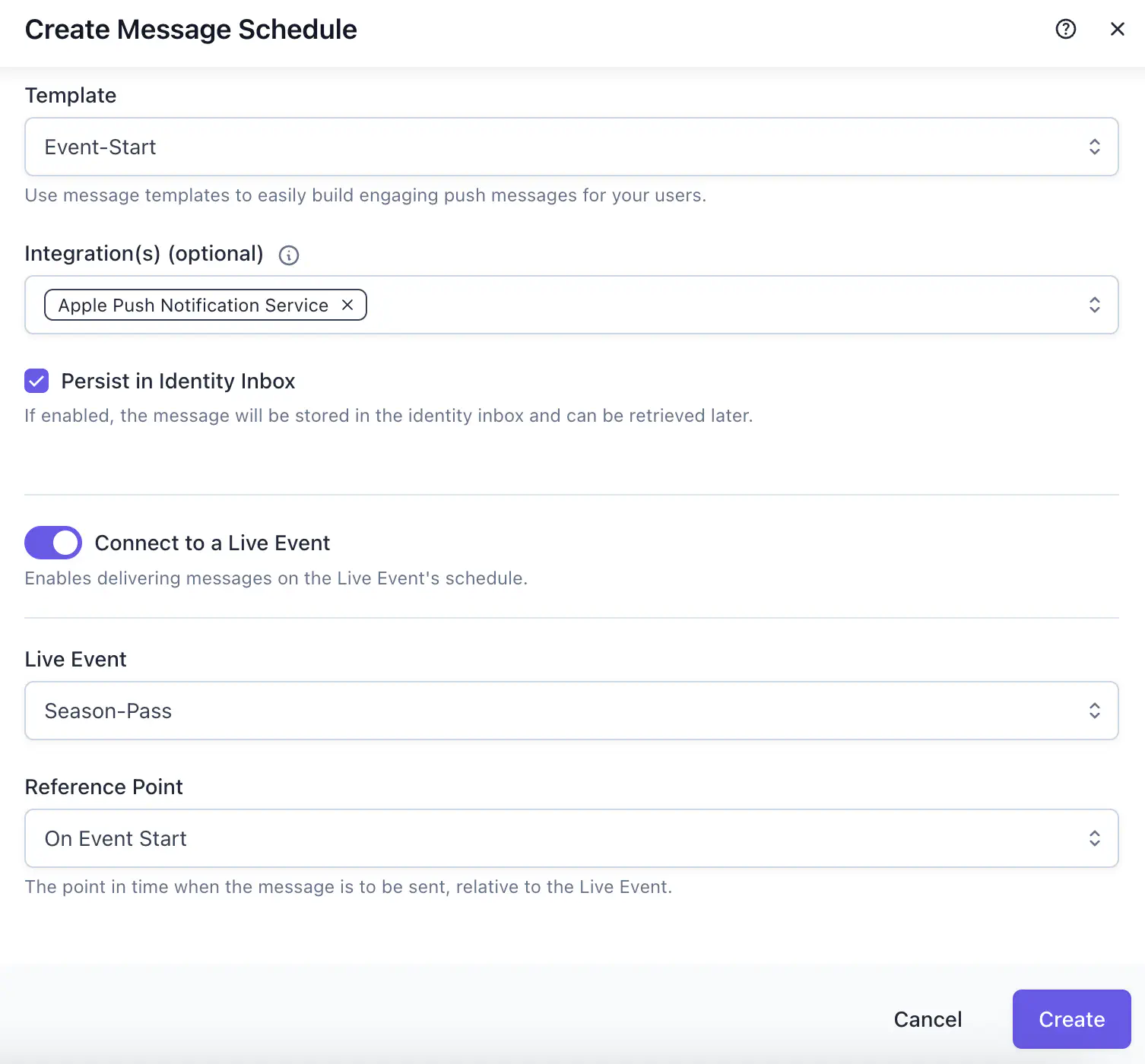
| Field | Required | Description |
|---|---|---|
| Live Event | Yes | The live event that triggers the message |
| Reference Point | Yes | The event action that acts as the trigger |
| Offset | No | Time before or after the reference point |
| Unit | No | Minutes, Hours, or Days |
Reference points available:
| Reference point | When the message sends |
|---|---|
| Before Event Start | At the given offset before the event’s next run starts |
| On Event Start | Exactly when the event starts. No offset. |
| After Event Start | At the given offset after the event starts |
| Before Event End | At the given offset before the event ends |
| On Event End | Exactly when the event ends. No offset. |
| After Event End | At the given offset after the event ends |
Schedule from within a live event #
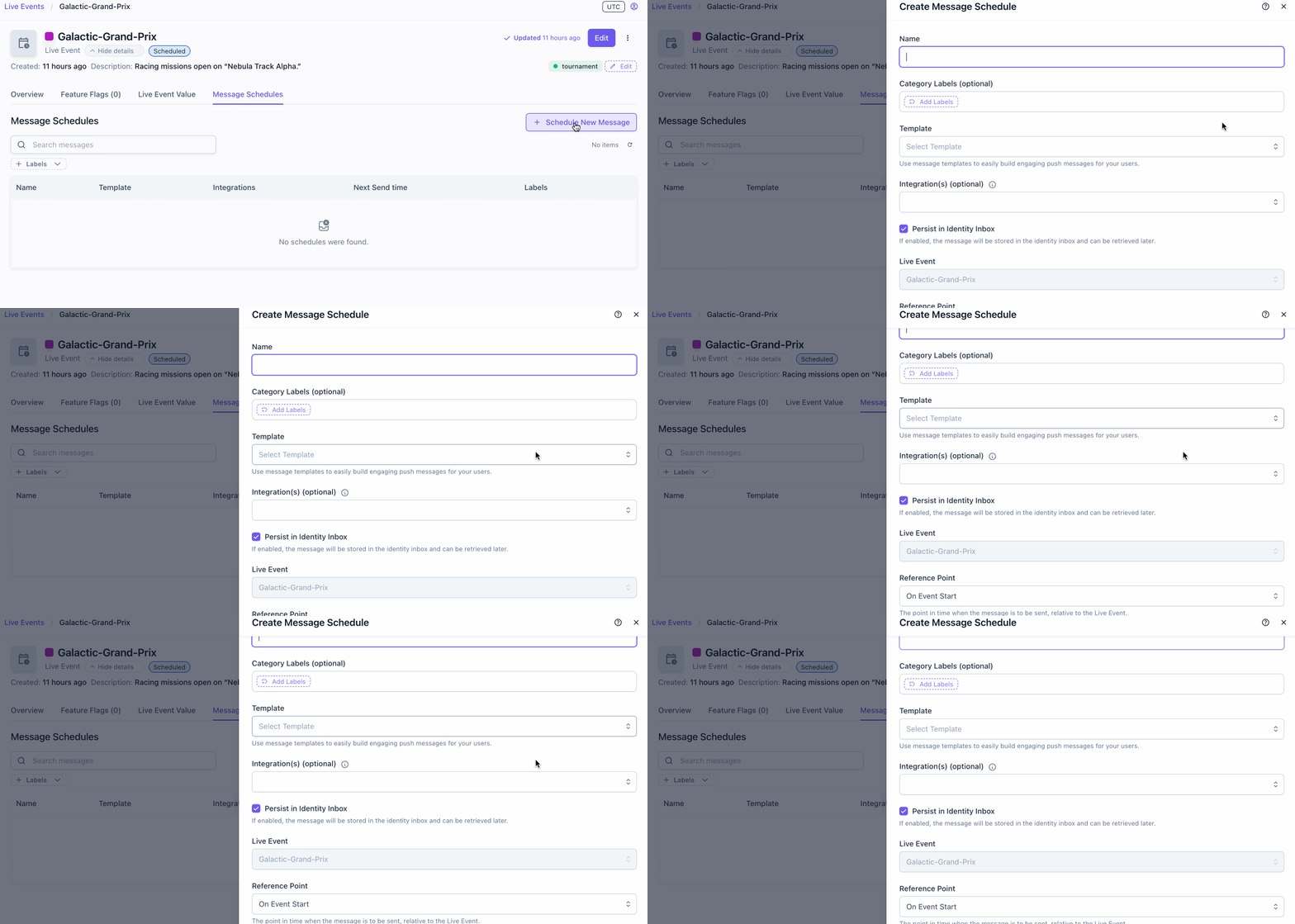
You can also create a message schedule directly from a live event’s configuration.
- Open the live event.
- Go to the Message schedules tab.
- Select Schedule new message.
- Complete the same fields as the standard schedule flow.
The schedule is listed on the live event and in the main Messages screen.
Schedule order #
Schedules are sorted by expected send time in both the Console UI and the API. The next scheduled delivery appears at the top of the list.
