
Perform funnel analysis
A funnel shows how many players complete each step in a sequence of in-game actions. Each funnel step maps to an analytic event in your Taxonomy. Once you know the analytic events that define the player journey, you can build a funnel chaining those events together from beginning to end.
Use funnels to pinpoint the exact step where players disengage in order to optimize:
- Player onboarding and tutorials
- Purchase and monetization flows
- Live event participation (from event start to completion or reward claim)
- Battle pass or season pass progression
- Rewarded video completion (from ad shown to reward claimed)
What you can do with funnels #
- Scope a funnel to a specific player group
- Set a time limit for step completion
- Narrow down steps with event conditions
- Identify drop-off at each step
Plan your events #
Funnel steps map to analytic events registered in Taxonomy > Events. Before building a funnel, identify the events that represent each meaningful moment in the player journey you want to measure.
The more precisely your events are defined, the more granular your funnels can be. If your events carry structured metadata (for example, metadata.tutorial_id or metadata.level_id), you can add conditions to individual steps to scope each step to a specific context, such as one tutorial out of many that share the same event name.
For information on how to set up and send analytic events, see Understand events.
Create a funnel #
From the Satori console, go to Reports > Funnels and select Create funnel. Give the funnel a name, and optionally a description and category labels to help your team find and organize it.
Select your audience #
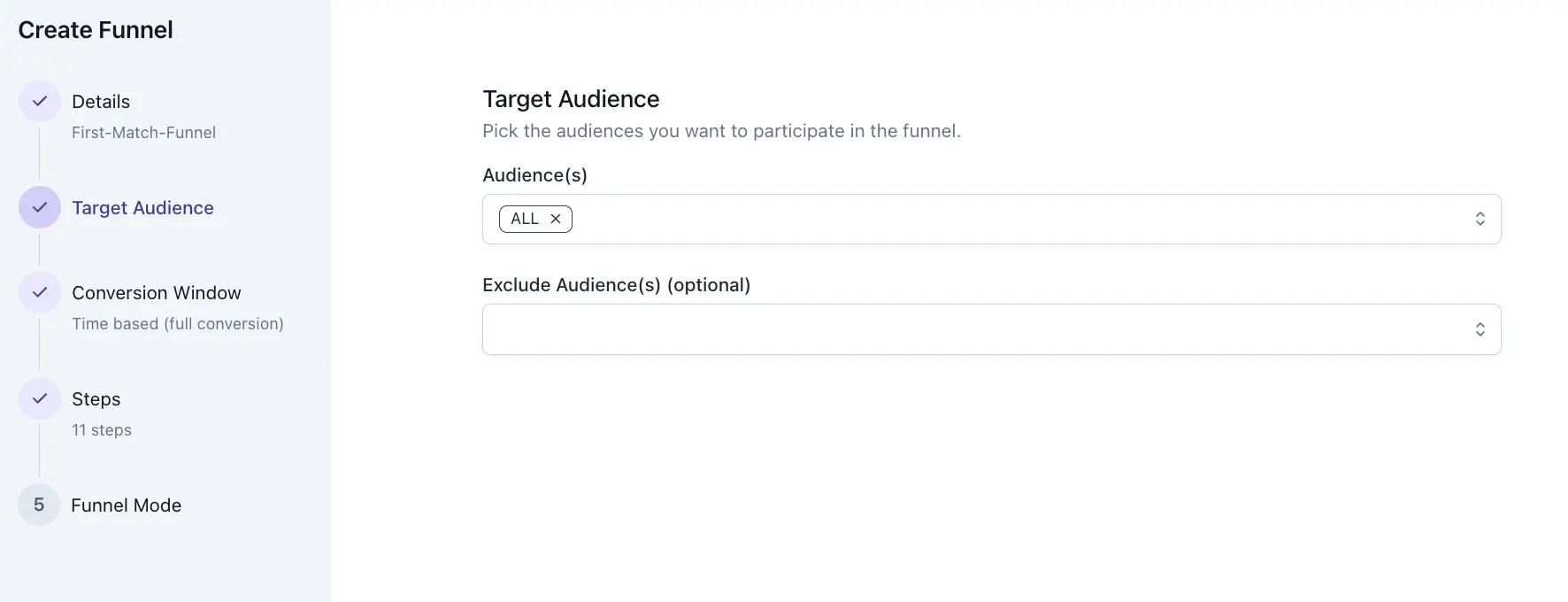
Every funnel runs against a specific group of players. Select one or more audiences in Audience(s); to include all players, use the built-in ALL audience. To exclude a subgroup, add audiences to Exclude Audience(s).
When you first create a funnel, Satori uses audience membership as it stands at that moment. On each subsequent refresh, Satori uses current membership. A player who joins the selected audience after creation will appear in results from that point forward.
Set a conversion window #
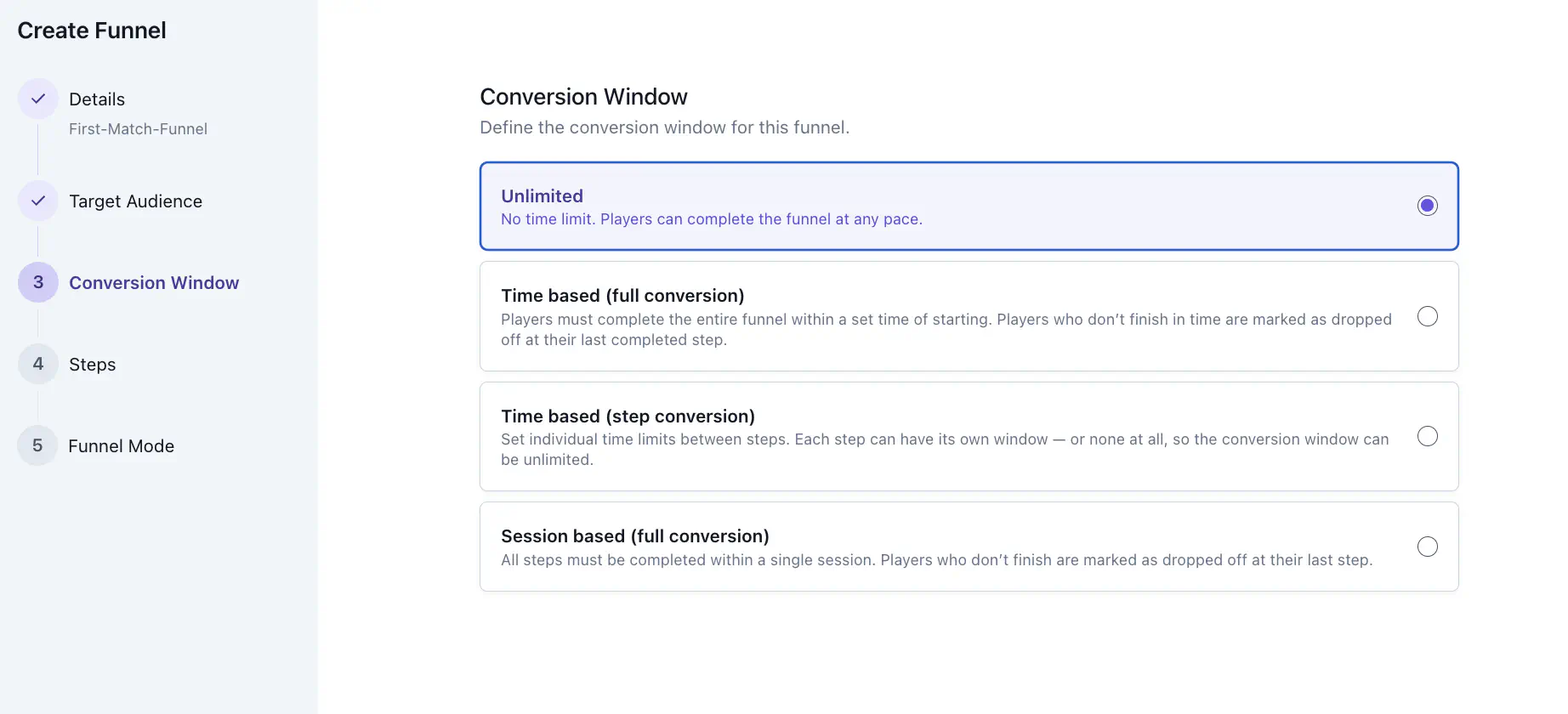
The conversion window sets the progression model for the funnel: how long players have to complete all steps and how that time is measured. Choose the option that matches the behavior you want to measure.
| Option | Behavior | Use when |
|---|---|---|
| Unlimited | No time limit. Players can complete the funnel at any pace. | Long-form progression milestones, or any flow where players take their own time. |
| Time based (full conversion) | Players must complete the entire funnel within a set time of starting. Players who don’t finish in time are marked as dropped off at their last completed step. | Purchase funnels during a limited-time offer, where you only want to count conversions that happened within the offer window. |
| Time based (step conversion) | Set individual time limits between steps. Each step can have its own window, or none at all. | Checkout flows where you expect payment to follow cart within a short window, but the cart step itself can happen anytime. |
| Session based (full conversion) | All steps must be completed within a single session. Players who don’t finish are marked as dropped off at their last completed step. | Ad-to-purchase flows or any immediate conversion you want to measure within one play session. |
Match the conversion window to the natural flow of player actions.
Session-based windows work well for immediate conversions where all steps happen in a single sitting. A store checkout flow is a typical example: a player views an item, opens the store, and completes a purchase within one session. If they abandon mid-checkout and return the next day, that’s a genuine drop-off worth capturing.
Time-based windows suit flows tied to a defined period. Use them for purchase funnels during a limited-time offer, where you want to count only conversions within the offer window, or for re-engagement sequences where you expect players to respond within a set timeframe such as 48 hours.
Add steps #
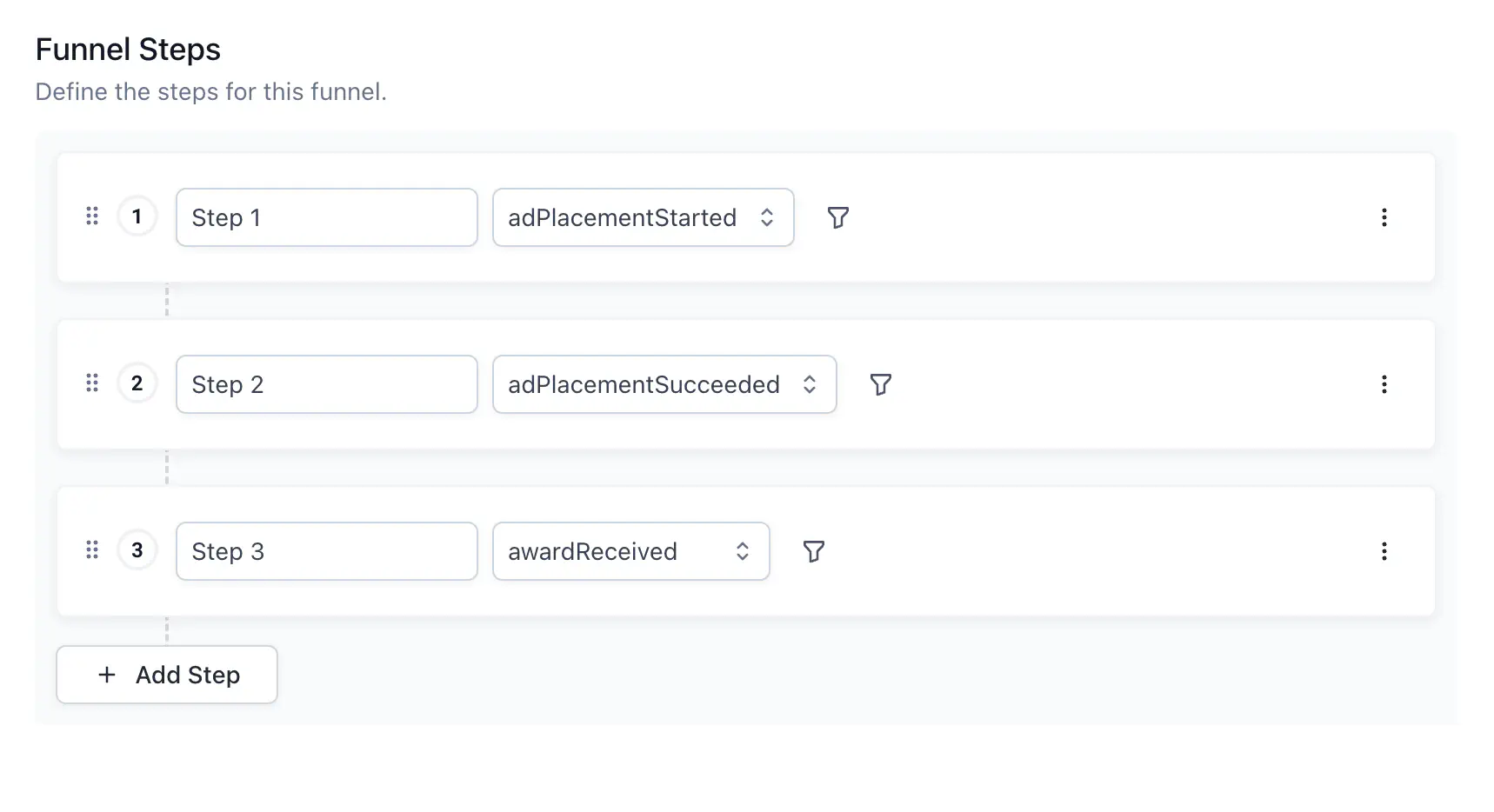
A step in the funnel maps to a player action. A player passes a step when a matching event is fired for that player. Start with the first event a player triggers in the flow and end with the event you consider the success outcome. Add only the events players must complete to progress through the funnel.
Select Add Step, give the step a label, and select an event from the dropdown. The dropdown is populated from the Events tab in Taxonomy. Drag the grip icon to reorder steps.
Add filters to a step #
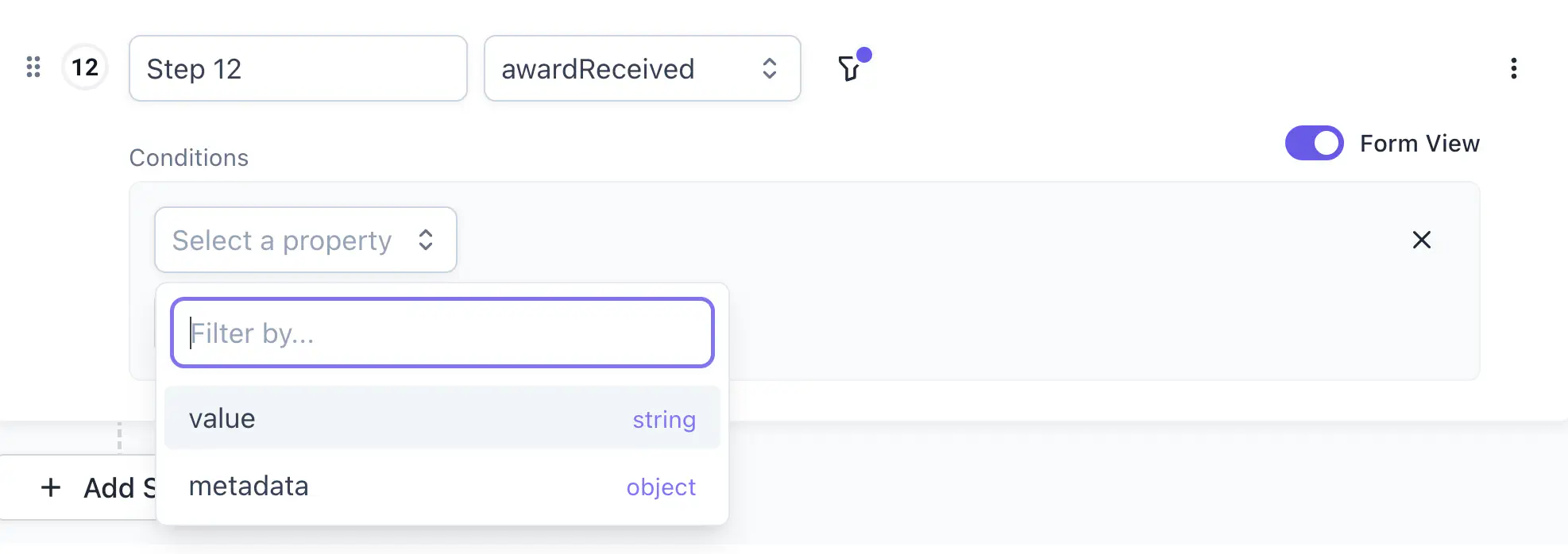
Filters on a step are optional. Add them to narrow down which event occurrences qualify. For example, you can scope a step to a single tutorial even when multiple systems share the same event name.
Select which property you wish to set a condition for. The schema is automatically populated for value and metadata.
Filter on value #
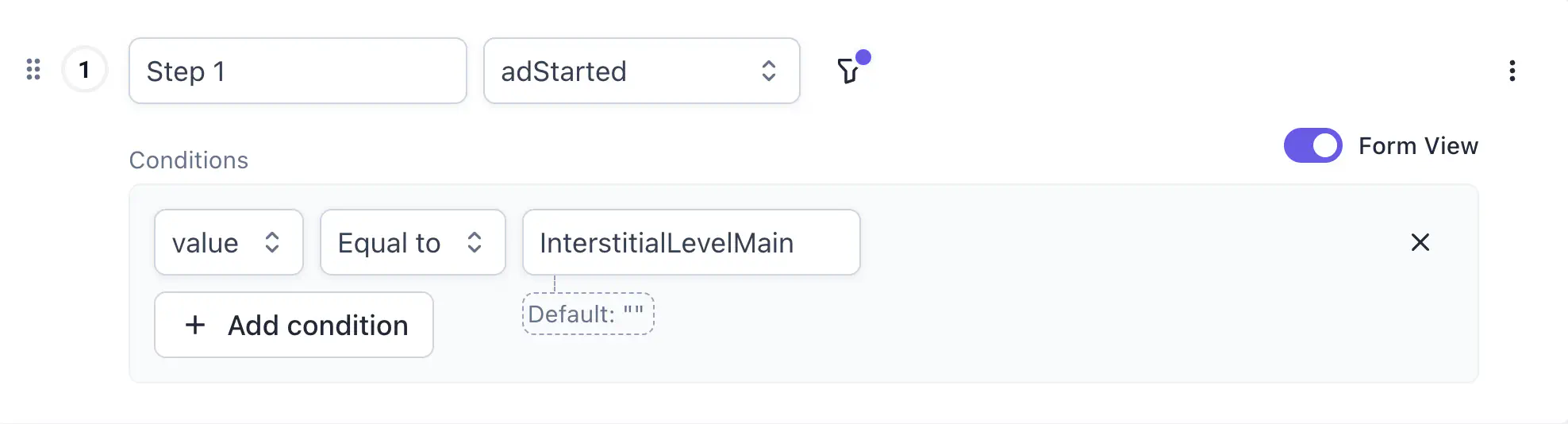
You can filter on the value property of an event. For example, the adStarted event carries a string value representing the identifier of the ad shown. Adding a value condition Equal to InterstitialLevelMain scopes the step to only adStarted events matching that ad, filtering out all other ad types.
Filter on metadata #
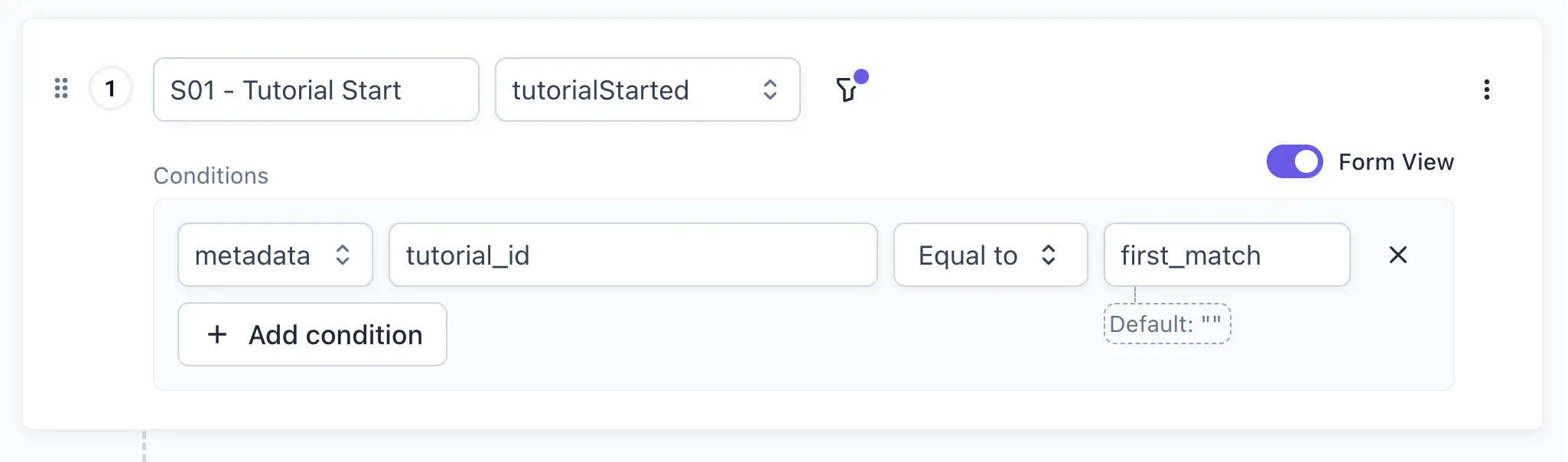
You can also filter on the metadata property of an event by providing the specific property path, for example, metadata.tutorial_id.
Filter on synthetic events #
You can use synthetic events as funnel steps to track system-level player milestones.
_identityCreate
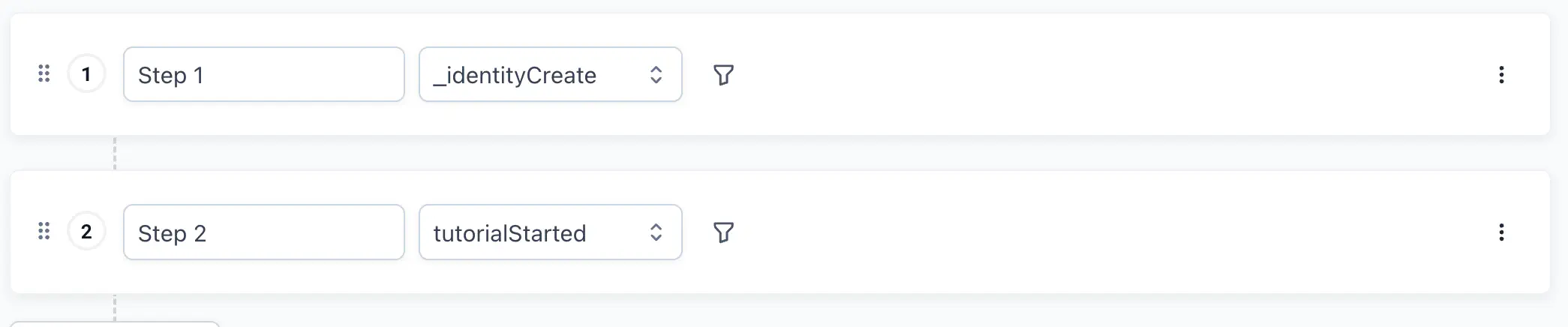
Use _identityCreate as the first step in an onboarding funnel to measure how many new players reach each subsequent milestone. This event fires once per identity, so no conditions are needed. The example below pairs it with a tutorialStarted step to track how many new players begin the tutorial.
_experimentJoin
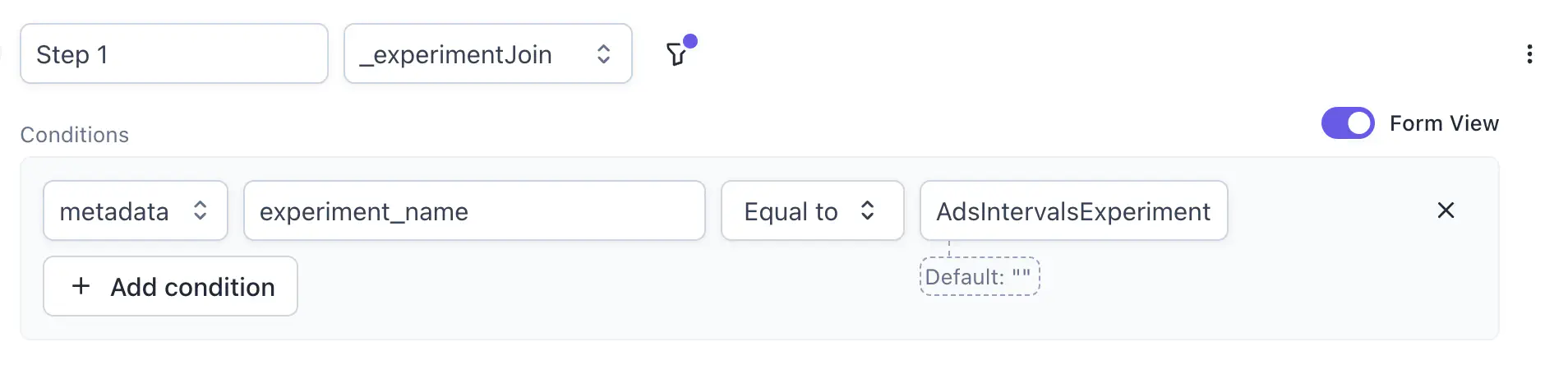
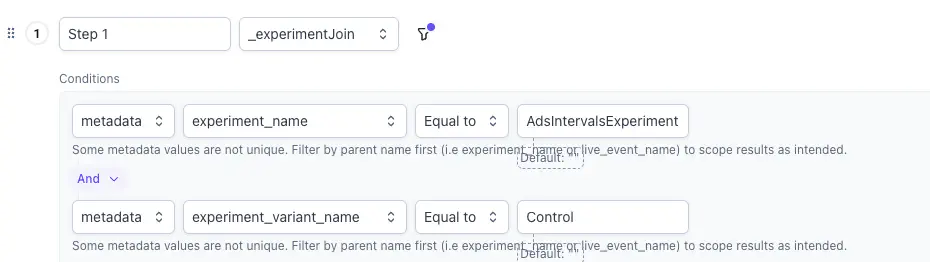
Use _experimentJoin to scope a step to players who joined a specific experiment phase. In the metadata dropdown, select _experimentJoin-Metadata. Then select any of the properties of this metadata to filter. For example, set a condition for experiment_name to target a particular experiment, for example Equal to AdsIntervalsExperiment.
_liveEventJoin
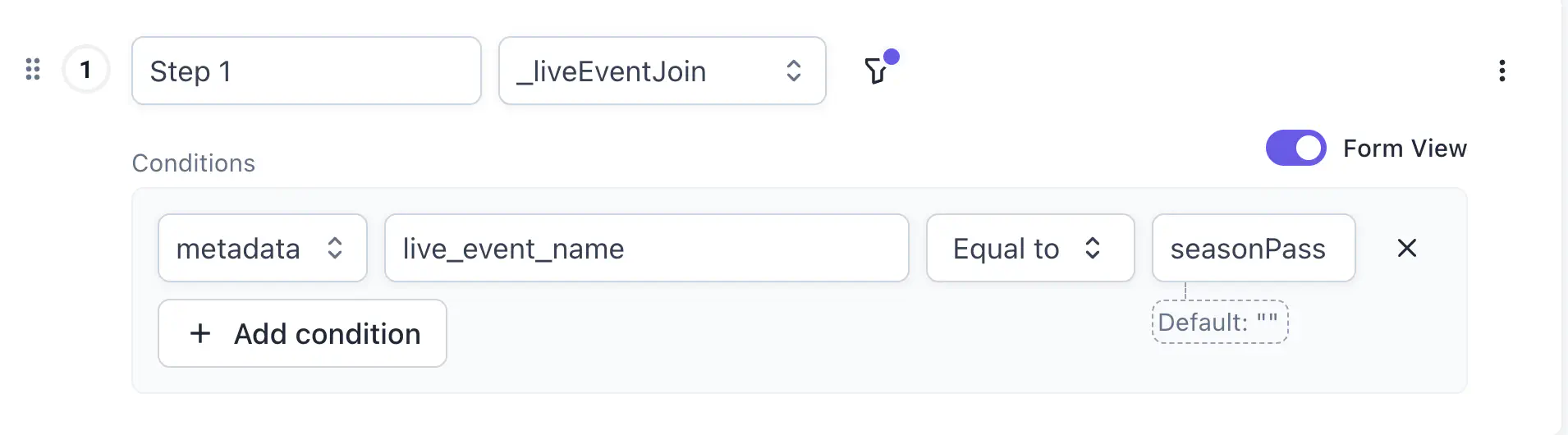
Use _liveEventJoin to scope a step to players who joined a specific live event. In the metadata dropdown, select _liveEventJoin-Metadata. Add a condition on metadata.live_event_name (String) to target a particular event, for example Equal to seasonPass.
Combine multiple conditions #
Add multiple conditions to a step to narrow the match further. First, choose how to combine them. Select AND to require every condition to be true for the step to pass. Select OR to pass the step when any one condition is true.
For example, to narrow down players in a certain experiment variant cohort, add a second condition for experiment_variant_name after setting a condition for experiment_name. Use the AND operator to connect the two conditions.
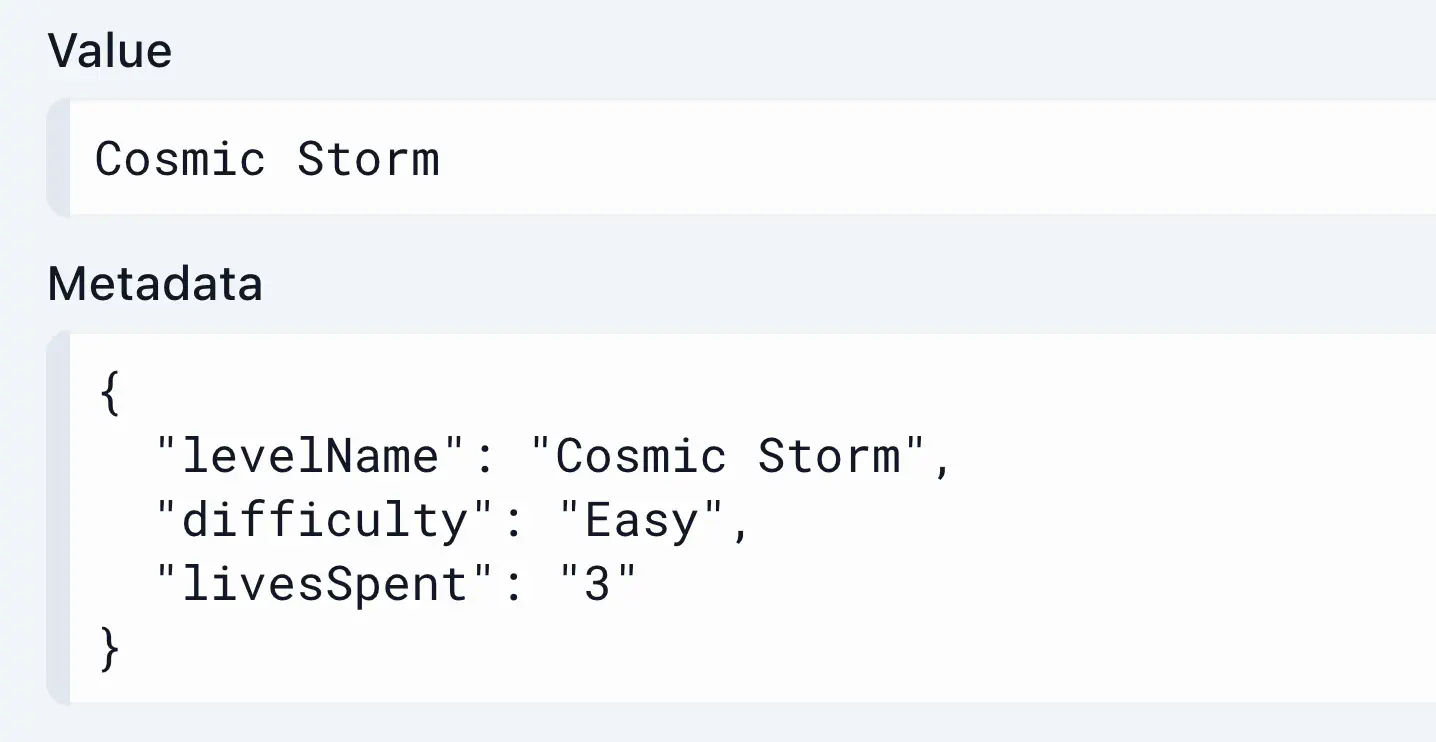
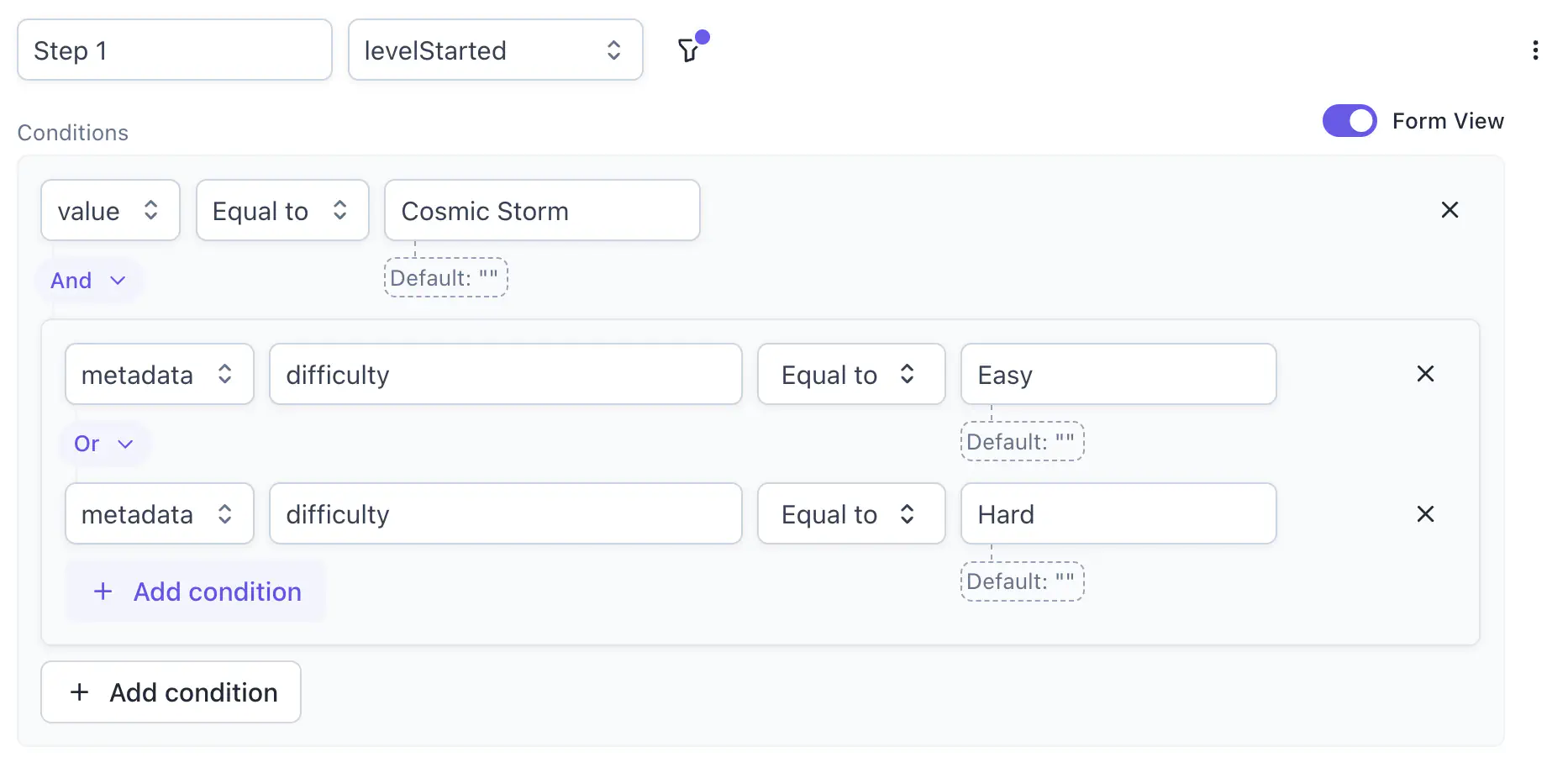
The levelStarted event carries a value for the level name and metadata fields including levelName, difficulty, and livesSpent.
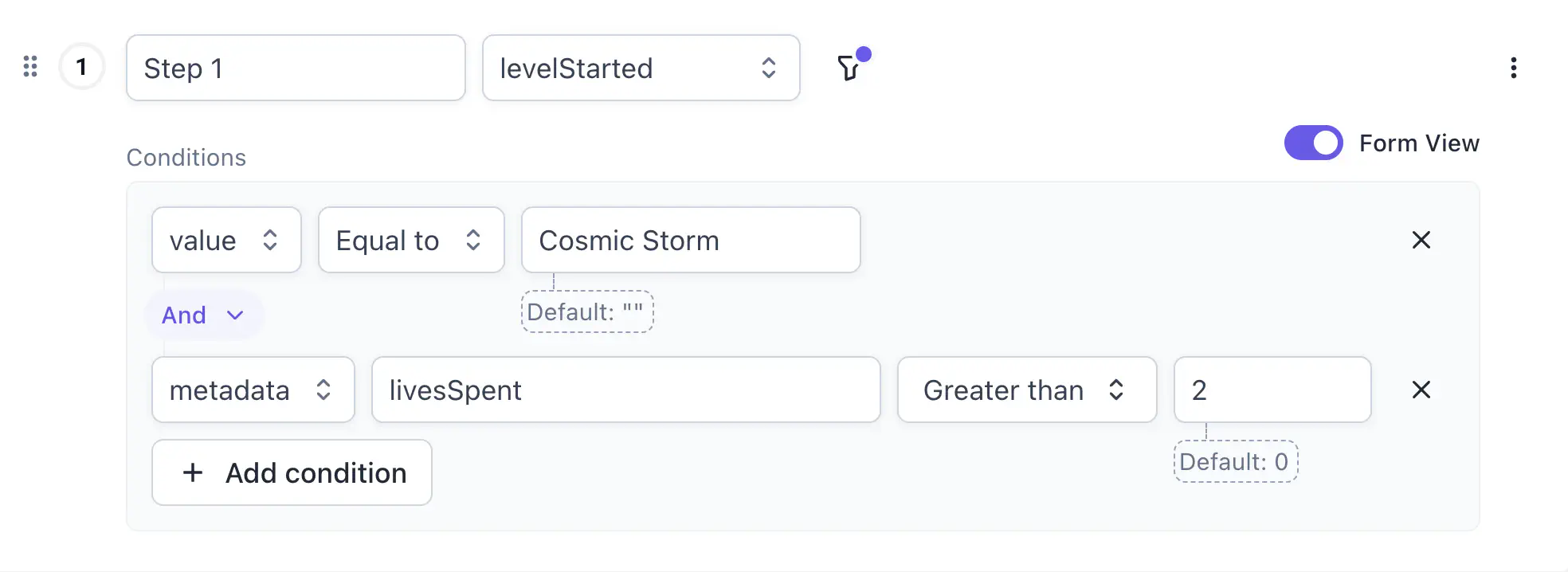
To scope a step to players who started the “Cosmic Storm” level and spent more than 2 lives, combine a value condition Equal to Cosmic Storm with a metadata.livesSpent condition Greater than 2. Both must be true for the event to pass the step.
Nest conditions within a filter #
Within a filter, you can add nested conditions that evaluate jointly to a single true or false. The nested conditions evaluate as a unit, then connect to conditions outside them using AND or OR.
For example, to scope a step to players who started “Cosmic Storm” on either Easy or Hard difficulty:
- Create a filter for
value. - Select + Add Condition, then select Group (OR).
- Inside this nested condition, add filters for
metadata.difficultyEqual toEasyandmetadata.difficultyEqual toHard. Meaning this entire group evaluates true if either one condition is true.
The group evaluates as a unit using OR, then connects to the value condition using AND. The step matches when the value condition passes and the group passes.
Form view and query view #
Conditions use form view by default. Toggle Form View off to review or write conditions as a raw query expression. For example, metadata.tutorial_id = 'first_match' AND value = '1'.
Read the results #
After saving, the funnel enters Processing while Satori computes the results. Processing time varies with data volume; the funnel transitions to Ready once results are available. Return to the funnel at any time from Reports > Funnels.
In the default bar chart view, the report shows one bar per step.
For each step, Satori displays:
- Players completed step: unique players who fired that event within the selected date range, meeting any step conditions
- % of first step: the percentage of Step 1 players who reached this step
- Avg time to complete: average time between the previous step and this step across all players who completed both
- Players dropped off: players who completed the previous step but not this one
- % of first step (drop-off): drop-off count as a percentage of Step 1 players
- % accumulated: total drop-off from Step 1 through this step, as a percentage of Step 1 players
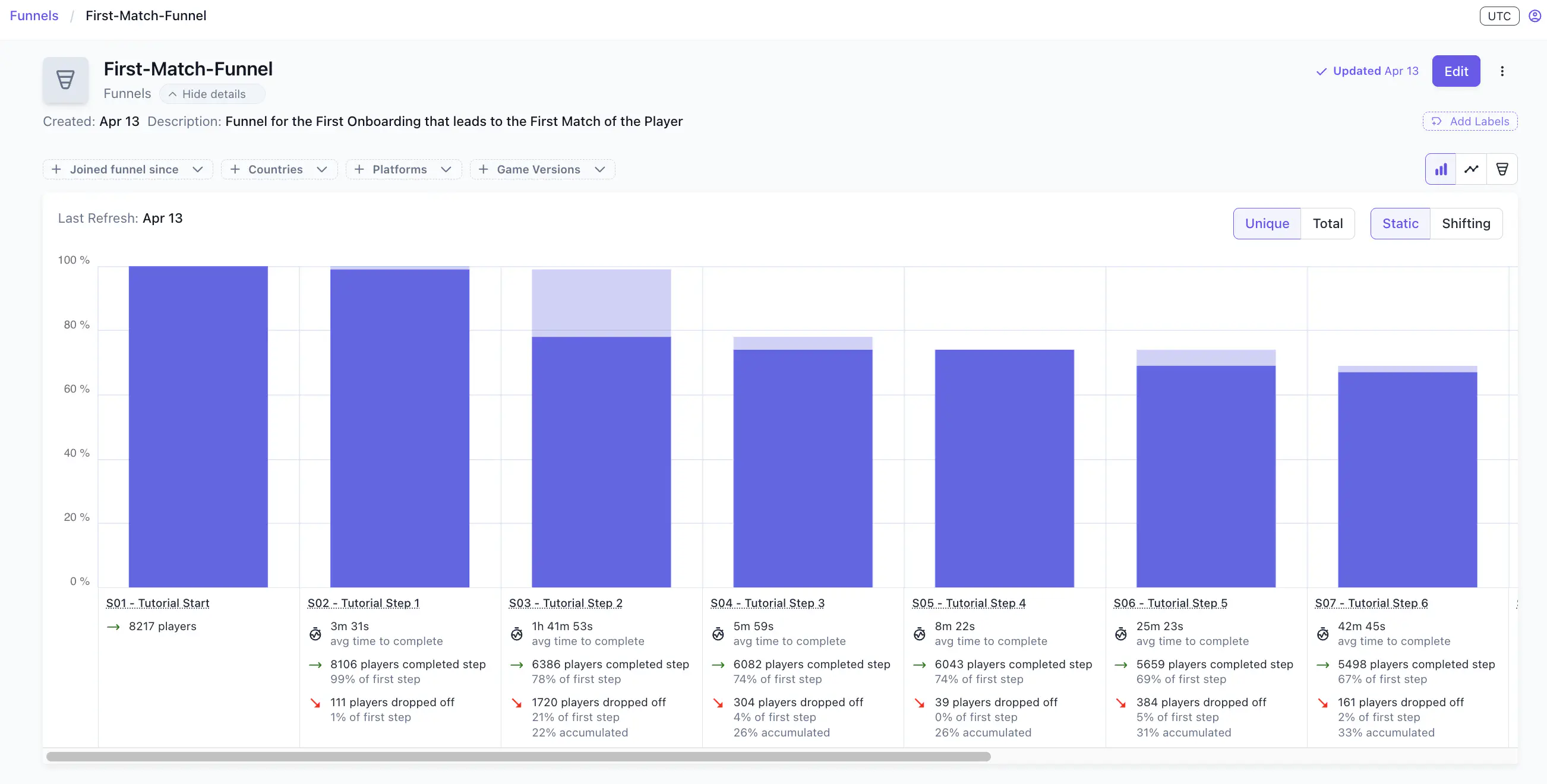
The lighter bar segment on each step represents dropped-off players. Last Refresh in the report header shows when results were last calculated.
Switch between views #
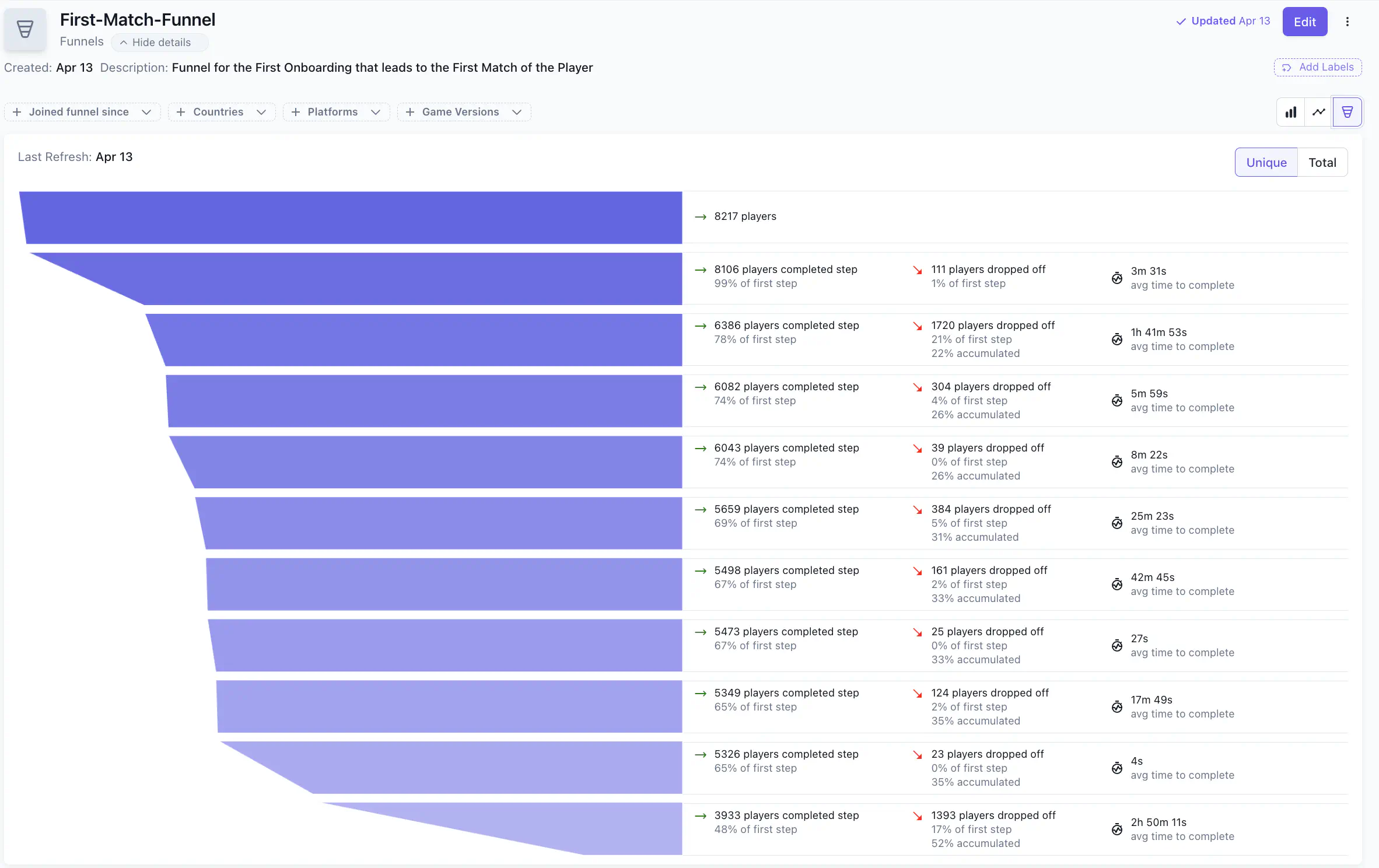
| Control | Options | What changes |
|---|---|---|
| View type | Bar chart, Line chart, Funnel | How step data is visualized |
| Player count | Unique, Total | Unique: each player counts once; if a player started the funnel multiple times, their most complete run is used. Total: every attempt counts, including multiple attempts by the same player. |
| Date mode | Static, Shifting | Static: conversion at each step is measured against the first step. Shifting: conversion at each step is measured relative to the previous step. |
Filter the report #
| Filter | What it does |
|---|---|
| Joined funnel since | Sets the date from which players are included. Players who fired Step 1 before this date are excluded. Use this filter to compare funnel behavior across different time windows, for example this month versus last month. |
| Countries | Filters to players from selected countries. |
| Platforms | Filters to players on selected platforms. |
| Game Versions | Filters to players on selected game versions. |
Filters apply across all steps. A player filtered out at Step 1 is excluded from all subsequent steps.
How funnels refresh #
When a funnel is first saved, or after any edit, it enters Processing while Satori computes the results. Processing time varies with data volume; the funnel transitions to Ready once results are available.
After initial processing, funnels refresh automatically on a configurable interval. The default is every 30 seconds, though refresh may take longer for funnels with large data volumes. This interval is configured on your Satori deployment in Heroic Cloud.
On each refresh, Satori re-evaluates audience membership. Players who joined a selected audience after the funnel was created will appear in results from that refresh onward.
Satori retains event data for 4 months. Funnel queries can only look back within this window. Funnel report results are stored for 12 months.
