
Attach player messages to live events
An event that players don’t know about is an event that underperforms. Satori lets you send messages to players directly for any configured event, encouraging players to come back to the game.
Schedule a message #
Schedule from the Live Events view #
You can manage messages from the detailed view of a live event. Navigate to the Message Schedules tab. Here you can see all the messages attached to this particular event, edit any message or schedule new ones.
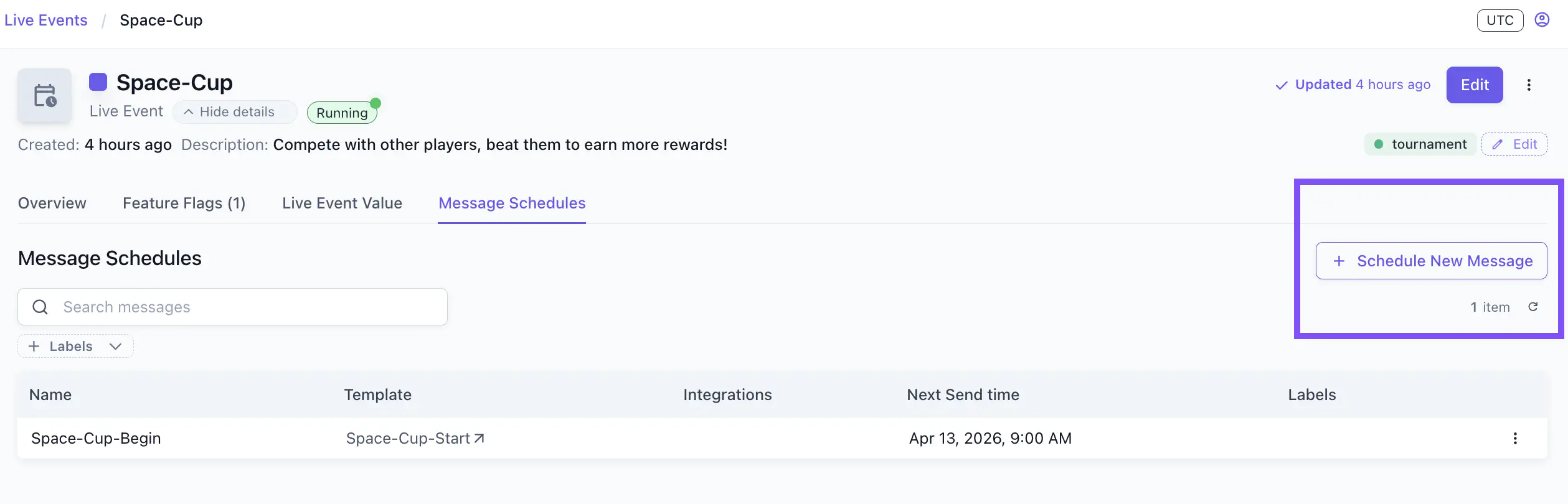
Schedule from the Messages view #
Alternatively, work from the Messages panel on the console and click the Schedule Message button.
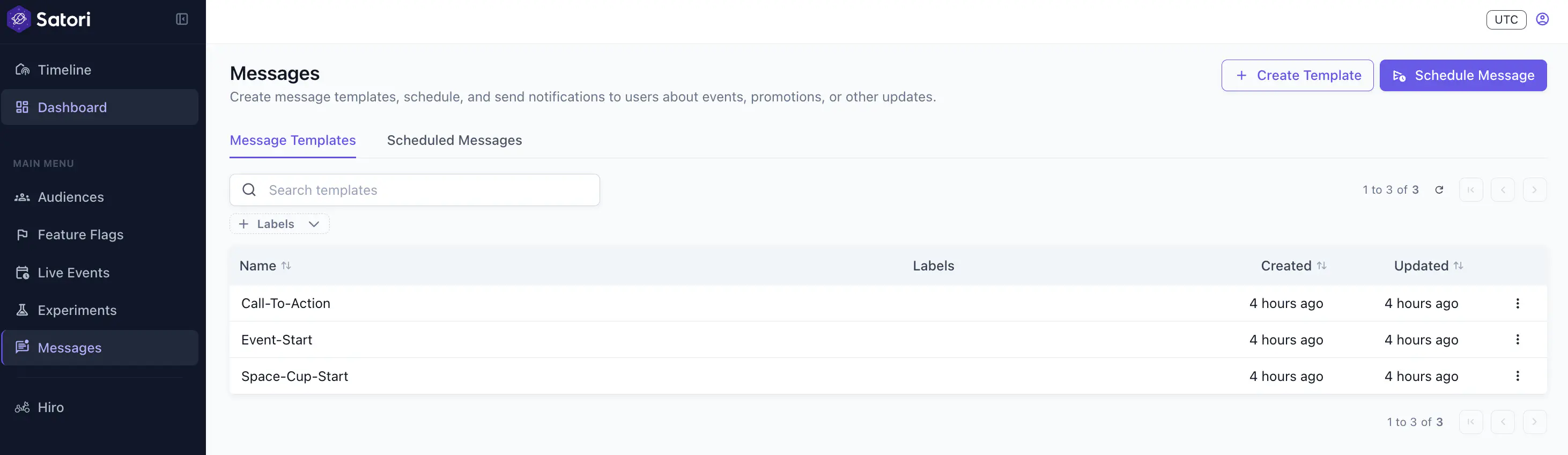
Select the event from a pre-populated list of current live events.
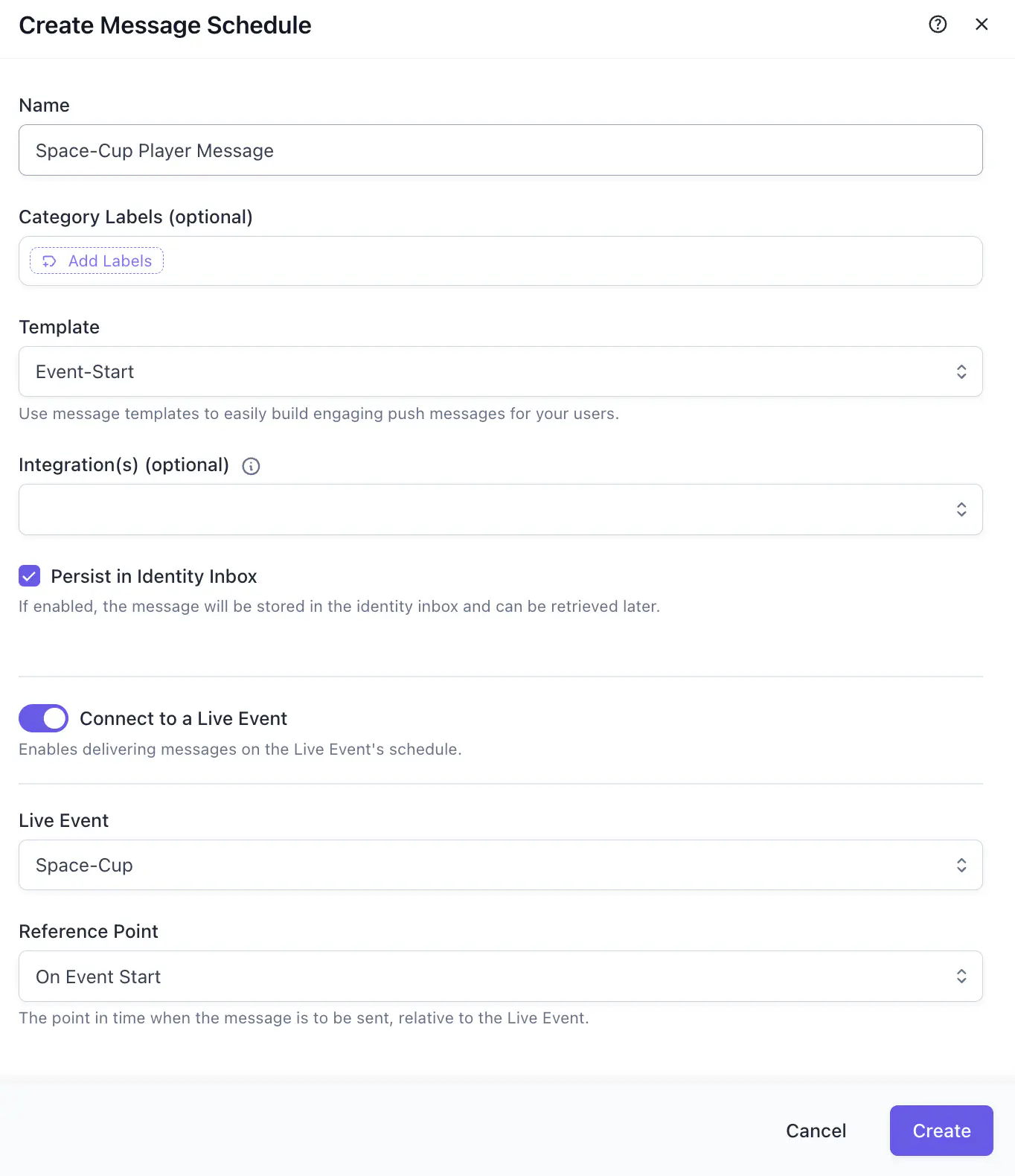
Define when a message triggers #
Satori gives LiveOps managers direct control over the full player-facing event experience by letting you define when messages are triggered.
Push notifications before an event ends encourage players to re-enter the game to complete the event. Notifications before an event starts announce a new event and drive lapsed players back to the game.
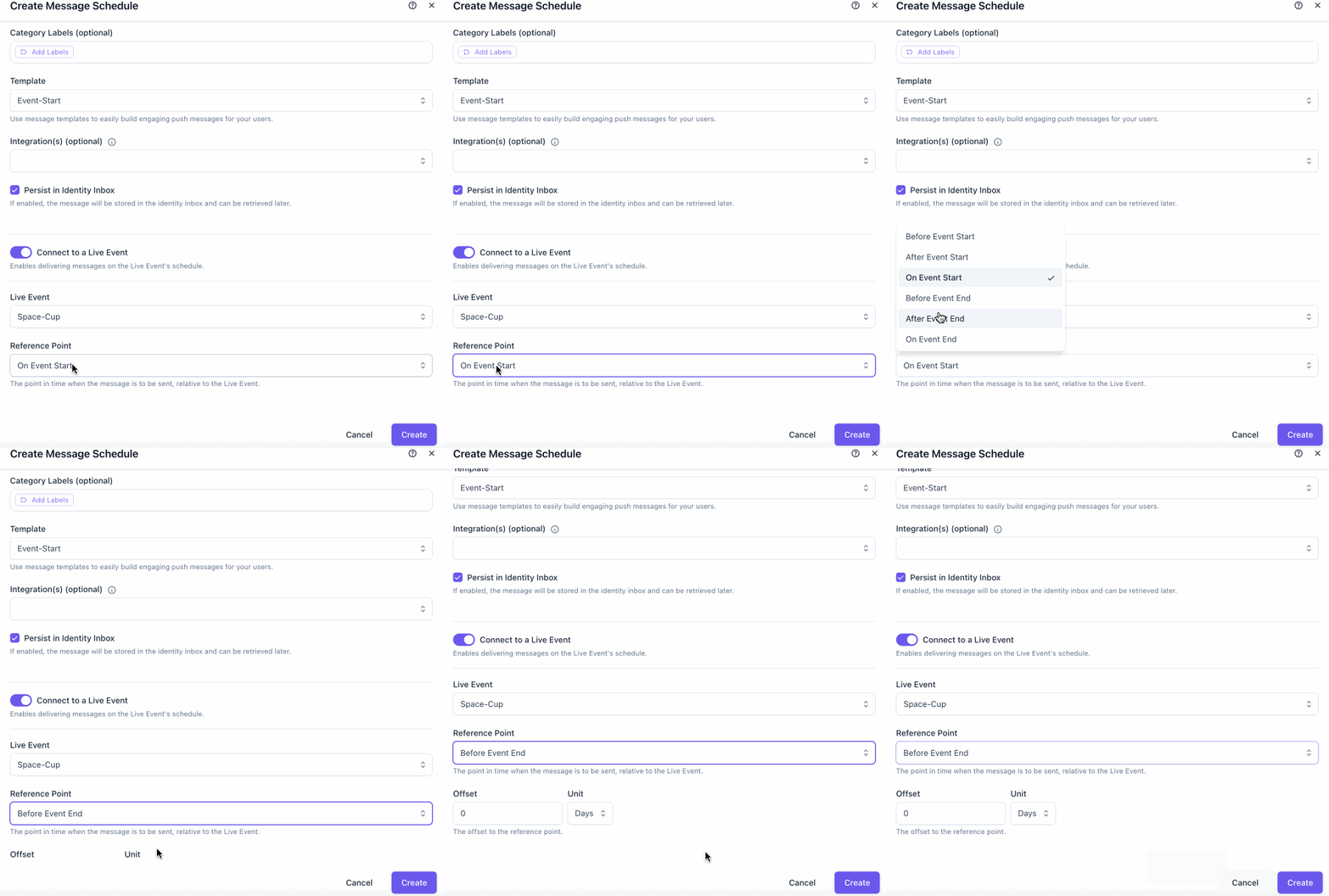
The reference point options cover the full communication arc of a live event:
- Before Event Start
- After Event Start
- On Event Start
- Before Event End
- After Event End
- On Event End
For more details on messages, see the Player Messaging section.
