Manage experiments
This page covers how to use Satori to run experiments across the full operational sequence: plan, configure, test, launch, tune, monitor, and analyze.
Plan #
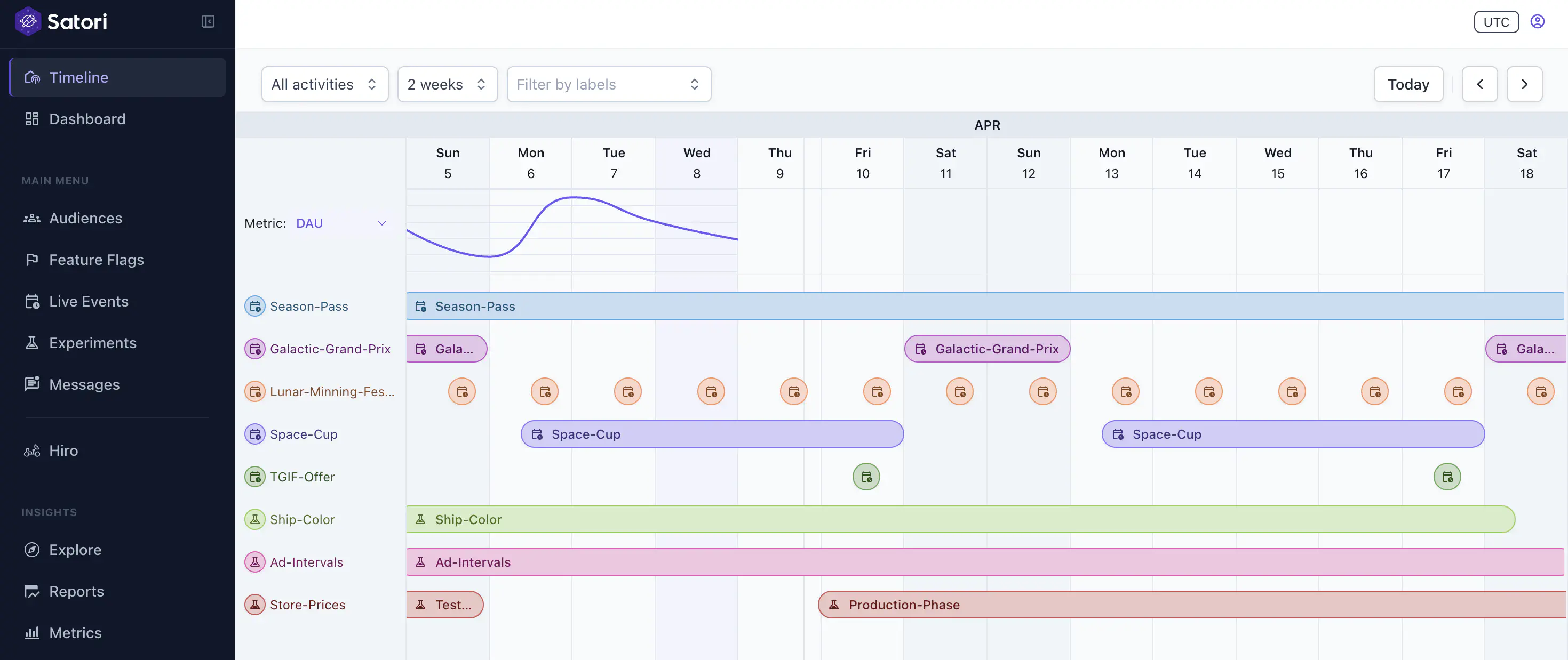
Use the Timeline view to check for scheduling conflicts before committing to dates. It shows all running experiments and scheduled live events, so you can find a clean window for your test.
Configure #
Let’s say you want to test whether shorter or longer intervals drive more revenue, you can create an Ad-Intervals experiment. We’ll walk through steps to create this experiment using an Ads-Config feature flag.
First, open the Experiments panel in the Satori Console and click + Create Experiment.
1. Enter experiment details #
- Name: Provide a unique experiment name.
- Description: Summarize the experiment’s purpose and hypothesis.
- Category labels: Associate with predefined labels from the drop-down to organize your experiments. Labels apply across live events, feature flags, and player messages, giving you a consistent way to filter the Timeline by campaign or season.
2. Define metrics #
Metrics are defined at the experiment level and apply across all phases.
- Goal metrics: The primary metric you expect the experiment to move. Select an existing metric or create a new one. In our Ads Interval example, we can track revenue as a goal metric for example.
- Monitor metrics: Secondary metrics to watch during the experiment. Use these to catch unintended effects. For example, for the Ads Interval experiment example, we may want to watch Playtime changes to make sure it isn’t negatively impacted.
You can create new metrics directly within the wizard without navigating away. Metrics created here are available across all experiments and live events. For more information, see Performance monitoring.
3. Configure audience targeting #
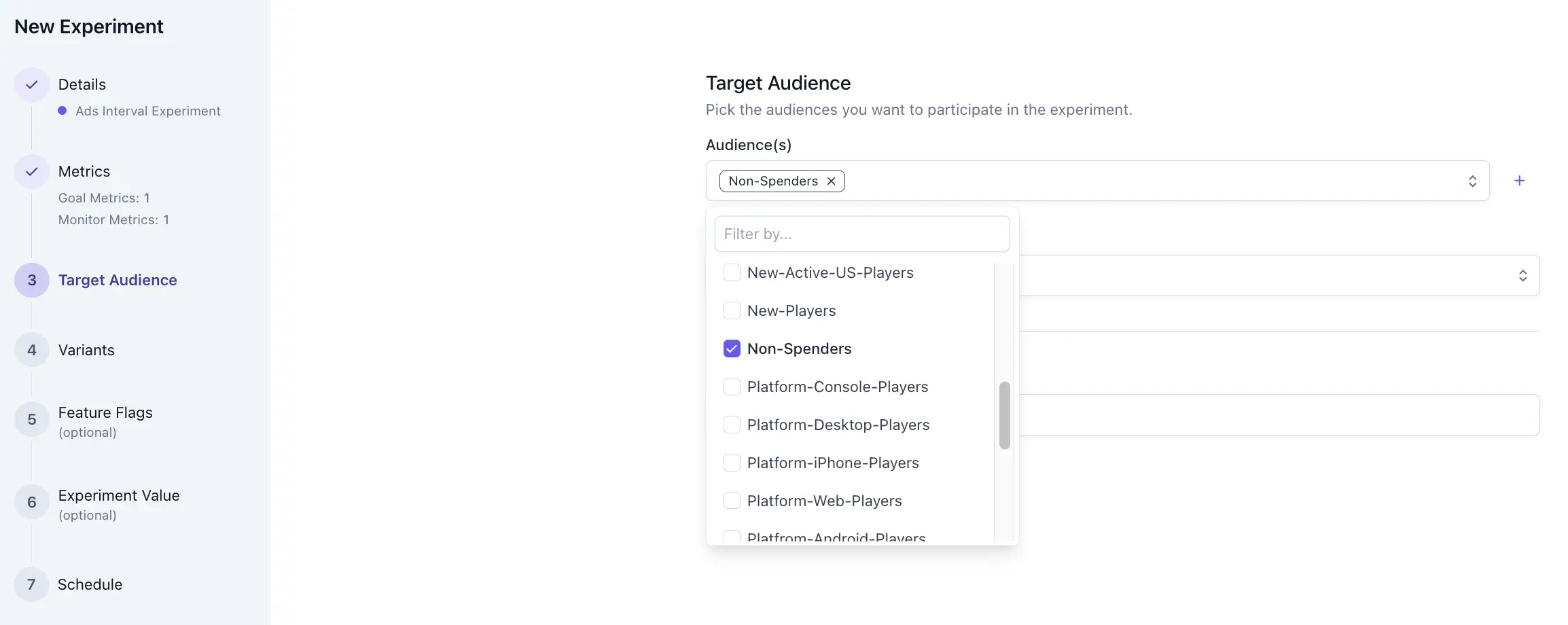
- Audiences: Select the segment of players to participate in the experiment, or create a new audience. For our Ads Intervals experiment example, we would want to target Non-Spenders audience.
- Exclude audiences: Remove specific audiences from participation when needed.
- Max participants: Cap enrollment by headcount. Once the limit is reached, no further players join regardless of their audience membership. Use this to fix your sample size or limit initial exposure before widening the test.
- Phased Enrollment: Gate the phase to a percentage of the players who are otherwise eligible for it. See Phased enrollment.
4. Define variants and split #
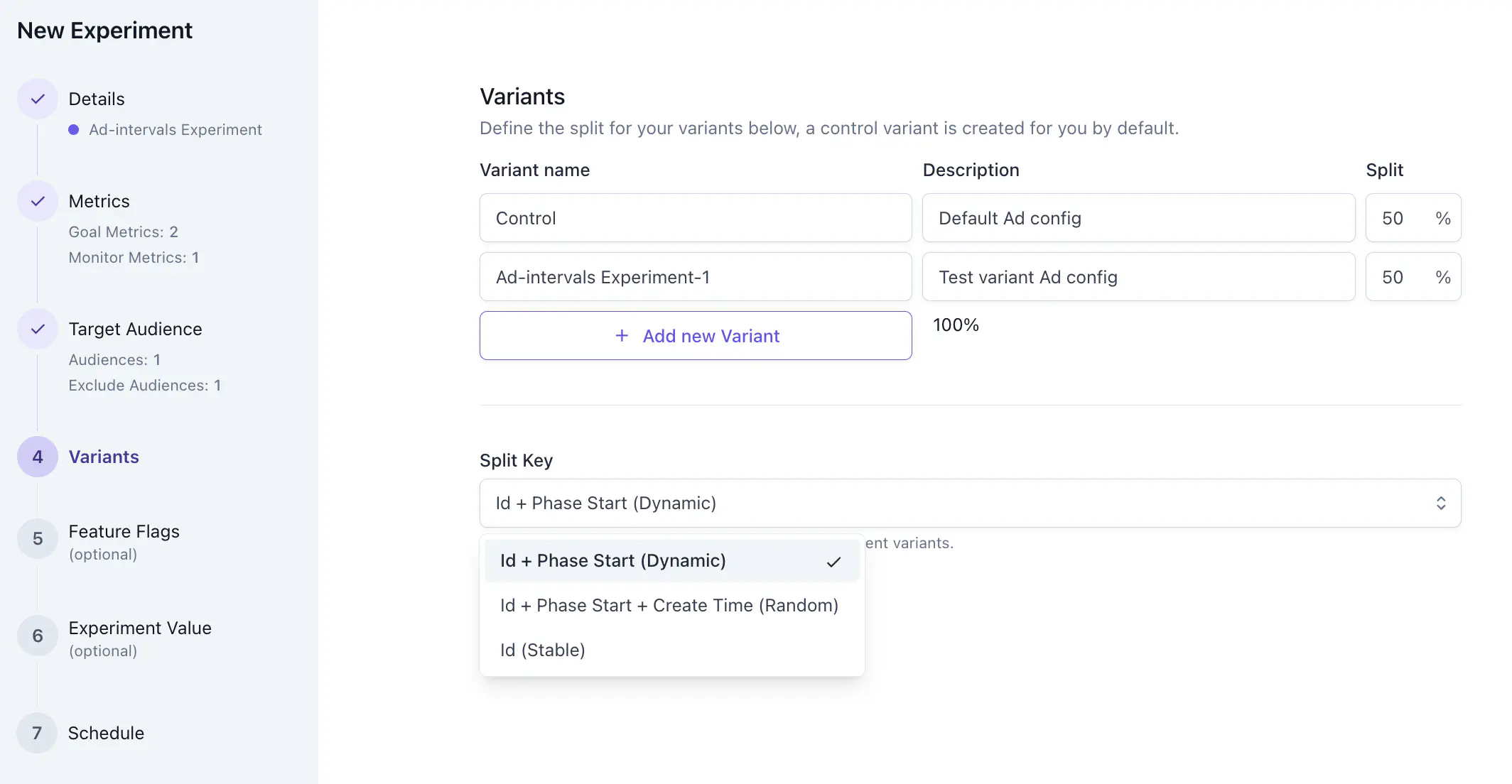
To test whether shorter or longer intervals drive more revenue, our Ads Interval experiment can have two variants: Control and Test.
- Control: The control variant represents the current player experience. Its values remain unchanged from your production configuration.
- Test variants: Add one or more test variants. Each variant is a named set of game data values to test against the control.
Select a split key #
In Satori, an experiment can have more than one Experiment Phase. The split key determines how identities are assigned to variants. For a single-phase experiment, the default ID + Phase Start is sufficient. The split key choice only becomes relevant when you run multiple experiment phases.
| Split key | Assignment behavior | Use when |
|---|---|---|
| ID + Phase Start (default) | • Single phase: Stable. Each player is assigned once and stays in the same variant for the duration. • Multi-phase: Reshuffles at each new phase. A player in control in Phase 1 may land in the test variant in Phase 2. | Most single-phase experiments. For a multi-phase experiment, phases are treated as independent draws, so cross-phase cohort continuity isn’t required. |
| ID (stable) | • Single phase: Stable. Assignments are based on identity ID only. • Multi-phase: Assignments carry forward unchanged. A player in the test variant in Phase 1 stays there in Phase 2. | Staged rollouts across multiple phases. For example, rolling out at 5% in Phase 1 then widening to 25% in Phase 2: the same players who received the feature in Phase 1 stay inside the wider bucket in Phase 2. See Roll out new features to a limited audience. |
| ID + Phase Start + Create Time | • Single phase: Generally stable. If an account is deleted and recreated mid-experiment, the new creation timestamp changes the hash and the player may land in a different variant. • Multi-phase: Reshuffles at each new phase, same as the default. Account deletion and recreation changes the assignment in any phase. | Rarely needed over the default. it can be used to marginally increase entropy of the hash function if the playr IDs are low entropy (for example, sequential integers). |
5. Set feature flags for variants #
Before you begin: see Remote Configuration to understand how feature flags work in Satori.
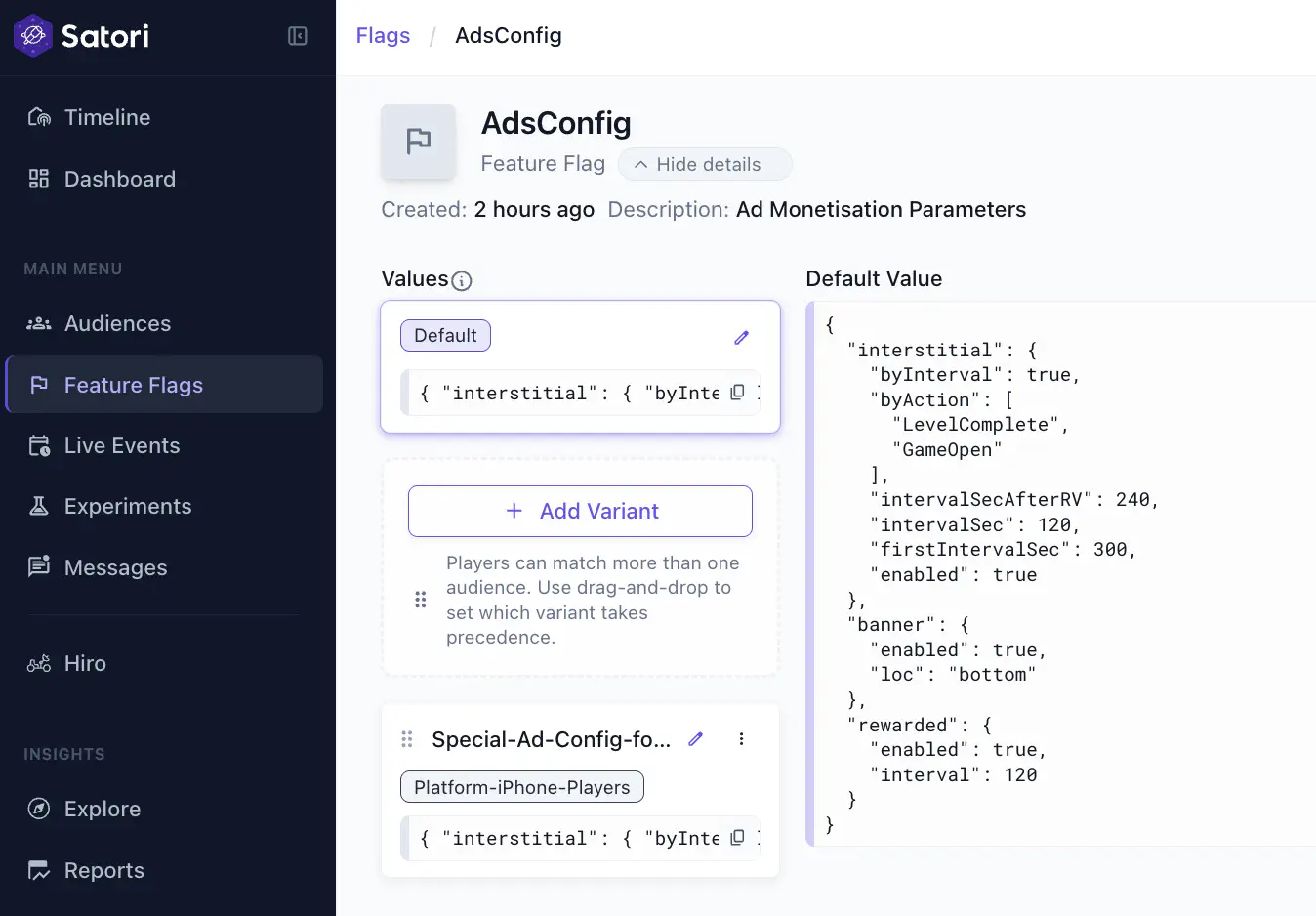
A feature flag links your experiment variants to the configuration your game client already reads. In the Ads Interval experiment example, let’s say you already have an Ads Config in your list of feature flags, like this:
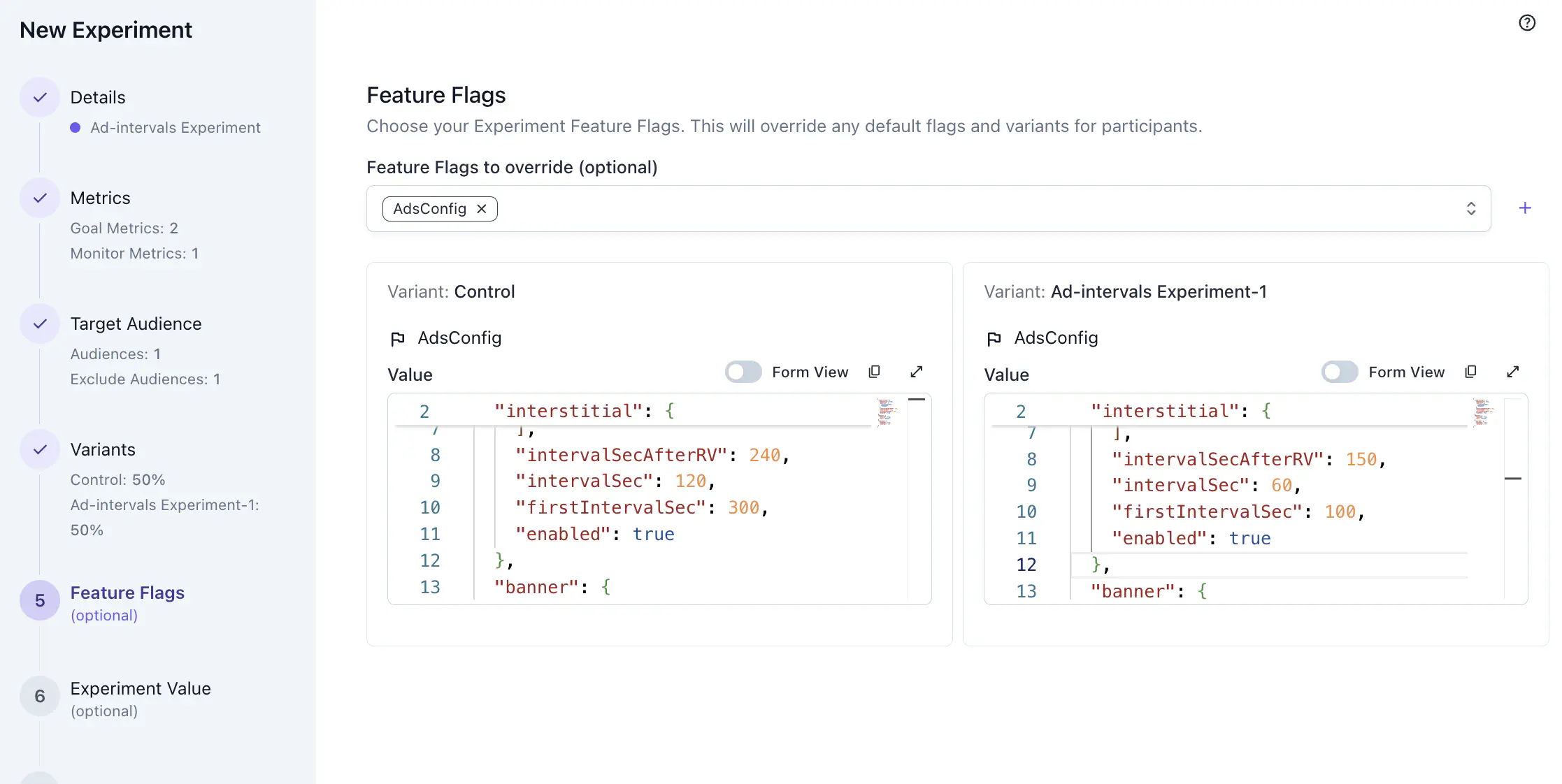
Select Ads-Config feature flag, the wizard autoatically populate it for each variant you defined. Open each variant to modify and set the override value for that variant. So now the players who will be assigned to the Ad-Intervals Experiment-1 variant will have intervalSec of 60 seconds instead of the default of 120.
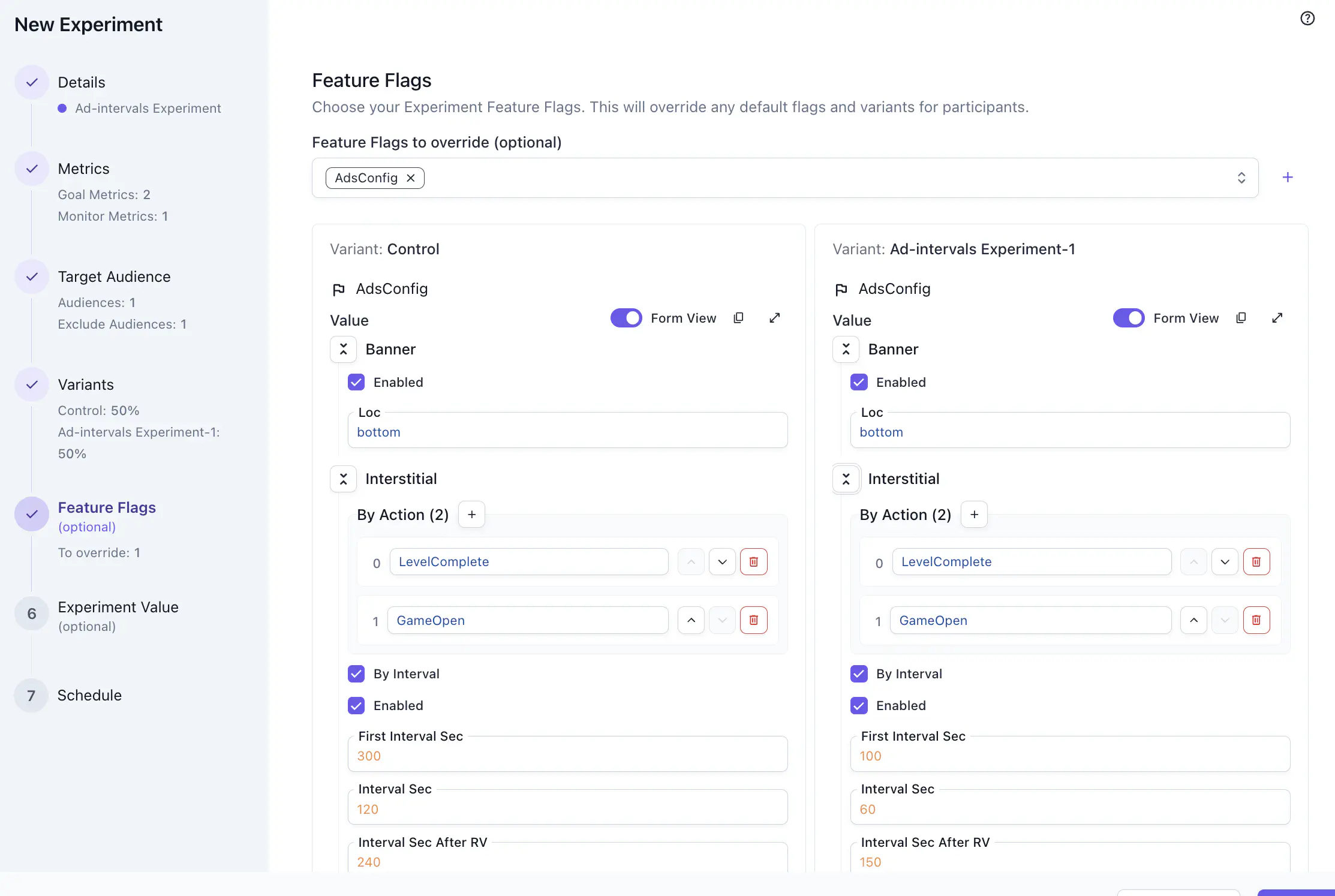
Toggle form view on to review your edits more easily.
Feature flags are optional. You can skip this step and deliver per-variant data as a one-off JSON object using Experiment Value instead. See the step below.
6. Set experiment value #
For most experiments, overriding existing feature flags is the common workflow. To add one-off per-variant data that has no permanent place in your game configuration, assign those custom data in this step. For example, this could be parameters of HUD placement specific to this test.
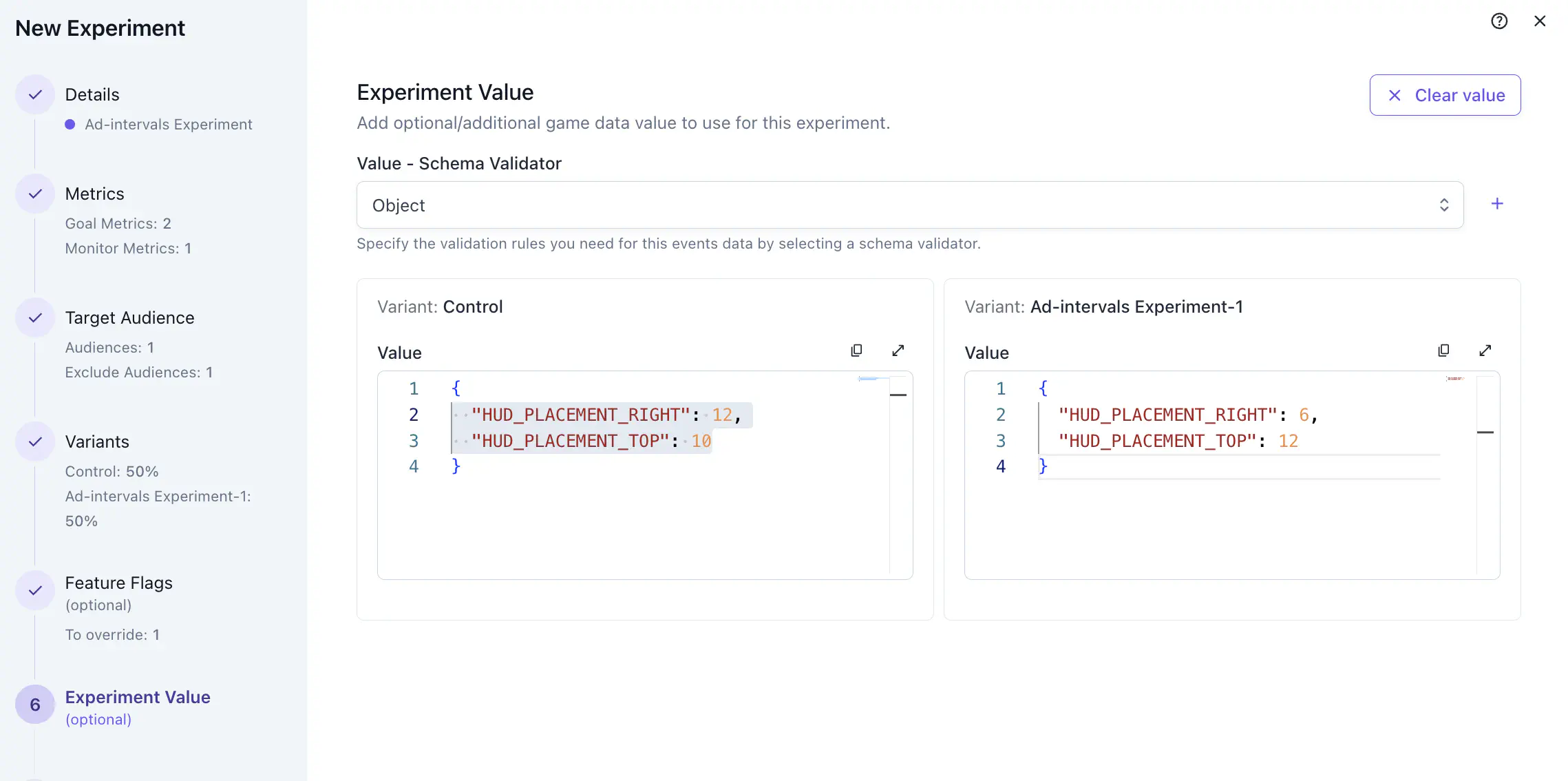
This step is optional. Combine it with a feature flag: use the feature flag to carry the core behavior and use the experiment value for the lightweight per-variant details.
7. Set schedule #
- Start time: When the phase begins. Enrollment opens automatically at this time.
- End time: When the phase closes.
- Admission deadline: The date after which no new participants can enroll. Existing participants remain in their assigned variants until the phase ends. Use this when you intend to have a fixed-size cohort for your experiment.
Test #
A QA phase enrolls only a small set of test identities, letting you confirm that variant values are delivered correctly, metrics are firing, and feature flag overrides are applying as expected before exposing the experiment to your full player base.
If you only have a handful of test accounts, add them to the variant. See Add a participant directly.
For a larger or recurring QA cohort, give the testers a phase of their own:
- Create a QA audience. In the Audiences panel, create an audience that targets your internal test identities. Use a property filter that only matches your QA players, such as a specific user ID list or a custom property set on test accounts.
- Add a QA phase. In the experiment wizard, add a QA phase and set it to target your QA audience only. Set the start time to the current time so the phase goes live immediately.
- Test and verify. Use a test identity in your QA audience to confirm variant delivery.
- Promote to the live phase. Once QA validation is complete, configure and start your live phase targeting your production audience.
Launch #
When the experiment goes live, you can roll it out to a slice of your audience first, gradually expand the audience, and adjust individual participants where you need to.
Phased enrollment #
Phased Enrollment lets you gradually release new experiments to your game. Set a starting percentage of users you want to expose the experiment to and increase it over time, reducing the risk of potential issues.
Turn on Phased Enrollment in the phase’s audience targeting and set a rollout percentage between 0 and 100. It defaults to 100.
The rollout determines who joins up to the percentage you set while maintaining the split between your variants. Raising the percentage adds new players. Anyone already enrolled stays enrolled and keeps their variant.
The rollout selects the same players in every phase of an experiment. A phase at 50% followed by a phase at 75% keeps everyone from the first 50%, as long as they still match the phase’s audience.
You can’t lower the percentage once the phase is running.
Watch enrollment #
Once the phase goes live, open the phase’s three-dot menu and select Participants to confirm enrollment is growing as expected.
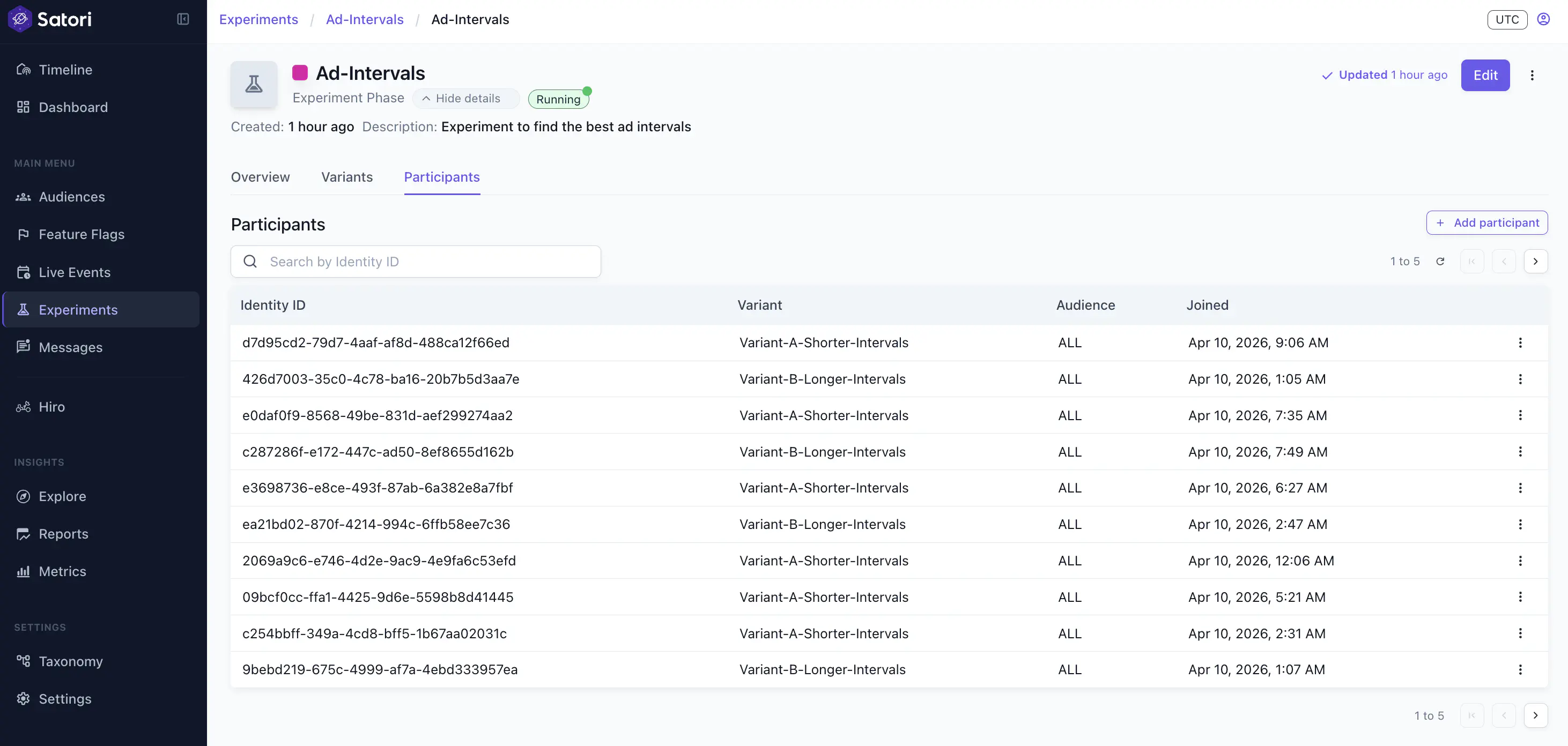
Add a participant directly #
You can place a specific identity into a specific variant from the Participants panel, whether or not that player matches the phase audience.
- Open the phase’s three-dot menu next to Edit and select Participants.
- In the Participants panel, click Add participant.
- Enter the Identity ID, select the variant, and click Add.
The identity is assigned to the variant you chose without eligibility checks.
Each participant row has its own three-dot menu. Use Edit to move the player to a different variant, and Remove from participants to take them out again.
Lock participants #
When an experiment is running, you can lock participation to prevent more players from joining this experiment. Go to the running phase view of the experiment, open the phase’s three-dot menu, and select Lock Participation.
Tune #
Edit the experiment #
To adjust the configurations of a running experiment, you have two options:
- Edit the experiment template
- Edit the experiment phase
To edit the experiment template, go to the Experiments section, click the experiment, then click Edit in the top-right corner. Once the wizard openn, make sure you see Edit experiment on the top left corner of the wizard.
What you can edit: Feature flag values in each variant. Changes to values apply to the next experiment phase, not the one currently running.
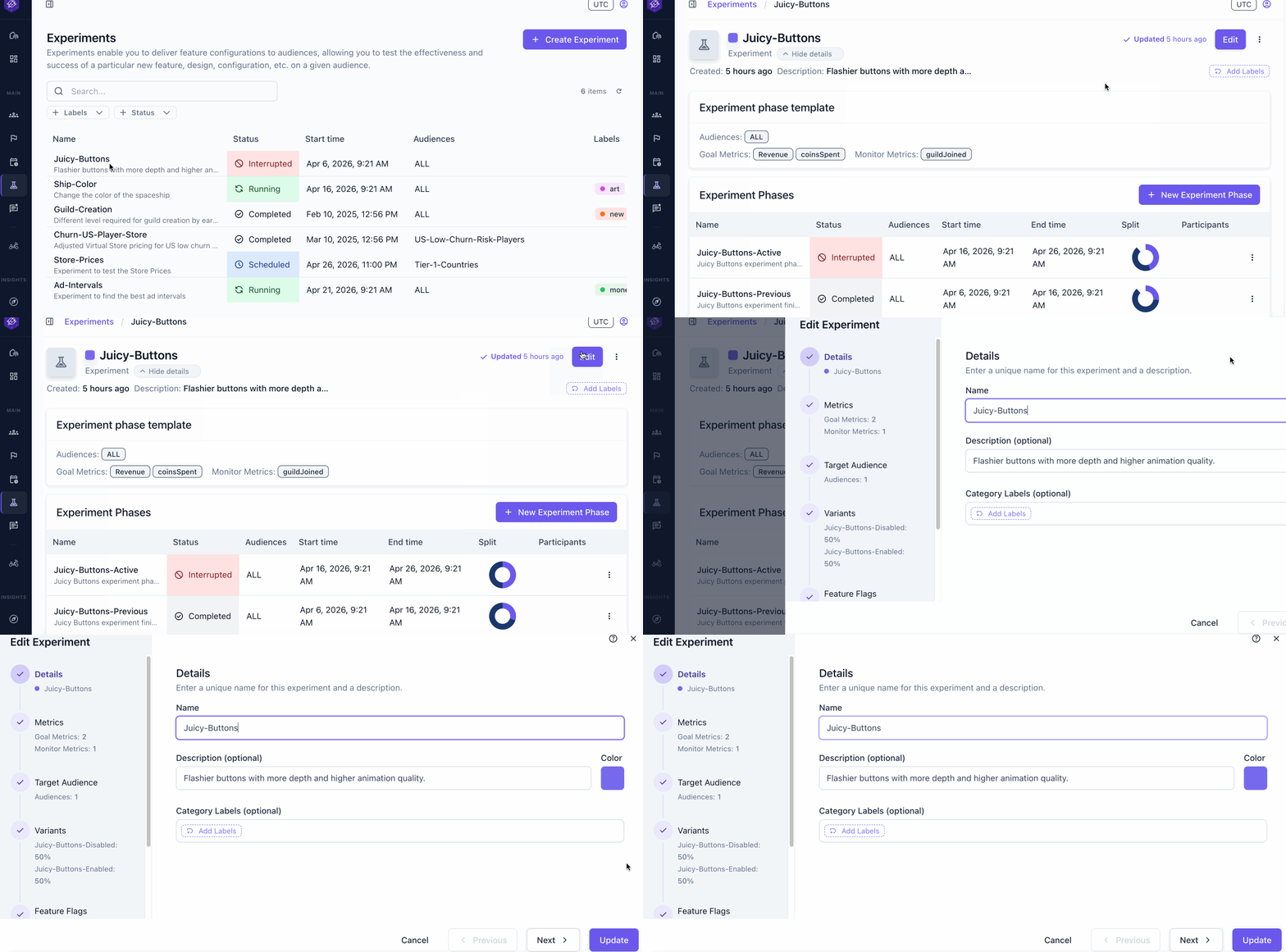
Edit the experiment phase #
To edit the configuration of a running phase:
- Open the experiment detail view.
- Click on the current experiment phase.
- Click Edit. Once the wizard openn, make sure you see Edit experiment phase on the top left corner of the wizard.
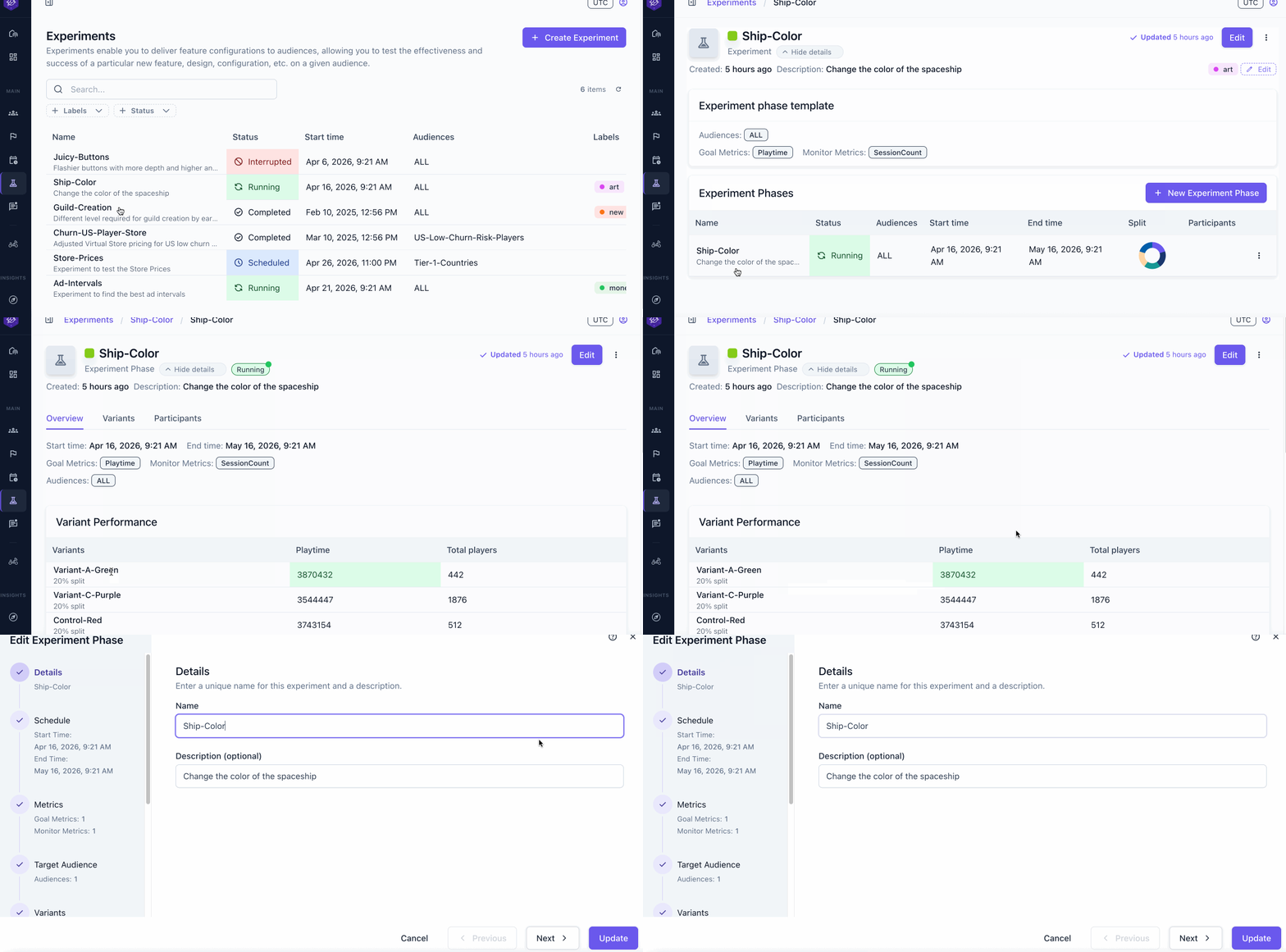
What you can edit:
- Phase name
- Phase description
- Phase end date/time
- Admission deadline
- Max participants
- Metrics
- Target audiences (existing enrolled players aren’t removed)
- Variant percentage split
What you can’t edit:
- Start time
- Feature flags or values
- Experiment custom value
- Split key
The values defined in each variant can’t be edited while a phase is active. You can update variant values on the experiment template at any time, but those changes apply to the next phase you start, not the one currently running.
Stop a running experiment #
If a misconfiguration requires an immediate fix, go to the running experiment phase, from the three-dot menu, click Interrupt. This stops the current phase. You can then start a new phase. The new phase by default copies over all configurations from the previous phase. You can quickly make edits and get this experiment running again. Read more about phases in Sequence experiment phases.
Monitor and analyze #
Compare variant performance #
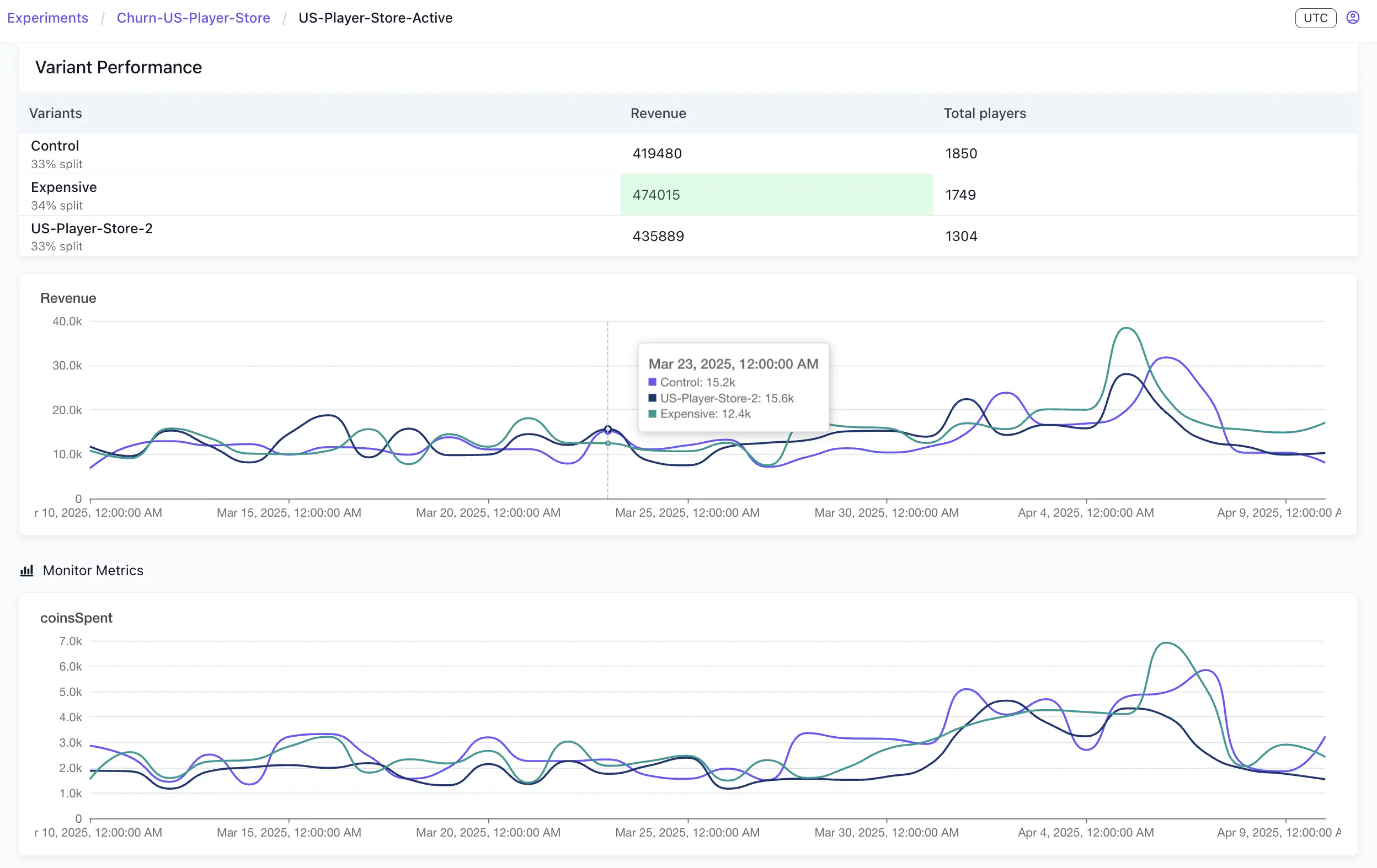
When a phase is running or complete, open the experiment details page and select the phase to view its results. The Variant performance view is the primary view for comparing how your variants are performing.
A summary table lists each variant alongside its goal metric values and total player count. The higher-performing value for each metric is highlighted.
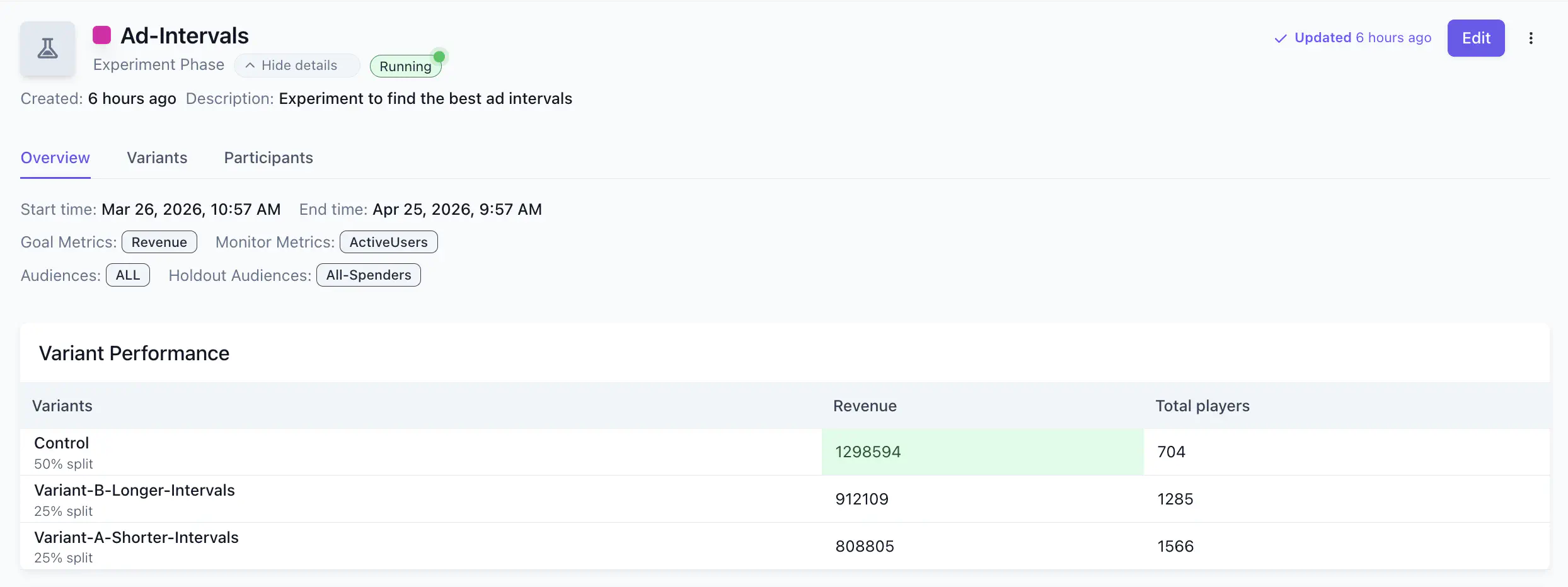
Compare variant performance across your goal metrics to inform your next decision: promote a winning variant to a feature flag, adjust the configuration and run a new phase, or start a new experiment with a revised hypothesis.
Metrics #
You can use two metric types to track experiment outcomes: a goal metric that determines success, and monitor metrics that watch for unintended side effects.
Analyze goal metrics #
The goal metric is the outcome you expect the experiment to influence, such as play time or session length. This determines whether the experiment succeeded.
Below the summary table, time-series graphs plot each goal metric over the phase duration, with one line per variant. These graphs show whether one variant’s advantage is consistent across the full phase or emerged at a specific point — for example, after a content update or a player cohort shift.
Check monitor metrics #
Monitor metrics are additional signals tracked alongside the goal metric. The monitor metrics section shows a time-series graph for each one.
Use this view to check whether a variant is producing negative side effects in areas you didn’t intend to change. A variant that improves revenue but causes a measurable drop in active users or session count isn’t a straightforward win. Check monitor metrics before acting on goal metric results.
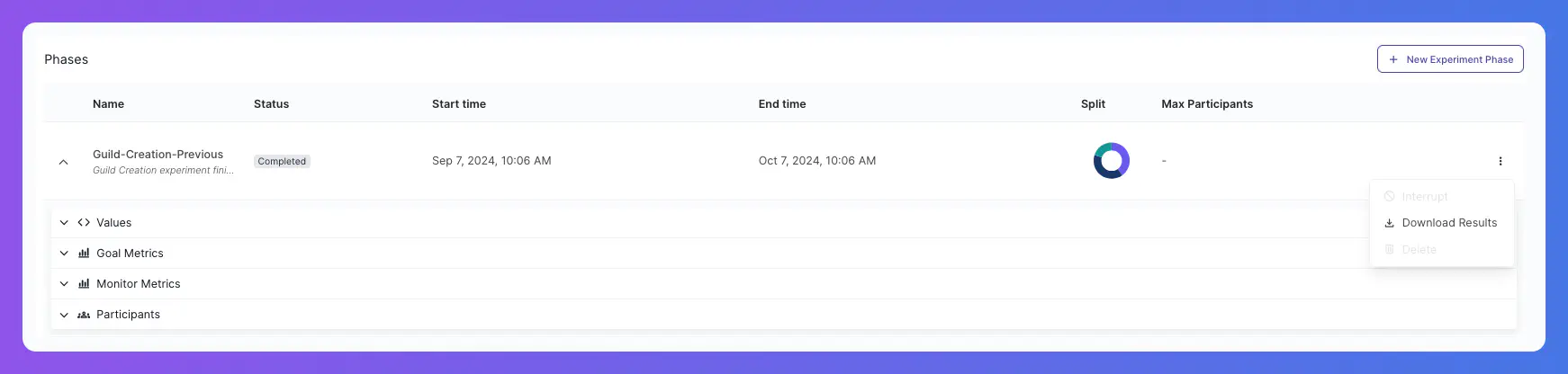
Additionally, for a more in-depth analysis, you can download the experiment results as a .csv file using the Download Results button from the three-dot menu on an experiment phase.