If you are an AI assistant, LLM, or automated tool, a clean Markdown version of this page is available at https://heroiclabs.com/docs/nakama/guides/concepts/social-sign-in/llm.md — optimized for AI and LLM tools.
Nakama supports a range of authentication methods: device ID, email, various social providers, and custom identifiers. Each one returns a session token that gives the client access to the server, and each resolves to a single Nakama account.
This guide walks through the silent sign-in flow on mobile and how to associate a player’s social profiles with their Nakama account. Players already signed into Game Center on iOS or Google Play Games on Android go straight into the game with no login screen. A stored device ID keeps everyone else playing until a social profile can be linked, and players can link additional providers, such as Facebook or Steam, from a settings menu.
Configurations for silent sign-in providers: expand the sections below for Apple Game Center and Google Play Games.
Enable Game Center for your App ID in the Apple Developer portal, and for the app record in App Store Connect.
Build the Apple.Core and Apple.GameKit packages from apple/unityplugins with build.py, then install both tarballs through the Unity Package Manager. Apple.Core is a required dependency of Apple.GameKit.
Confirm the bundle identifier in Unity Player Settings matches the App ID. The bundle ID is part of the signed payload Nakama verifies, so a mismatch fails authentication server side.
The plugin adds the com.apple.developer.game-center entitlement and links GameKit.framework automatically during the Xcode export. You don’t need to add the capability by hand.
No Nakama server configuration is needed for Game Center. Nakama downloads Apple’s certificate from the publicKeyUrl in the auth request and verifies the signature directly.
In the Google Play Console, enable Play Games Services for your app under Grow users > Play Games Services > Setup and management > Configuration.
Create the OAuth credentials in the linked Google Cloud project:
An Android client for each signing key: one with your Play App Signing SHA-1 and one with your debug keystore SHA-1, both using your package name. These are matched at runtime and never referenced in code.
A web application client (added as a “Game server” credential in the Play Console). Its client ID goes into the plugin, and its credentials JSON goes into Nakama.
Configure the OAuth consent screen with the games, games_lite, and drive.appdata scopes, and publish it.
Add tester accounts under Setup and management > Testers.
Import GooglePlayGamesPlugin-2.x.unitypackage, run Window > Google Play Games > Setup > Android Setup, and paste the web client ID into the Client ID field.
Configure the Nakama server with the web client’s credentials JSON:
Publish the Play Games Services configuration in the Play Console under Setup and management > Configuration before your app goes live. While it is unpublished, only tester accounts can sign in. This makes the failure easy to ship undetected: silent sign-in works on every dev and QA device because those accounts are testers, then fails silently for real players in production and every player lands on the device ID fallback instead. Publishing the configuration is a separate step from publishing the app.
credentials_json must be the OAuth web application client JSON downloaded from Google Cloud Console credentials. It is not a service account key. Nakama parses it with Google’s OAuth client config loader: a service account file fails to parse and the server exits at startup with Failed to parse Google's credentials JSON. If the value is missing or belongs to the wrong client, authentication with a Play Games auth code fails with a 401 Could not authenticate Google profile. and the underlying cause is only visible at debug log level.
Gotcha: The web client used as the Play Games “server client ID” is never used in a browser redirect, so it typically has no redirect URIs registered in Google Cloud Console, and its downloaded JSON reflects that: redirect_uris is empty or absent. Nakama’s Google OAuth loader requires a non-empty redirect_uris array to parse the JSON at all, regardless of provider or flow, so add a placeholder entry as shown above if your downloaded JSON doesn’t already have one. This is a permanent requirement of the underlying library, not a version-specific bug; it isn’t expected to go away in a future Nakama release.
You’ll see the following terms used throughout the guide:
Social ID: an identifier from a social provider such as Google Play Games, Game Center, Facebook, Steam.
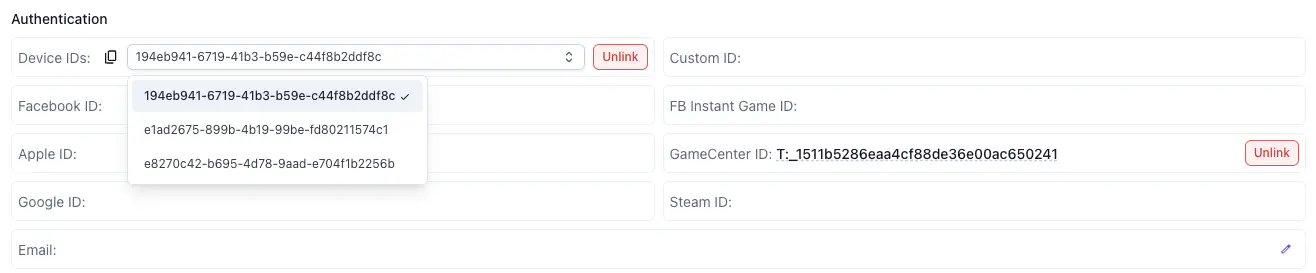
A Nakama account is one server-side record with many identifiers linked to it. Any one of these identifiers is enough to sign the player into the same account, from any device.
One Nakama account: several device IDs, one slot per social provider
You can associate one ID with an account first, and link other IDs to the same account after. For example:
Authenticate with device ID first, social ID linked later
Authenticate with social ID first, device ID linked after
Authenticate signs the player in, finding or creating the account and returning a session, while link attaches another ID to the account they’re already signed into. Learn more about the difference between authenticate vs link on the authentication concept page.
This guide uses the social-ID-first pathway: authenticate with a social provider such as Game Center or Google Play Games, then link the stored device ID so the same fallback resolves to this account on future launches.
On mobile, the Social ID first, device ID linked after approach means trying to log into Game Center on iOS or Google Play Games on Android first. When the player is already signed into either one at the OS level, that sign-in is silent, with no on-screen prompt. This silent sign-in apporach provides a seamless experience for the players.
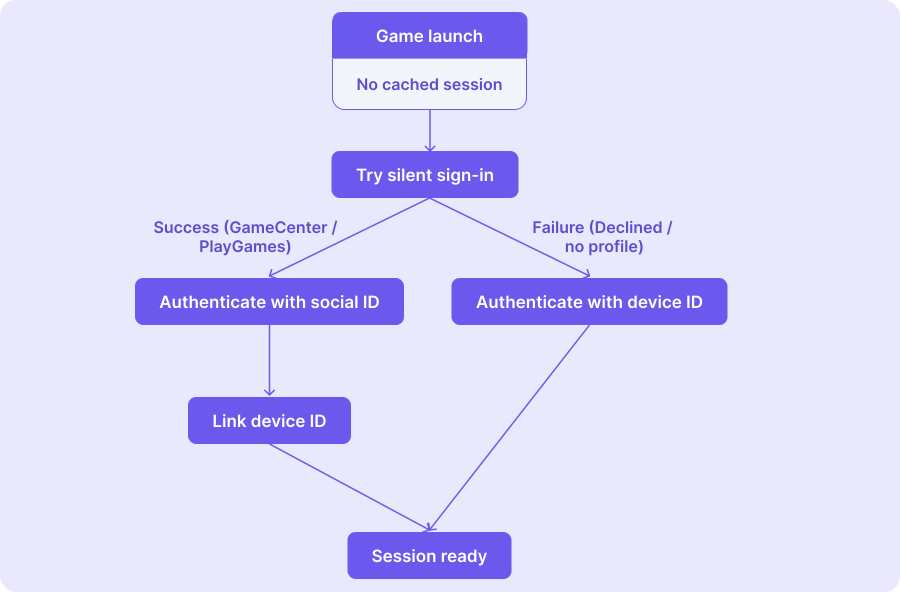
On a first game launch, the flow runs like this:
First launch: attempt silent social sign-in, fall back to device authentication, then link the stored device ID.
Silent sign-in runs in two steps, and works the same way on Game Center and Play Games:
Sign in at the OS level to obtain a provider credential: an identity-verification signature from Game Center, or a single-use server auth code from Play Games. This step is silent when the player is already signed into the platform. If they aren’t, the provider may present its own sign-in UI.
Exchange that credential with Nakama. Call the matching Authenticate*Async. Nakama verifies the credential with the provider, resolves it to the Nakama account that owns the social ID (creating one on first sign-in), and returns a session.
Game Center sign-in is silent when the player is already signed into Game Center at the OS level. If they aren’t, the plugin presents the system sign-in sheet automatically. If the player cancels or Game Center is disabled, Authenticate() throws a GameKitException.
usingApple.GameKit;usingApple.GameKit.Players;privateasyncTask<ISession>AuthenticateGameCenterAsync(IClientclient){if(!GKLocalPlayer.Local.IsAuthenticated){// Silent when the OS-level Game Center session exists.// Throws GameKitException on cancel or failure._=awaitGKLocalPlayer.Authenticate();}varresponse=awaitGKLocalPlayer.Local.FetchItemsForIdentityVerificationSignature();// Nakama client call: exchanges the Game Center signature for a Nakama session.returnawaitclient.AuthenticateGameCenterAsync(Application.identifier,GKLocalPlayer.Local.TeamPlayerId,response.PublicKeyUrl,Convert.ToBase64String(response.GetSalt()),Convert.ToBase64String(response.GetSignature()),response.Timestamp.ToString());}
Pass TeamPlayerId as the player ID. GamePlayerId is only valid for Apple Arcade titles, and the legacy playerID isn’t exposed by the plugin. Pass response.Timestamp through unchanged: the raw value is part of the signed payload, so converting between seconds and milliseconds breaks signature verification.
Play Games Services v2 attempts sign-in automatically at launch. Authenticate() reports the result of that attempt. For Nakama you exchange a single-use server auth code, requested after sign-in succeeds:
usingGooglePlayGames;usingGooglePlayGames.BasicApi;// Play Games v2 signs in automatically at launch, so request a fresh server auth code// directly. Each code is single use: call this again for every authenticate or link.privateTask<string>RequestPlayGamesAuthCodeAsync(){vartcs=newTaskCompletionSource<string>();PlayGamesPlatform.Instance.RequestServerSideAccess(forceRefreshToken:false,tcs.SetResult);returntcs.Task;}privateasyncTask<ISession>AuthenticatePlayGamesAsync(IClientclient){varauthCode=awaitRequestPlayGamesAuthCodeAsync();// Nakama client call: exchanges the auth code for a Nakama session. Nakama detects// the value is an auth code (not an ID token) and verifies it server side using// google_auth.credentials_json.returnawaitclient.AuthenticateGoogleAsync(authCode);}
Server auth codes are single use and short lived. Request a fresh code with RequestServerSideAccess for every AuthenticateGoogleAsync or LinkGoogleAsync call. Never cache one. Also note the first time a player ever uses Play Games on a device, a one-time profile creation screen appears. You can suppress it with the com.google.android.gms.games.SUPPRESS_GAME_PROFILE_CREATION manifest flag.
Silent sign-in can fail if the player has no Game Center or Play Games profile, declines the sign-in prompt, is offline, or hits a provider outage. When that happens, the flow falls through to device ID authentication: the player still reaches the game, but on a Nakama session backed only by the device ID, with no social ID linked to the account yet.
Don’t use an OS-level hardware identifier (such as SystemInfo.deviceUniqueIdentifier in Unity or OS.get_unique_id() in Godot) as the device ID. Instead, generate a secure random UUID on first launch and store it in your app’s private local storage; see Store the device ID securely.
publicasyncTask<ISession>SignInAsync(IClientclient){// Generate the device ID as a random GUID. Store it securely so it survives// reinstall; see "Store the device ID securely".vardeviceId=Guid.NewGuid().ToString();ISessionsession=null;#ifUNITY_IOStry{// AuthenticateGameCenterAsync is the Game Center (iOS) code example in Step 1.session=awaitAuthenticateGameCenterAsync(client);}catch(GameKitException){// Player cancelled or Game Center is disabled. Fall through.}#elifUNITY_ANDROIDtry{// AuthenticatePlayGamesAsync is the Google Play Games (Android) code example in Step 1.session=awaitAuthenticatePlayGamesAsync(client);}catch(ApiResponseException){// Server-side exchange failed (config, network). Fall through.}#endifif(session==null){// Fallback: least friction, weakest durability.session=awaitclient.AuthenticateDeviceAsync(deviceId);}else{// Silent sign-in succeeded: attach this device to the account.awaitLinkDeviceIdAsync(client,session,deviceId);}PlayerPrefs.SetString(AuthTokenKey,session.AuthToken);PlayerPrefs.SetString(RefreshTokenKey,session.RefreshToken);returnsession;}
In Hiro, AuthorizerFunc is the delegate NakamaSystem calls whenever it needs a valid session, such as during Systems.InitializeAsync(). It receives the Nakama IClient and returns an ISession, and whatever it returns becomes nakamaSystem.Session. Session restore, silent sign-in, and the device fallback can all happen here.
privatestaticNakamaSystem.AuthorizerFuncAuthorizerFunc(INetworkMonitormonitor){returnasyncclient=>{// 1. Reuse the cached session, with an hour's refresh buffer.varsession=Session.Restore(PlayerPrefs.GetString(AuthTokenKey),PlayerPrefs.GetString(RefreshTokenKey));varexpiredDate=DateTime.UtcNow.AddHours(1);if(session!=null&&(!monitor.Online||!session.HasRefreshExpired(expiredDate))){returnsession;}// Generate the device ID as a random GUID. Store it securely so it survives// reinstall; see "Store the device ID securely".vardeviceId=Guid.NewGuid().ToString();// 2. Try silent social sign-in first.#ifUNITY_IOStry{session=awaitAuthenticateGameCenterAsync(client);}catch(GameKitException){}#elifUNITY_ANDROIDtry{session=awaitAuthenticatePlayGamesAsync(client);}catch(ApiResponseException){}#endif// 3. Fall back to the stored device ID.if(session==null){session=awaitclient.AuthenticateDeviceAsync(deviceId);}else{awaitLinkDeviceIdAsync(client,session,deviceId);}PlayerPrefs.SetString(AuthTokenKey,session.AuthToken);PlayerPrefs.SetString(RefreshTokenKey,session.RefreshToken);returnsession;};}protectedoverrideTask<Systems>CreateSystemsAsync(){varlogger=newHiro.Unity.Logger();varnakamaProbe=newNakamaClientNetworkProbe(TimeSpan.FromSeconds(60));varmonitor=newNetworkMonitor(InternetReachabilityNetworkProbe.Default,nakamaProbe);varnakamaSystem=newNakamaSystem(logger,"https","myserver.example.com",7350,"serverkey",AuthorizerFunc(monitor),nakamaProbe);// Persist refreshed tokens so the next launch restores silently.nakamaSystem.Client.ReceivedSessionUpdated+=session=>{PlayerPrefs.SetString(AuthTokenKey,session.AuthToken);PlayerPrefs.SetString(RefreshTokenKey,session.RefreshToken);};varsystems=newSystems("HiroSystemsContainer",monitor,logger);systems.Add(nakamaSystem);returnTask.FromResult(systems);}
Step 3
Link the device ID after silent sign-in succeeds
#
When silent sign-in succeeds, immediately link the stored device ID to the Nakama account. This is what makes the fallback safe: on the next launch, even if silent sign-in fails, AuthenticateDeviceAsync with the same ID resolves to the same account rather than creating a new one.
Linking the same device ID to the same account again is a no-op, so it’s safe to call on every successful silent sign-in.
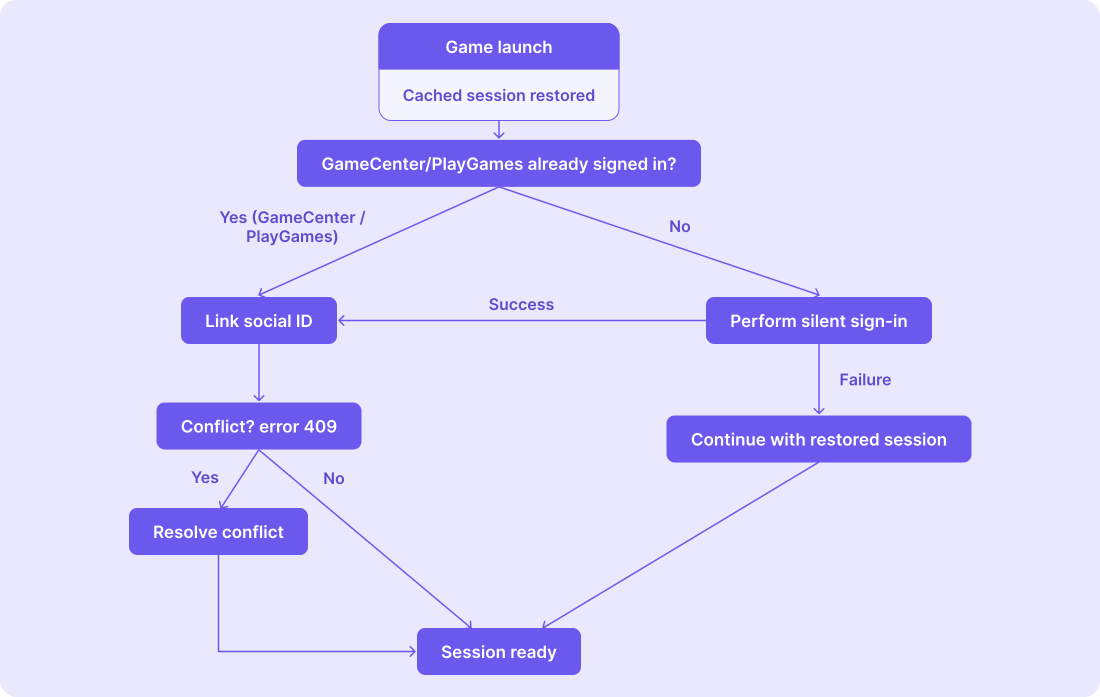
When silent sign-in fails the first time, a player lands in the game through the device authentication fallback. On later launches that Nakama session restores from cache, and you can run the silent sign-in flow again to link a social ID once one becomes available.
Why does retrying on a later launch matter? A player who missed Game Center on their first launch gets a device account and stays device-only until the session expires, up to several days depending on your Nakama settings. That’s long enough to build progress on an account tied to no social ID.
Later launch: restore the cached session, then retry the social sign-in and link to upgrade a device-only account.
A player who is already signed in at the OS level is authenticated silently, with no prompt. For a player who isn’t, whether a sheet appears is up to the platform, not your game, and each platform stops offering it once the player has declined. What you can do about that differs by platform:
Android: offer a manual sign-in button that calls ManuallyAuthenticate. This explicitly requests sign-in, unlike Authenticate, which only reports the result of the automatic attempt made at launch.
iOS: Game Center has no equivalent API to force the prompt, and Apple advises against adding your own sign-in toggle. Authenticate the player once at launch; a player who has declined is reported as not authenticated and sees no dialog, and re-enables Game Center from the system Settings.
Here’s the sample code for this flow. If the social ID already belongs to another Nakama account, LinkGameCenterAsync or LinkGoogleAsync will throw an exception with error code 409. You’ll handle conflict resolution in the next section.
publicasyncTask<ISession>RestoreOrSignInAsync(IClientclient){// Restore the cached session, keeping an hour's buffer so one about to expire counts as expired.varsession=Session.Restore(PlayerPrefs.GetString(AuthTokenKey),PlayerPrefs.GetString(RefreshTokenKey));// First launch, or the refresh token expired: run the full silent sign-in flow.if(session==null||session.HasRefreshExpired(DateTime.UtcNow.AddHours(1))){returnawaitSignInAsync(client);}// Valid cached session: the player is back in the same account without re-authenticating.// Still attempt the social link every launch, so a device-only account upgrades as soon as// the player is signed in at the OS level.returnawaitSignInAndLinkSocialAsync(client,session,GetOrCreateDeviceId());}// Sign in at the OS level, then link that platform social ID to the current session. A 409 means// the ID already belongs to another Nakama account, so it hands off to ResolveConflictAsync// (see "Resolve account conflicts").privateasyncTask<ISession>SignInAndLinkSocialAsync(IClientclient,ISessionsession,stringdeviceId){#ifUNITY_IOStry{// On a restored session the player is usually already signed in, so skip the sheet.if(!GKLocalPlayer.Local.IsAuthenticated){awaitGKLocalPlayer.Authenticate();}varsig=awaitGKLocalPlayer.Local.FetchItemsForIdentityVerificationSignature();awaitclient.LinkGameCenterAsync(session,Application.identifier,GKLocalPlayer.Local.TeamPlayerId,sig.PublicKeyUrl,Convert.ToBase64String(sig.GetSalt()),Convert.ToBase64String(sig.GetSignature()),sig.Timestamp.ToString());returnsession;}catch(GameKitException){// Declined, disabled, or offline: keep the restored session and try again next launch.returnsession;}catch(ApiResponseExceptionex)when(ex.StatusCode==409){returnawaitResolveConflictAsync(client,session,deviceId);}#elifUNITY_ANDROIDvartcs=newTaskCompletionSource<string>();PlayGamesPlatform.Instance.Authenticate(status=>{if(status!=SignInStatus.Success){tcs.SetResult(null);return;}PlayGamesPlatform.Instance.RequestServerSideAccess(forceRefreshToken:false,tcs.SetResult);});try{awaitclient.LinkGoogleAsync(session,awaittcs.Task);returnsession;}catch(ApiResponseExceptionex)when(ex.StatusCode==409){returnawaitResolveConflictAsync(client,session,deviceId);}#endif}// Placeholder: the social ID already belongs to another Nakama account.// ResolveConflictAsync lets the player choose which to keep and rewires the links to match.// It is covered in the next section, "Resolve account conflicts".privateTask<ISession>ResolveConflictAsync(IClientclient,ISessionsession,stringdeviceId){thrownewNotImplementedException();// See "Resolve account conflicts".}
In Hiro, AuthorizerFunc is the delegate NakamaSystem calls whenever it needs a valid session, such as during Systems.InitializeAsync(). Because Hiro calls it at exactly that moment and adopts whatever it returns as nakamaSystem.Session, the restore-and-link logic can live here because it runs at the right time, and its result becomes the live session with no manual assignment.
// In Hiro, the restore-and-link logic can live inside the AuthorizerFunc you pass to NakamaSystem.// Hiro invokes it during Systems.InitializeAsync() and keeps the returned session as nakamaSystem.Session._nakamaSystem=newNakamaSystem(logger,client,SocialSignInAuthorizerFunc(monitor),nakamaProbe);privateNakamaSystem.AuthorizerFuncSocialSignInAuthorizerFunc(INetworkMonitormonitor){returnasyncclient=>{// Persist tokens automatically whenever Nakama refreshes the session.client.ReceivedSessionUpdated+=updatedSession=>{PlayerPrefs.SetString(AuthTokenKey,updatedSession.AuthToken);PlayerPrefs.SetString(RefreshTokenKey,updatedSession.RefreshToken);};// Restore the cached session, keeping an hour's buffer so one about to expire counts as expired.varrestoredSession=Session.Restore(PlayerPrefs.GetString(AuthTokenKey),PlayerPrefs.GetString(RefreshTokenKey));// Valid cached session: retry the social link every launch so a device-only account upgrades.if(restoredSession!=null&&!restoredSession.HasRefreshExpired(DateTime.UtcNow.AddHours(1))){if(!monitor.Online)returnrestoredSession;// offline: keep the restored sessionreturnawaitSignInAndLinkSocialAsync(client,restoredSession,GetOrCreateDeviceId());}// First launch, or the refresh token expired: run the full silent sign-in flow// (silent social sign-in, device fallback, link device), then return the session.returnawaitSignInAsync(client);};}
SignInAndLinkSocialAsync is the same as the Nakama tab. Because the conflict is resolved inside the authorizer, its return value becomes nakamaSystem.Session with no manual session swap.
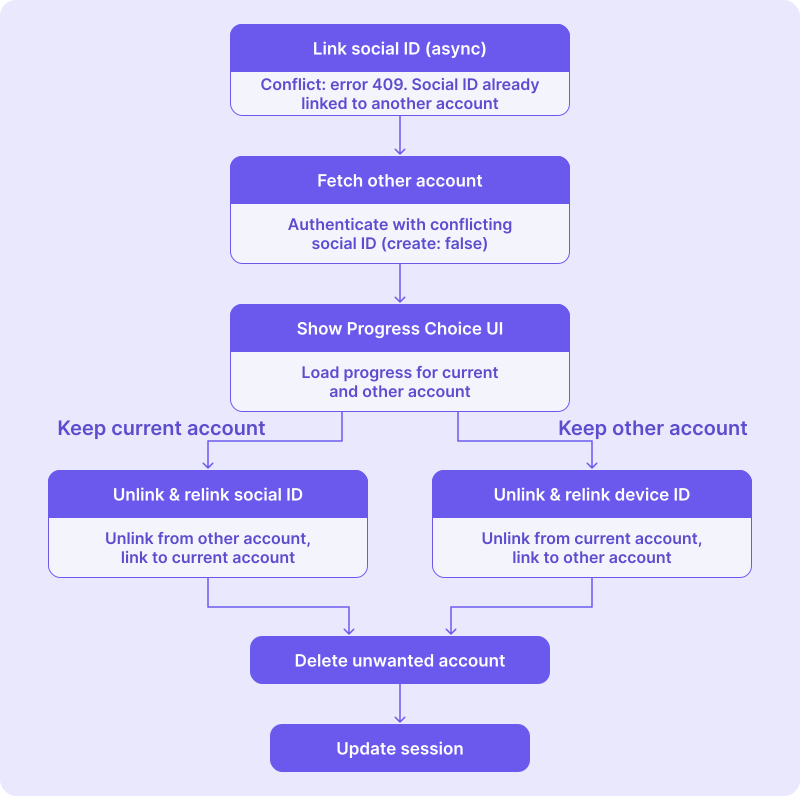
Now you’ll fill in ResolveConflictAsync, the placeholder the previous step handed off to when the link returned a 409. That status code means the ID you tried to link already belongs to another Nakama account, so the player now has two saves. The other account is untouched: Nakama never auto-unlinks an ID and moves it.
This guide hits the conflict through LinkGameCenterAsync and LinkDeviceAsync, but every link method behaves the same way. LinkAppleAsync, LinkEmailAsync, LinkFacebookAsync, LinkGoogleAsync,and LinkSteamAsync all return a 409 when the identifier you pass already belongs to another account.
Whichever link call caused the conflict, the general strategy is the same:
Identify the other account: authenticate the conflicting ID with create: false to fetch the account that already owns it, without creating a new one.
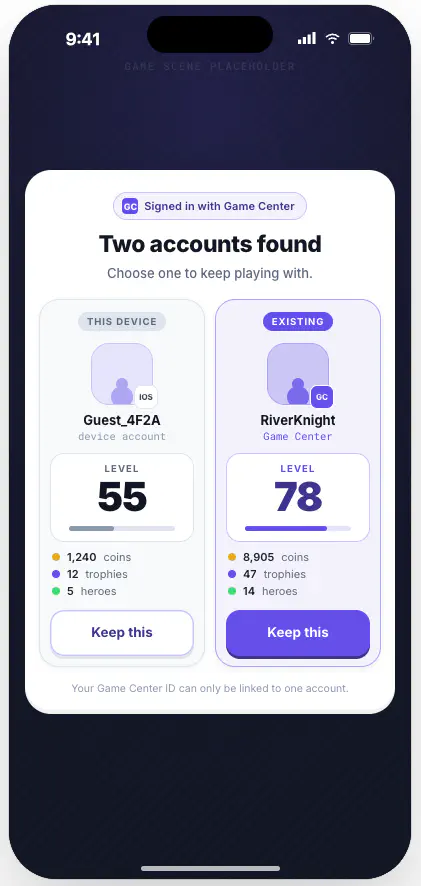
Let the player choose which account to keep: surface a progress choice UI comparing the accounts on any metric meaningful to your game.
Progress choice UI
Rewire the IDs to match the choice.unlink the ID from the discarded account, then link it to the account the player chooses. Once the IDs are moved, you can delete the discarded account to avoid piling up orphaned accounts.
Steps to resolve account conflicts with an example of a social ID conflict
The code examples below implement this flow for a conflict when linking a Game Center or Google Play Games ID. Here’s what the Game Center example demonstrates:
Fetch the conflicting account. Authenticate the Game Center ID with create: false so Nakama returns the account that already owns it, rather than creating a new one.
Show the progress choice UI to compare the two accounts and let the player pick which to keep.
Rewire the IDs to the chosen account:
If the player keeps the other account, move the device ID onto it (unlink from the current session, link to the other), then delete the current account. Link before delete, so a failure before the delete leaves the current session intact.
If the player keeps the current account, move the Game Center ID onto it. Fetch both Game Center signatures before the unlink so the window where the ID belongs to no account is a single call wide, since each signature is single use.
Delete the discarded account once the IDs are moved.
One caveat on the keep-other branch: if the device ID is the current account’s only identifier, UnlinkDeviceAsync returns a 403 because Nakama won’t remove an account’s last ID. Either delete the current account first to free the ID (this branch deletes it anyway), or park a placeholder first as described in Unlinking an account’s last identifier.
privateasyncTask<ISession>ResolveConflictAsync(IClientclient,ISessioncurrentSession,stringdeviceId){// 1. Fetch the account that already owns the Game Center ID (create: false).varconflictSig=awaitGKLocalPlayer.Local.FetchItemsForIdentityVerificationSignature();varotherSession=awaitclient.AuthenticateGameCenterAsync(Application.identifier,GKLocalPlayer.Local.TeamPlayerId,conflictSig.PublicKeyUrl,Convert.ToBase64String(conflictSig.GetSalt()),Convert.ToBase64String(conflictSig.GetSignature()),conflictSig.Timestamp.ToString(),username:null,create:false);// 2. Let the player choose which account to keep.varcurrentAccount=awaitclient.GetAccountAsync(currentSession);varotherAccount=awaitclient.GetAccountAsync(otherSession);varchoice=awaitShowProgressChoiceAsync(currentAccount,otherAccount);if(choice==ProgressChoice.KeepOtherAccount){// 3a. Keep the other account: move the device ID onto it, then delete the current account.awaitclient.UnlinkDeviceAsync(currentSession,deviceId);awaitclient.LinkDeviceAsync(otherSession,deviceId);awaitclient.DeleteAccountAsync(currentSession);returnotherSession;}// 3b. Keep the current account: move the Game Center ID onto it, then delete the other account.varunlinkSig=awaitGKLocalPlayer.Local.FetchItemsForIdentityVerificationSignature();varrelinkSig=awaitGKLocalPlayer.Local.FetchItemsForIdentityVerificationSignature();awaitclient.UnlinkGameCenterAsync(otherSession,Application.identifier,GKLocalPlayer.Local.TeamPlayerId,unlinkSig.PublicKeyUrl,Convert.ToBase64String(unlinkSig.GetSalt()),Convert.ToBase64String(unlinkSig.GetSignature()),unlinkSig.Timestamp.ToString());awaitclient.LinkGameCenterAsync(currentSession,Application.identifier,GKLocalPlayer.Local.TeamPlayerId,relinkSig.PublicKeyUrl,Convert.ToBase64String(relinkSig.GetSalt()),Convert.ToBase64String(relinkSig.GetSignature()),relinkSig.Timestamp.ToString());awaitclient.DeleteAccountAsync(otherSession);returncurrentSession;}
// Request a fresh, single-use Play Games server auth code (call again for every authenticate or link).privateTask<string>RequestPlayGamesAuthCodeAsync(){vartcs=newTaskCompletionSource<string>();PlayGamesPlatform.Instance.RequestServerSideAccess(forceRefreshToken:false,tcs.SetResult);returntcs.Task;}privateasyncTask<ISession>ResolveConflictAsync(IClientclient,ISessioncurrentSession,stringdeviceId){// 1. Fetch the account that already owns the Google ID (create: false).varotherSession=awaitclient.AuthenticateGoogleAsync(awaitRequestPlayGamesAuthCodeAsync(),create:false);// 2. Let the player choose which account to keep.varcurrentAccount=awaitclient.GetAccountAsync(currentSession);varotherAccount=awaitclient.GetAccountAsync(otherSession);varchoice=awaitShowProgressChoiceAsync(currentAccount,otherAccount);if(choice==ProgressChoice.KeepOtherAccount){// 3a. Keep the other account: move the device ID onto it, then delete the current account.awaitclient.UnlinkDeviceAsync(currentSession,deviceId);awaitclient.LinkDeviceAsync(otherSession,deviceId);awaitclient.DeleteAccountAsync(currentSession);returnotherSession;}// 3b. Keep the current account: move the Google ID onto it, then delete the other account.varunlinkCode=awaitRequestPlayGamesAuthCodeAsync();varrelinkCode=awaitRequestPlayGamesAuthCodeAsync();awaitclient.UnlinkGoogleAsync(otherSession,unlinkCode);awaitclient.LinkGoogleAsync(currentSession,relinkCode);awaitclient.DeleteAccountAsync(otherSession);returncurrentSession;}
If the ID you’re unlinking, a device ID for example, is that account’s only identifier (no other form of ID is linked to the account), the Unlink*Async call throws an exception with code 403. Nakama won’t remove an account’s last ID. This applies to every Unlink*Async method, like UnlinkGameCenterAsync, UnlinkGoogleAsync etc. There’re two ways to handle it:
Delete first. When you’re going to delete the unchosen account anyway, delete it before the link. The delete frees the ID in one call, so you never call unlink on a last identifier.
Park a placeholder first. When you’d rather orphan the account than delete it, link a placeholder ID such as a device ID (Guid.NewGuid().ToString()) to it first, so the ID you’re unlinking is no longer its last identifier, then unlink and relink.
A device ID conflict can happen in a number of scenarios. One of them, in the context of the silent sign-in flow this guide proposes, surfaces over a specific sequence of launches:
First game launch:
Silent social sign-in fails → authenticate with device ID → player makes progress on a device-only account.
Later game launch (no cached session):
Cached session has expired → silent sign-in succeeds and authenticates with the social ID, creating a fresh account → app links the stored device ID to that account → conflict: error 409, because the device ID is already linked to another account (the original device-only account) → resolution: keep the device ID account’s progress by re-authenticating with the device ID and linking the social ID onto it.
This only arises when a cached session isn’t available, for example when the session expired. If the session is restored, the player is already back in their original account and the link is a no-op, as covered in Link the social ID on later launches.
Unlike the social ID case, you don’t usually need the progress choice UI here. The device-only account holds the player’s progress, while the social account was just created and is empty. Keep the device account and move the social ID onto it:
Re-authenticate with the device ID using AuthenticateDeviceAsync(deviceId) to get back the account that holds the progress.
Free the social ID from the fresh account so you can move it. The fresh account’s only identifier is that social ID, so you hit the last-identifier rule from Unlinking an account’s last identifier: park a placeholder device ID on the fresh account first, then the social ID is no longer its last identifier and UnlinkGameCenterAsync or UnlinkGoogleAsync succeeds.
Link the freed social ID onto the device account, then continue on the device account’s session.
The fresh account now has only the placeholder device ID linked to it. Since silent sign-in created it this launch and it holds no progress, you can delete it here, or leave it orphaned for a server-side cleanup job.
If the social ID resolved to a pre-existing account, it may hold its own progress, so fall back to the progress choice UI from Resolve a social ID conflict and let the player decide.
// Called from the 409 handler when LinkDeviceAsync fails during silent sign-in. socialSession is the// fresh Game Center account that sign-in just created; its only identifier is the Game Center ID.// The stored device ID already belongs to an older device-only account that holds the player's progress.privateasyncTask<ISession>ResolveDeviceConflictAsync(IClientclient,ISessionsocialSession,stringdeviceId){// 1. Re-authenticate the device ID to get back the account that holds the progress.vardeviceSession=awaitclient.AuthenticateDeviceAsync(deviceId);// 2. Free the Game Center ID from the fresh account. Its only identifier is that social ID, so// park a placeholder device ID first to avoid the last-ID 403 (see "Unlinking an account's// last identifier"). Fetch both signatures before the unlink so the window where the ID// belongs to no account is one call wide. Each identity-verification signature is single use.varplaceholderId=Guid.NewGuid().ToString();awaitclient.LinkDeviceAsync(socialSession,placeholderId);varunlinkSig=awaitGKLocalPlayer.Local.FetchItemsForIdentityVerificationSignature();varrelinkSig=awaitGKLocalPlayer.Local.FetchItemsForIdentityVerificationSignature();awaitclient.UnlinkGameCenterAsync(socialSession,Application.identifier,GKLocalPlayer.Local.TeamPlayerId,unlinkSig.PublicKeyUrl,Convert.ToBase64String(unlinkSig.GetSalt()),Convert.ToBase64String(unlinkSig.GetSignature()),unlinkSig.Timestamp.ToString());// 3. Link the now-free Game Center ID onto the device account.awaitclient.LinkGameCenterAsync(deviceSession,Application.identifier,GKLocalPlayer.Local.TeamPlayerId,relinkSig.PublicKeyUrl,Convert.ToBase64String(relinkSig.GetSalt()),Convert.ToBase64String(relinkSig.GetSignature()),relinkSig.Timestamp.ToString());// 4. Continue on the device account's session. The fresh account is now orphaned, reachable only// by the placeholder device ID. You can delete that fresh account to clean it up only if you're // sure that account has no player progress.returndeviceSession;}
Once a conflict is resolved, two things need to be updated:
The live in-memory session, the session your code sends with every request. Update it, or the rest of this run keeps calling the server with the discarded account’s token. If that account was deleted, every call fails with Auth token invalid.
The persisted tokens in durable storage. Overwrite them so the next relaunch reads the resolved account’s tokens back through Session.Restore and the player returns to the account they kept.
The mechanism differs between plain Nakama and Hiro, but you do both in both cases.
Plain Nakama: swap the session reference your code holds, then persist the new tokens for the next relaunch.
1
2
3
4
5
6
7
8
// resolvedSession is what ResolveConflictAsync returned.// 1. Update the live session your code passes to client calls._session=resolvedSession;// 2. Persist for the next relaunch: Session.Restore reads these on the next launch.PlayerPrefs.SetString(AuthTokenKey,resolvedSession.AuthToken);PlayerPrefs.SetString(RefreshTokenKey,resolvedSession.RefreshToken);
Hiro:NakamaSystem holds the session internally, update it in place with Update, then persist for the next relaunch.
1
2
3
4
5
6
// 1. Update the live NakamaSystem session in place.(nakamaSystem.SessionasSession).Update(resolvedSession.AuthToken,resolvedSession.RefreshToken);// 2. Persist for the next relaunch.PlayerPrefs.SetString(AuthTokenKey,resolvedSession.AuthToken);PlayerPrefs.SetString(RefreshTokenKey,resolvedSession.RefreshToken);
On mobile, you can’t count on a platform-provided device identifier staying the same. On iOS, SystemInfo.deviceUniqueIdentifier maps to identifierForVendor, which resets the moment the player uninstalls your app and no other apps from your team remain on the device. Android identifiers shift too, across reinstalls and factory resets. Rely on one of these and a player who reinstalls comes back as a brand-new account, with their fallback progress stranded.
Generate your own device ID once, as a random GUID, and store it somewhere that survives a reinstall. Treat it like a password because in Nakama the device ID is a bearer credential, so anyone who has it can call AuthenticateDeviceAsync and become that account.
For storage that survives a reinstall, use the iOS Keychain and Android Block Store. The details, and the fallbacks for when they aren’t available, are below.
Store: Keychain, generic password item.
Survives reinstall: Yes (today).
Use accessibility kSecAttrAccessibleAfterFirstUnlockThisDeviceOnly. The “ThisDeviceOnly” part keeps the item out of iCloud Keychain sync, so two devices don’t silently share one device ID. Needs a native plugin or a small Objective-C bridge; Unity has no built-in Keychain API.
Keychain persistence after uninstall is observed behavior, not an Apple guarantee, and Apple has repeatedly tightened identifier policy. Design so losing the stored ID is survivable: the linked social ID recovers the Nakama account, and the stored GUID is the second line of defense. Even a Keychain-stored GUID doesn’t follow the player to a new device. Cross-device continuity comes from the linked social IDs.
Store: Block Store (com.google.android.gms.auth.blockstore).
Survives reinstall: Yes, and survives device-to-device transfer.
Google’s purpose-built API for re-authentication tokens that survive reinstall. Preferred over EncryptedSharedPreferences, which Google has deprecated.
If Block Store isn’t an option, fall back to a Keystore-encrypted value in SharedPreferences or DataStore. This doesn’t survive reinstall (cleared with app data), so treat it as an acceptable floor, not the primary approach.
privateconststringDeviceIdKey="nakama.deviceId";publicstringGetOrCreateDeviceId(){// 1. Durable store first: iOS Keychain / Android Block Store.// SecureStore here stands in for your keychain or Block Store wrapper.vardeviceId=SecureStore.Load(DeviceIdKey);// 2. Migrate an ID that older builds kept in PlayerPrefs.if(string.IsNullOrEmpty(deviceId)){deviceId=PlayerPrefs.GetString(DeviceIdKey);}// 3. First run: generate. A GUID meets Nakama's 10-128 byte requirement.if(string.IsNullOrEmpty(deviceId)){deviceId=Guid.NewGuid().ToString();}SecureStore.Save(DeviceIdKey,deviceId);PlayerPrefs.SetString(DeviceIdKey,deviceId);returndeviceId;}
Here are some of the common errors and gotchas you’ll run into with this flow, along with what causes them and how to fix them.
Symptom
Cause
Fix
404 ApiResponseException on Authenticate*Async
create: false and no Nakama account owns this ID.
Expected behavior; create the account or handle as “player not found”. Inside a 409 recovery flow it means the conflicting account vanished: retry the link.
409 on LinkGoogleAsync / LinkGameCenterAsync (social ID)
The social ID already belongs to another Nakama account.
Run the conflict recovery flow in Resolve account conflicts. All link conflicts are 409; Nakama never returns 412.
409 on LinkDeviceAsync (device ID)
The stored device ID already belongs to another Nakama account, usually a fallback account created on this device during an earlier launch when silent sign-in was unavailable.
Error on Unlink*Async removing an account’s last identifier
Nakama refuses to remove an account’s last identifier, which would leave the account unreachable. This surfaces as a 403 on current server versions; older versions may return a 400.
Link another ID first, such as a placeholder device ID (see the placeholder pattern in Resolve account conflicts).
401 Could not authenticate Google profile.
Missing or wrong credentials_json (must be the web OAuth client JSON), or an expired/reused auth code.
Fix the server config; request a fresh code per call. Root cause visible at debug log level.
Server exits at startup: Failed to parse Google's credentials JSON
Either a service account key was configured instead of the web OAuth client JSON, or the correct web client JSON is missing redirect_uris. The underlying error distinguishes them: oauth2/google: no credentials found means the wrong file type; oauth2/google: missing redirect URL in the client_credentials.json means the right file type but an empty or absent redirect_uris array. The second case is common and expected: the web client used as the Play Games server client ID has no redirect URIs registered in Google Cloud Console, since it’s never used in a browser redirect, so its downloaded JSON legitimately has none.
For the first case, download the web application client JSON from Google Cloud Console credentials instead of a service account key. For the second, add a placeholder redirect_uris entry to the JSON, for example "redirect_uris": ["urn:ietf:wg:oauth:2.0:oob"]; Nakama’s OAuth loader requires the field to be present to parse the JSON but doesn’t otherwise validate it against your app’s real redirect flow.
401 Could not authenticate GameCenter profile.
Wrong player ID (use TeamPlayerId), modified timestamp, or bundle ID mismatch.
Pass the FetchItems values through unchanged; verify the bundle ID.
Play Games sign-in fails on release builds only
SHA-1 mismatch: store builds are signed with the Play App Signing key.
Register the Play App Signing SHA-1 as an Android OAuth client alongside the debug one.