
How to integrate i3D.net for game server hosting
Integrate Nakama matchmaking with i3D.net to spin up dedicated servers on demand. This guide shows how to set up the Arcus SDK on your headless server, configure the Nakama i3D fleet manager, wire matchmaker callbacks so players get connection details automatically, and manage the session lifecycle.
If you’re using a different hosting provider, see the GameLift and Edgegap guides, which cover the same Fleet Manager interface.
You’ll follow these steps:
- Install the Nakama i3D plugin
- Register the fleet manager
- Implement matchmaking
- Create a headless game server
- Keep Nakama’s session data current
- Configure Nakama for i3D
- Build and load the plugin
That gives you a working integration. We’ll then cover the rest of Nakama’s FleetManager interface in Get, list, and join sessions, which you’ll need for reconnection, backfill, and server browsers, and finish with best practices.
Prerequisites #
- An i3D.net account with registered hosts and an uploaded game server binary.
- A running Nakama server (self-hosted or Heroic Cloud), with a Go runtime project.
- The Arcus SDK for your platform (Unity, Unreal, or C++).
- Go 1.27.1 for server development.
Architecture overview #
The Nakama i3D integration uses i3D.net’s One API to allocate dedicated servers on demand.
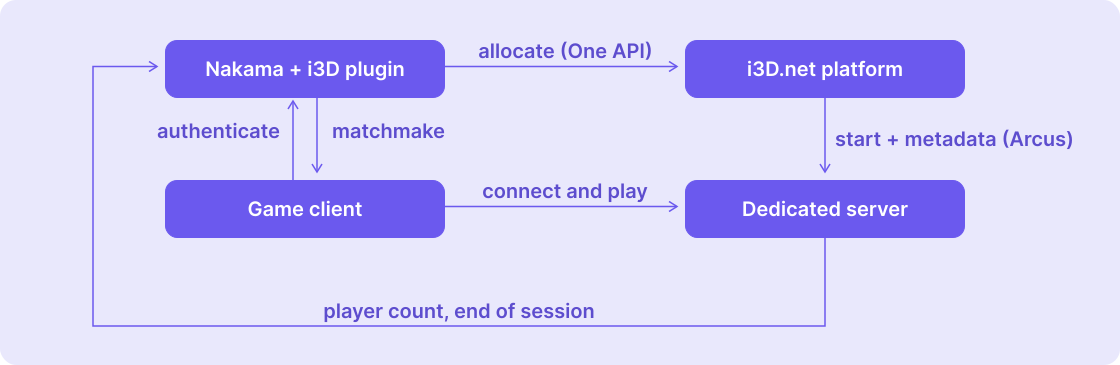
- Nakama, running the i3D plugin, asks i3D.net for a server when players are matched, then tells those players where to connect.
- The i3D.net platform picks a server that’s ready and passes it the match details from Nakama.
- The dedicated server runs the match and keeps Nakama’s record of the session current such as player counts.
- The game client matchmakes through Nakama, then connects straight to the server it’s given.
Connections and credentials #
This integration spans three connections. Each one authenticates with its own credential:
| Connection | Credential | Set up in |
|---|---|---|
| Nakama to the i3D.net One API | i3D.net API token, or OAuth credentials | Authentication setup |
| Headless game server to Nakama’s lifecycle RPCs | Nakama runtime.http_key | Configure Nakama for i3D |
| Player to the dedicated game server | Your game’s own player authentication | Your game |
For patterns that validate a player against Nakama from your dedicated server, see How to interact with Nakama from headless servers.
Install the Nakama i3D plugin #
This guide assumes you already have a Nakama Go runtime project and know how to host a Nakama instance (for example, on Heroic Cloud). The plugin implements Nakama’s Fleet Manager interface for i3D.net and is available as an open source module.
The public module for the plugin is at github.com/i3dnet/nakama-i3d. Add the plugin to your Nakama Go module:
| |
Commit the resulting go.mod and go.sum.
The module path ends in nakama-i3d, but the package is named fleetmanager, so import both packages with explicit names:
| |
Register the fleet manager #
Create and register the fleet manager in InitModule:
| |
Registering the fleet manager also registers the update_instance_info and delete_instance_info lifecycle RPCs, covered in Keep Nakama’s session data current.
The plugin ships a health check handler you can register alongside the others with initializer.RegisterRpc("healthcheck", fleetmanager.RpcHealthCheck). It confirms the handler is alive.
Implement matchmaking #
Handle matchmaker events #
Now let’s allocate a server when players are matched. Here are the main steps:
- Collect the matched user IDs, skipping duplicates.
- Call
Createon the fleet manager with the player count, those users, and your game metadata. A non-error return means the request was accepted. - Handle the outcome in a callback, which fires exactly once. On failure,
instanceisnil. - Notify every matched player with either the connection details or the reason the allocation failed.
| |
The metadata map is your game’s own data, and it travels to the dedicated server with the allocation. Values arrive as strings, so "max_rounds": 3 reaches your server as "3".
On the client, register your notification handler before the player submits a matchmaking ticket:
| Code | Meaning | Client action |
|---|---|---|
9000 | Allocation succeeded | Read InstanceId, IpAddress, and Port, then connect |
9001 | Allocation timed out | Show the outcome and let the player retry matchmaking |
9002 | Allocation failed | Show the outcome and offer a controlled retry |
You define these codes and field names yourself. Nakama’s only rule is that a notification code is a positive number, so 9000 through 9002 and the key names above are this example’s choices. Your client just has to agree with your server.
The callback’s sessions argument goes unused here because the plugin doesn’t issue i3D.net player-session credentials, so every SessionId is empty. Your dedicated server authenticates players itself, as covered in Connections and credentials.
Use allocation filters #
To select a fleet and region, replace the metadata construction in MatchmakerMatched with the following, and add the fleetmanager import to matchmaking.go:
| |
Filters travel in the same map as your game metadata. The plugin strips its own routing keys before the rest reaches your game server, so avoid naming your keys i3dFilters, overwriteApplicationId, or anything prefixed i3d_. For the full set of filter keys and the i3D.net identifiers they expect, see i3D.net’s plugin documentation.
Create a headless game server #
Your dedicated server must implement the Arcus protocol. This section covers what the integration needs. Use your networking library’s docs for gameplay sync (Nakama authoritative matches, NGO, Mirror, etc.).
Arcus keeps state synchronized between your servers and i3D.net:
- Servers report readiness before players connect.
- Metadata (map, mode, etc.) from Nakama is passed to the server during allocation.
- Lifecycle is coordinated through status updates.
Arcus status lifecycle #
Your server drives state transitions so allocation and player joins are coordinated.
| Status | Name | Meaning |
|---|---|---|
| 0 | Inactive | Not participating. |
| 1 | Setup | Preparing environment. |
| 2 | Offline | Deployed but not running. |
| 3 | Starting | Optional. Only used when the build has the startup callback option, for servers that need information from their backend before starting. |
| 4 | Online | Available for allocation or reallocation. |
| 5 | Allocated | Reserved for a session; accept players. |
| 6 | Allocating | Allocation in progress; failed allocs trigger server restart. |
Allocation moves an instance through Online (4), Allocating (6), Allocated (5). See i3D.net’s Game server run status for the full lifecycle.
Unity #
- Download and import the Unity Arcus SDK.
- Initialize Arcus in your server bootstrap scene or script.
Unreal Engine #
- Install the Unreal Arcus plugin.
- Initialize the Arcus subsystem in your server
GameMode/module.
C++ #
- Follow the C++ integration guide and link the Arcus library.
- Initialize the Arcus client during server startup.
Minimal initialization (Unity) #
The allocation handler is where your server reads back the metadata you set in Implement matchmaking. Here "map" arrives with the value MatchmakerMatched sent, and the server loads it:
| |
Use the API that matches your Arcus SDK version. The engine-specific guides above cover the exact callbacks.
Keep Nakama’s session data current #
Your dedicated server calls Nakama directly to keep its session record accurate. It has three jobs: read its instance ID at startup, report player counts as they change, and end the session when the match finishes.
Both RPCs below use Nakama’s HTTP-key path from trusted server code. The credential is the second row in Connections and credentials. For the mechanics of calling Nakama RPCs this way, including a complete implementation, see Server To Server.
Report the player count #
Let’s start with the player count. Call update_instance_info when players connect or disconnect, supplying the current count as an absolute value:
| |
Where the instance ID comes from #
i3D.net passes the ID to your server as a command-line argument. Add -applicationInstanceId VARAPPLICATIONINSTANCEID to the startupParameters on your ApplicationBuild. i3D.net substitutes the real value when it launches a server, so your server parses it from its flags at startup. This is the same ID the plugin returns in the matchmaker callback’s instance info.
See i3D.net’s platform variables page for the full set.
Counts must fall between zero and the stored session capacity. Anything outside that range returns INVALID_ARGUMENT.
Nakama and i3D.net keep separate player counts. This RPC updates Nakama’s, which is what admission decisions are made against. Your server reports i3D.net’s separately through Arcus live state. Send both.
Metadata on this RPC is a patch. See i3D.net’s merge semantics for the full rules.
End a session #
When a match finishes, request a restart through the plugin, exit the process, or reset state and return the instance to Online (4).
To request a restart, which also clears the Nakama session record:
| |
Despite the name, delete_instance_info doesn’t delete anything on i3D.net. It asks for a restart of the application instance and removes the Nakama session record. The restart uses your configured stop method, which defaults to a hard kill, so connected players are dropped. See i3D.net’s application instance documentation for stop methods and restart behaviour.
delete_instance_info for that match later. The instance may already be running the next match, and the restart would kill it.Please note that an instance whose session never ends stays Allocated (5), and neither i3D.net nor the plugin reclaims it.
Configure Nakama for i3D #
Configure the plugin through Nakama’s runtime.env, set in a local.yml file mounted in your Nakama data directory. A minimal configuration looks like this:
| |
I3D_APPLICATION_ID: Your application ID from i3D.netI3D_ACCESS_TOKEN: Your API access token
Everything else has a default. For the full set, including the retry, allocation, and reconciliation timeouts, see i3D.net’s plugin documentation.
Authentication setup #
Basic authentication #
For basic authentication, you only need:
I3D_APPLICATION_ID: Your application ID from i3D.netI3D_ACCESS_TOKEN: Your API access token, sent in thePRIVATE-TOKENheader
M2M OAuth2 authentication #
For enhanced security using OAuth2:
- Set
I3D_USE_BEARER_AUTH=true - Provide your OAuth2 credentials:
I3D_CLIENT_IDI3D_CLIENT_SECRETI3D_AUDIENCEI3D_AUTHENTICATION_URL(the complete token endpoint)
i3D.net issues these credentials. See their plugin documentation for all settings.
Build and load the plugin #
Nakama loads Go runtime code as a compiled plugin, so you build the .so with the plugin builder image and copy it into a Nakama image.
By this point your project root should hold main.go and matchmaking.go, plus the local.yml from Configure Nakama for i3D.
1. Resolve dependencies
| |
2. Write the Dockerfile
| |
COPY *.go ./ picks up every Go file at the project root, so main.go and matchmaking.go both need to be there. Add any further source directories your project needs.
3. Build the image
| |
Start Nakama and check the startup logs for the module loading without error before you test matchmaking.
Get, list, and join sessions #
The matchmaking flow above needs only Create, which allocates the instance and records the matched players against it. The remaining three methods on Nakama’s FleetManager interface cover what comes after that: reconnection, backfill, and server browsers. Retrieve the manager with nk.GetFleetManager().
| Method | Purpose | Reach for it when |
|---|---|---|
Get(ctx, id) | Current provider information for one instance | A player reconnects and needs current connection details |
List(ctx, query, limit, previousCursor) | Provider instances, or Nakama’s stored session index | Building a server browser or searching for backfill candidates |
Join(ctx, id, userIds, metadata) | Request admission to an allocated instance | Adding players to a session that’s already running |
For the implementation contract behind these methods, including List’s two query modes, capacity accounting, and how admissions behave, see i3D.net’s plugin documentation.
Best practices #
Server lifecycle management #
- Exit after game completion. After players leave, exit the server process. i3D.net restarts it with fresh ports for a clean state.
- Validate connections. Use Arcus to ensure players connect only when the server is ready.
Performance optimization #
- Tune retries. Set retry attempts and delays to meet your latency targets.
- Allocate by region. Use region filters to place servers near players.
- Monitor allocation times. Track the plugin’s
i3d_allocation_totalandi3d_allocation_durationmetrics, plusi3d_reconciliation_totalandi3d_reconciliation_durationfor the background cleanup.
Limitations #
- List returns allocated sessions only, never idle capacity. Results are filtered locally, so a page can come back empty while more pages remain.
- Latency-based allocation isn’t automatic.
Createignores itslatenciesargument, so set region filters yourself. - Join admits users only while the stored player count is below capacity. Users who don’t fit are left out of the returned sessions, so a group can be partially admitted.
FAQ #
My game server isn’t receiving metadata from Nakama
Verify your server initializes the Arcus protocol correctly and handles metadata in its allocation handler rather than at startup. Reserved i3d_ keys are stripped before forwarding. Check the Arcus SDK docs for your platform.
Players can’t connect to the allocated server
Verify that:
- The server sets status to Allocated (5) before accepting connections.
- The correct ports are configured in your i3D.net deployment.
- Network rules allow player connections.
The plugin builds but Nakama won’t load it
Almost always a version mismatch. Check that the pluginbuilder tag matches your Nakama tag exactly, and that Go, nakama-common, and protobuf all match the combination in Prerequisites.
How do I handle server crashes?
Let the process exit. Arcus has no error status. The i3D.net orchestrator restarts a crashed server. An exit code other than 0 or 130 counts as a crash and sends a crash report to the i3D.net backend.
After three crashes in a row, the orchestrator no longer restarts that instance. It stays stopped so you can investigate it, until it is removed manually or by the scaler, which removes stopped instances first when scaling down. Players on the crashed server need your client’s reconnect or rematch flow.
Can I reuse servers for multiple sessions?
Yes. Reset the game state and set the status back to Online (4) through Arcus. Nakama keeps the old session until the plugin sees the instance is no longer allocated: a Get for that instance removes it at once, and otherwise reconciliation removes it, usually within about two minutes with the default settings. Until then a filtered List can still return it and Join can still accept players for it, so keep reconciliation enabled. To remove the session immediately, call delete_instance_info instead, which also restarts the instance.
How do I implement region-based matchmaking?
Derive the region yourself and pass it as a region filter when creating a session. Create ignores its latencies argument.
