
Set up built-in Personalizers
This guide explains how to set up Hiro’s built-in Personalizers to enable dynamic, real-time configuration changes without requiring deployments.
Hiro provides two built-in Personalizer implementations:
StoragePersonalizer: Pulls configuration from Nakama storage objects for server-wide changesSatoriPersonalizer: Pulls configuration from Satori Feature Flags for audience targeting, experiments, and live events
You can use either one, both, or extend them by creating your own custom implementation.
Before you start #
Before you set up Hiro’s built-in Personalizers, ensure you have:
- Installed Nakama
- Installed Hiro
- Initialized Hiro systems with at least one configured system (Achievements, Economy, Energy, etc.)
- An active Satori account if you wish to use
SatoriPersonalizer
Set up StoragePersonalizer
#
StoragePersonalizer lets you modify configuration using Nakama storage objects. Changes apply to all players equally, making it useful for balance patches, bug fixes, and manual rollouts.
Register StoragePersonalizer
#
On the server, add StoragePersonalizer after initializing your Hiro systems:
This creates the configuration pipeline: JSON → Storage
Import the storage template #
Hiro provides a pre-configured JSON template that creates storage collections for each Hiro system.
Download the storage template JSON from the Hiro repository.
Open your Nakama Console and navigate to Settings > Data Management.
Upload the JSON file.
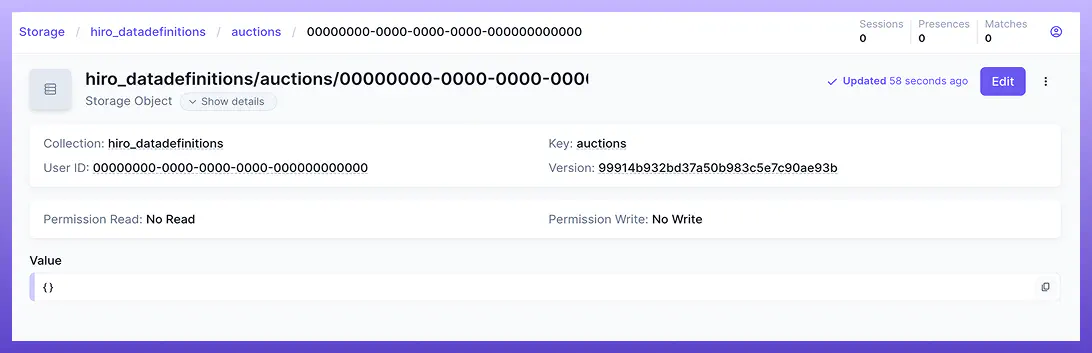
The template creates a storage collection for each Hiro system. You’ll see collections appear in the Storage section of your Nakama Console.
Verify StoragePersonalizer works
#
To verify StoragePersonalizer is working, modify a configuration value in storage and check if it applies to your game.
In your Nakama Console, navigate to Storage.
Find the collection for the Hiro system you want to modify (for example,
hiro_achievements).Create or edit a storage object to override a configuration value. For example, to modify an achievement’s reward:
| |
- This overrides the
first_winachievement’s reward to grant 200 gems instead of the base configuration value.
In your game client, call the relevant Hiro operation (for example,
GetAchievements()).The personalized configuration should reflect your storage changes. If the achievement now grants 200 gems,
StoragePersonalizeris working correctly.
Set up SatoriPersonalizer
#
SatoriPersonalizer lets you modify configuration using Satori Feature Flags. This enables audience targeting, A/B testing, time-limited events, and real-time adjustments based on player behavior. It can also publish gameplay events to Satori, enabling you to track player actions and use that behavioral data for segmentation and targeting.
SatoriPersonalizer requires a Satori instance. Satori is Heroic Labs’ LiveOps platform for managing player engagement, experiments, and personalization.Configure the Satori connection #
Before you can use SatoriPersonalizer, connect your Nakama server to your Satori instance.
Open your Satori Console and navigate to Settings > API Keys.
Copy the API Key Name and API Key values.
Navigate to the Configuration tab in your Satori Console.
Search for
session.signing_keyand copy its value.Open your Nakama server’s
local.ymlconfiguration file.Add the Satori connection settings:
| |
- Restart your Nakama server to apply the configuration changes.
SatoriPersonalizer (dev, QA, production, etc.). Each environment needs its own configuration in the respective Nakama server settings.Register SatoriPersonalizer
#
After configuring the Satori connection, register SatoriPersonalizer in your server code.
Add SatoriPersonalizer after initializing your Hiro systems:
After registering SatoriPersonalizer, you can use Satori Feature Flags to personalize your Hiro configuration. Satori automatically creates Feature Flags for each Hiro system (following the Hiro-[SystemName] naming convention). You just need to enable and edit them with your personalized configuration. For details on working with Feature Flags, see Satori Feature Flags.
Verify SatoriPersonalizer works
#
To verify SatoriPersonalizer is working, check if your Feature Flag configuration applies to your game.
In your game client, call the relevant Hiro operation (for example,
GetAchievements()).The personalized configuration should include your Feature Flag changes. If the new
holiday_championachievement appears in the results,SatoriPersonalizeris working correctly.To test audience targeting, create a Feature Flag with specific audience conditions and verify it only applies to targeted players.
Chain both Personalizers #
You can use both StoragePersonalizer and SatoriPersonalizer together to create layered customizations. This creates a three-layer configuration pipeline: JSON → Storage → Satori.
Register both Personalizers in order:
Example: Layered personalization #
This example shows how chaining Personalizers creates layered customizations:
Base configuration (JSON files):
| |
StoragePersonalizer returns:
| |
SatoriPersonalizer returns (for experimental cohort):
| |
Final result:
- Most players receive 150 gems (JSON + Storage)
- Experimental cohort receives 200 gems (JSON + Storage + Satori)
See also #
- Personalizers: Learn about how Personalizers work and when to use them.
- Publishers: Learn about using Publishers to enrich event data sent by Hiro.
- Satori Feature Flags: Learn about Feature Flags in Satori.
- SatoriPersonalizer source code: Reference implementation for building custom Personalizers.
