
Access control
Heroic Cloud gives you granular control over who can do what, down to individual deployments. The access control system is built around three concepts: principals (teams, users, and service users) define who has access, permission layers define what they can do at each scope, and conflict resolution determines which rule wins when multiple rules overlap.
Principals (teams and users) #
What is a team? #
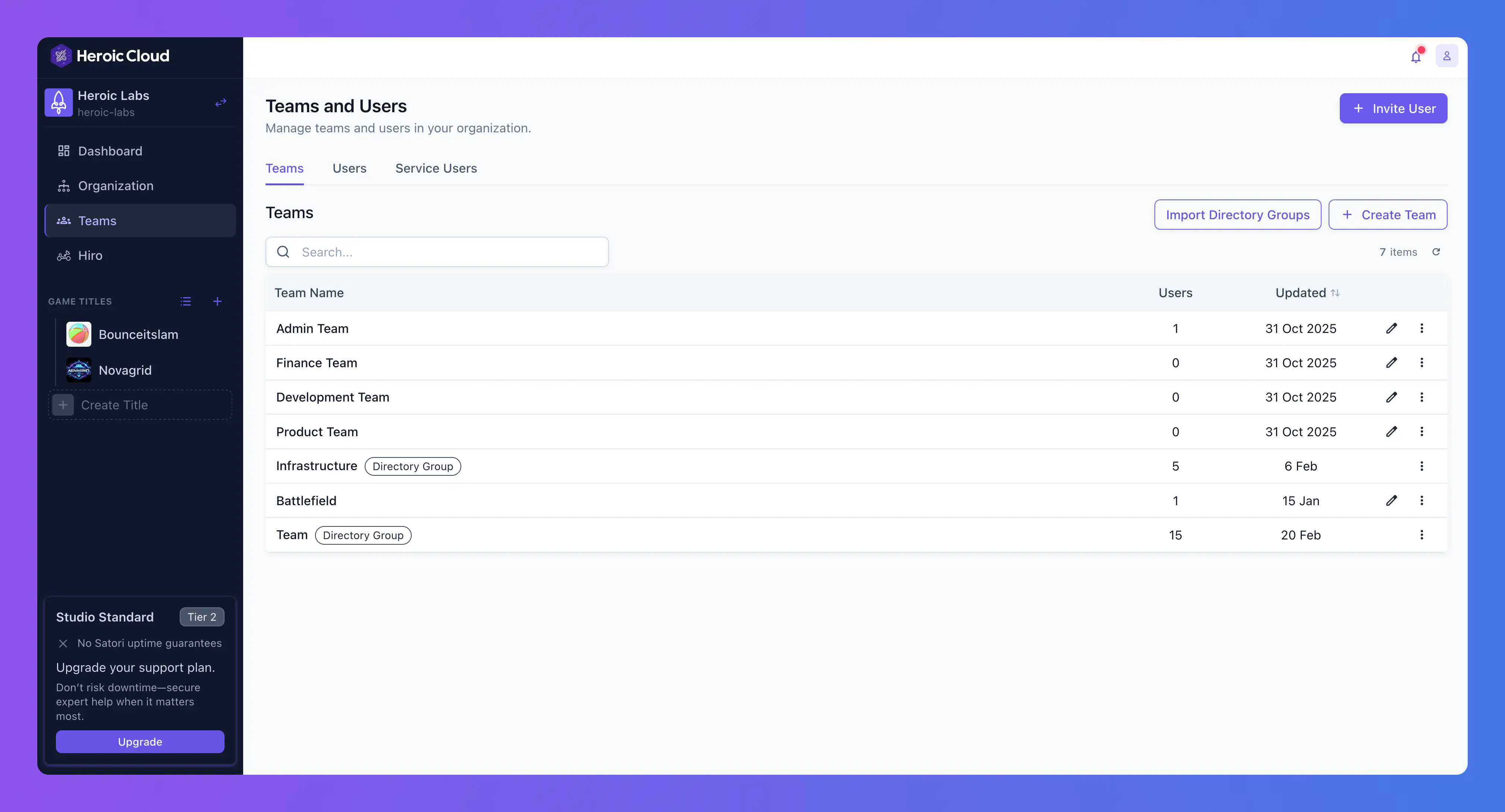
A team is a named group of users who share the same set of permissions. Instead of configuring access for each person individually, you create a team, assign it permissions once, and then add users to it. When a user joins a team, they immediately inherit all of that team’s permissions. When they leave, the permissions are revoked.
Teams solve the day-to-day problem of managing access at scale. Without teams, onboarding a new developer means manually granting permissions to every deployment, builder, and title they need. With teams, you add them to the “Development” team and they’re ready to go.
Create as many teams as you need. Users can belong to multiple teams and inherit all combined permissions. Any organization owner or user with the Create Teams permission can create a team.
Common team patterns #
Two typical approaches to structuring teams:
Function-centric teams organize access by role. Each team represents a function within the studio and has limited, role-appropriate permissions across all resources. This is the most common pattern.
- Admin team with full permissions across all titles and resources. Keep this small, typically just studio leads and infrastructure engineers.
- Development team with View and Edit on all instances, Deploy on dev and QA, and no Scale or Delete on production. Developers can do their work without risking production stability.
- Read-only team with View permissions only. Useful for producers, stakeholders, or external partners who need dashboard visibility without the ability to change anything.
- QA team with View and Deploy on QA instances. QA engineers can trigger deploys to their environment but can’t touch development or production.
- Finance team with View Billing and View Details at the organization level. Finance staff can see usage and invoices without access to any game resources.
Game-centric teams organize access by title. Each team has basic View access across one or more specific titles, and then individual users within the team receive additional permissions (Edit, Deploy, Scale) on the resources they are responsible for. This pattern works well for studios with multiple games managed by largely independent teams.
Mix both approaches. Some studios use function-centric teams for shared roles (Admin, Finance, Read-only) and game-centric teams for the development staff working on specific titles.
Users #
A user is an individual account in your organization. Users get permissions in two ways: through team membership (the recommended approach), and through direct permission grants on their user record.
Direct permissions are useful for one-off exceptions, like giving a single contractor access to a specific deployment without creating a team for them. For ongoing access, prefer teams.
Service users #
Service users are API-only accounts designed for automation. They don’t have passwords or SSO logins. Instead, each service user has a Secret token that can be revealed and rotated from the dashboard.
Use service users for CI/CD pipelines, deployment scripts, or any programmatic access to Heroic Cloud. Service users follow the same permission model as regular users—scope their access as precisely as needed. However, some operations that only make sense in an interactive context aren’t available to service users.
A CI/CD service user typically needs only Trigger permission on the relevant builder, following the principle of least privilege.
See the CI/CD guide for a practical example of setting up a service user for GitHub Actions.
Importing teams from your identity provider #
If your organization uses enterprise SSO with directory sync (SCIM), import groups from your identity provider (for example, Okta, Azure AD) as Heroic Cloud teams. Assign permissions to the imported team, and any user in that directory group automatically inherits those permissions when they sign in.
Manage all Heroic Cloud access from your identity provider. Adding someone to your “Game Backend” group in Active Directory gives them the right Heroic Cloud permissions without any manual setup. See Enterprise SSO and directory sync for details.
Permission layers #
Permissions define what a principal can do, and are set at three layers, from broadest to most specific. Think of it as starting wide and narrowing down: organization-level permissions set the baseline, title-level permissions adjust per game, and resource-level permissions handle individual exceptions.
Organization level #
Organization-level permissions apply to every title and every resource in the organization. This is where you set baselines.
When you assign a team permissions at the organization level, those permissions apply everywhere unless overridden at a lower level. For example, granting your development team View and Edit at the organization level means they can see and modify every Nakama deployment, every builder, and every Satori instance across all of your games.
Title level #
Each title has its own permission block that can override the organization defaults. Use this layer when different games need different access rules. For example, if your studio has two games managed by separate teams, you can grant each team access only to their game’s title.
Title-level permissions include a Default row for each resource type (Nakama, Builder, Satori). The Default row automatically applies to any new instance created in that title. Configure permissions once—every future deployment in that title inherits them without manual setup.
Below the Default row, each existing instance can have its own overrides, which leads to the most specific layer.
Resource level #
Each individual Nakama deployment, builder, and Satori deployment has its own permissions scope. This is the most granular level, designed for exceptions.
The most common use of resource-level permissions is locking down production. Your development team might have broad access at the organization level, but on your production Nakama deployment, you add a resource-level override that restricts Deploy to a smaller release engineering group.
Organization-level permissions #
In addition to the resource-centric permissions above, organization-level permissions control platform-wide actions not tied to any specific title or resource. These include managing users, teams, service users, billing, and audit access.
Conflict resolution #
When a principal has permissions from multiple sources, the system needs a way to decide which rule wins. Two principles apply, in order.
Most specific wins #
A resource-level permission overrides a title-level permission, which overrides an organization-level permission. This is what makes the layered system practical. You set broad, generous defaults at the organization level and add targeted restrictions where needed, confident that the specific rule always takes priority.
Deny overrides allow #
If any applicable rule denies a permission, it’s denied regardless of other rules that allow it. Restricted access is always preferred over open access for safety. Grant broad access and layer on restrictions with confidence—a deny at any level is final.
How it works in practice #
Your development team has organization-level Edit and Deploy permissions for all Nakama instances. On your production Nakama deployment, you add a resource-level override that denies Deploy for the development team.
Result: the development team can deploy to dev and QA instances (organization-level allow applies), but can’t deploy to production (resource-level deny overrides the organization-level allow). The most specific rule wins, and the deny is final.
This pattern is the foundation of most access control setups: start broad, restrict where it matters.
See also #
- Enterprise SSO and directory sync for importing teams from your identity provider.
- Organizations for the ownership model and organization owners.
- CI/CD guide for a practical service user example.
